

A formula can look perfectly valid and still produce the wrong answer. That is the real risk in Excel: not typing a function incorrectly, but quietly applying the wrong range, criterion, date boundary, or lookup rule across an entire report.
An Excel formula generator can speed up the hard part: translating a business request into a formula you can use, understand, and verify. Used well, it helps with everything from a simple conditional total to an inherited workbook full of nested logic. Used carelessly, it simply produces errors faster.
What an Excel Formula Generator Does - and When to Use One
An AI Excel formula generator is a natural-language assistant that creates, explains, and corrects spreadsheet formulas. Instead of remembering the exact syntax for functions such as XLOOKUP, SUMIFS, FILTER, or NETWORKDAYS, you describe the outcome you need and provide the relevant worksheet context.
Yes, AI can create Excel formulas. It can often create them quickly, especially when the request includes column names, conditions, expected output, and Excel version. But it cannot independently confirm that your source data is clean, your selected range is complete, or your commission policy has been interpreted correctly. Those are business and workbook decisions that still require your review.
Use an Excel formula generator when you need to translate a clear requirement into syntax, understand a formula someone else wrote, troubleshoot an error, or find a modern alternative to an older approach. It is less useful for arithmetic so simple that AutoSum or a direct cell reference is clearer.
Quick start: describe the outcome, add context, test the result
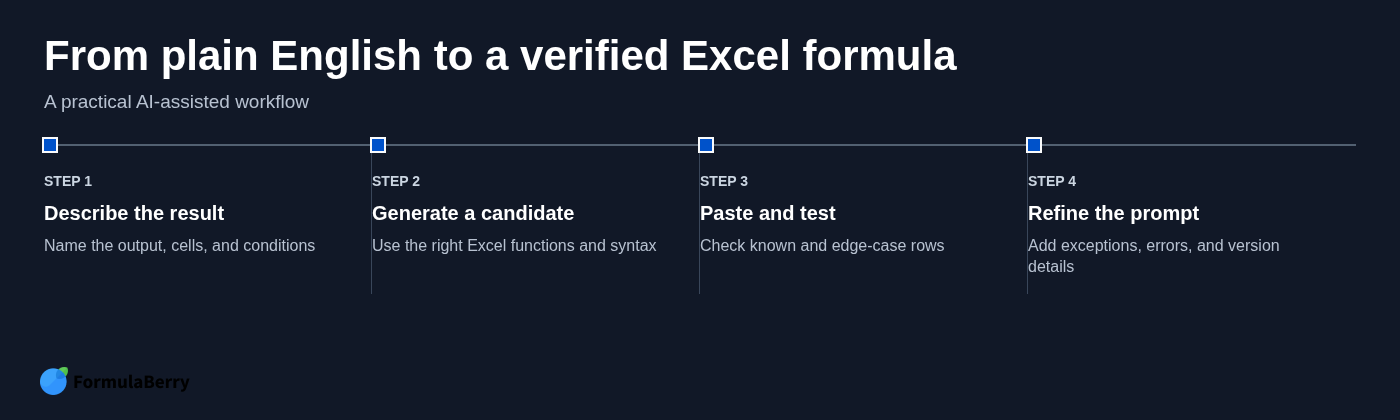
A dependable workflow has three steps:
- State the desired result. Say what should appear in the result cell.
- Add data context. Name the columns, ranges, conditions, and exceptions.
- Test the result. Use rows where you already know the expected answer, including awkward edge cases.
Ask, "In D2, return 'Overdue' when C2 is before today and B2 is not blank; otherwise return blank." That is far more useful than asking, "Make an overdue formula." Include whether you will fill the formula down, copy it across, or expect it to spill into multiple cells.
What to Include in a Strong Formula Request
The quality of a generated formula depends heavily on the quality of the request. A formula assistant does not need your entire workbook, but it does need enough context to distinguish a lookup from a total, a blank from a zero, and an exact match from a partial match.
A useful request normally includes the starting cell, headers or ranges, the calculation you want, criteria, expected error behavior, relevant formats, and your Excel version. If dates are involved, state how the dates are stored and whether endpoints should be included.
Compare these two requests:
Underspecified: "Calculate monthly sales for active customers."
Complete: "In H2, total the Amount column for rows where Status is Active and Order Date falls in the calendar month named in G1. The data is in an Excel Table named Orders. Return 0 if there are no matching rows. I am using Excel for Microsoft 365."
The second request leaves far less room for a formula that is technically valid but operationally wrong.
Specify the data layout and calculation target
Explain whether your data uses ordinary cell ranges or an Excel Table. Tables use structured references such as Orders[Amount], which are easier to read and automatically expand when new rows are added. A traditional range such as $C$2:$C$500 may be appropriate for a fixed report, but it needs careful anchoring when copied.
Also state how the formula will be used. A formula in D2 that will be filled down needs relative row references. A formula copied across months may need mixed references such as $A2 or B$1. A one-time dashboard formula may need fully absolute references.
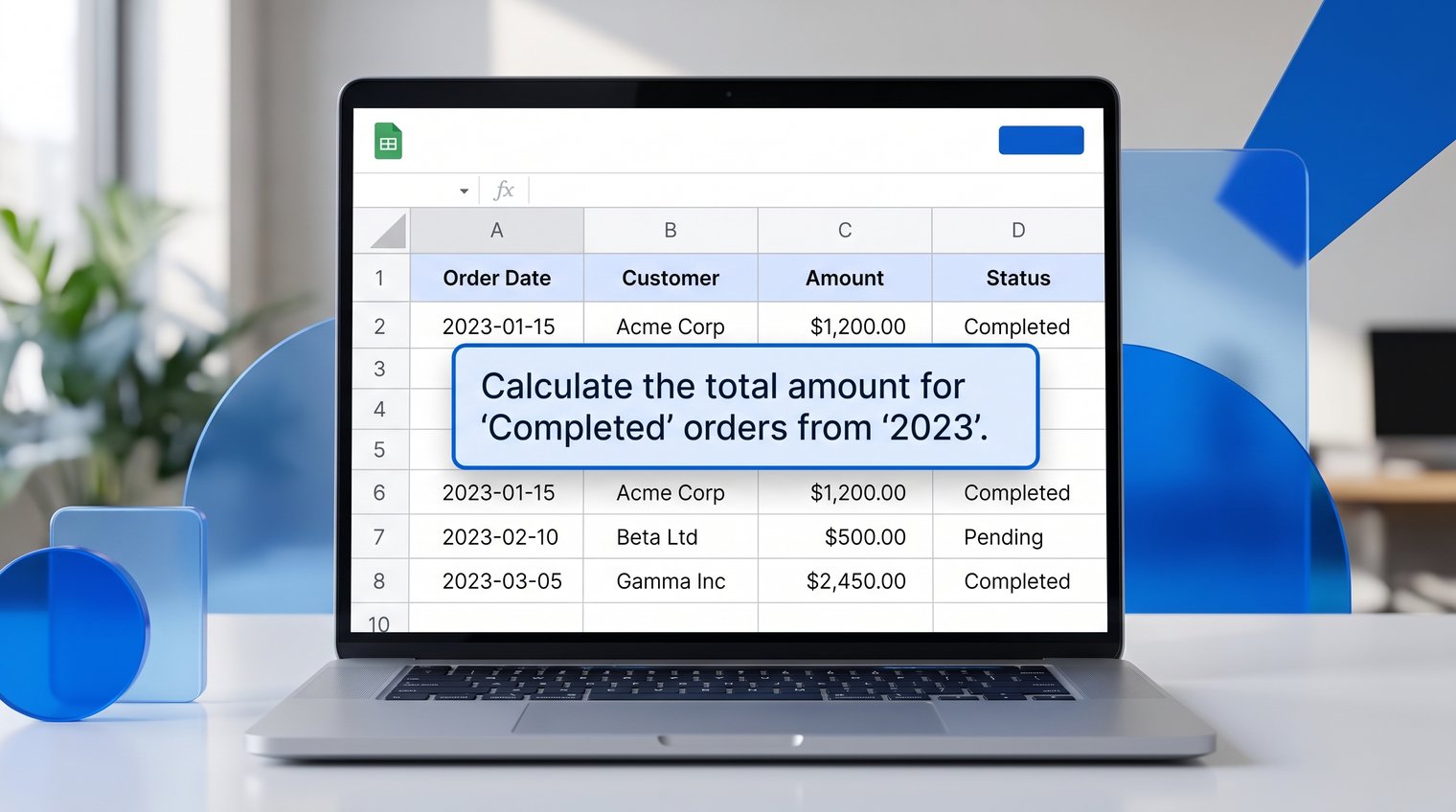
A small anonymized sample is usually more helpful than a long verbal description. For example, provide headers and a few rows: Order Date, Customer, Amount, Status, along with two or three expected outputs. That lets the request reflect the actual shape of the sheet.
State edge cases before the formula is written
Most formula failures happen in the exceptions nobody mentioned. Tell the assistant what should happen when a lookup is missing, a source cell is blank, revenue is zero, duplicate records exist, or a date lies in the future.
Those choices materially change the formula. A missing lookup might return a blank, zero, "Not found," or an error that should remain visible for investigation. A divide-by-zero condition might return blank, but it may be better to fix the denominator issue rather than suppress it with IFERROR.
Text stored as numbers is another common trap. If account codes include leading zeros, converting them to numbers can damage the value. Say whether the data should be treated as text, number, date, or a code.
Generate Excel Formulas from Natural-Language Requests
An Excel formula generator online is most useful when it follows a repeatable request-to-formula process, not when it merely returns a string of syntax. Some services may offer free access tiers, but evaluate formula help by whether it handles context well and explains why the result works.
Start with the smallest formula that fully meets the requirement. Once that is correct, add exceptions, compatibility needs, and more complicated conditions. Starting with a massive nested formula makes errors harder to find and easier to hide.
Start with the simplest correct formula
Suppose you need to label an invoice as paid or unpaid based on the Status column. A direct request might be: "In E2, return 'Paid' if D2 equals Paid; otherwise return 'Unpaid'." The appropriate pattern is an IF formula:
=IF(D2="Paid","Paid","Unpaid")
For a conditional total, SUMIFS is often the right starting point. If Amount is in column C and Status is in column D, "Total amounts where status is Paid" becomes:
=SUMIFS(C:C,D:D,"Paid")
Before rolling out the formula, confirm the list separator used by your regional Excel settings. Some installations use semicolons instead of commas. Also confirm that your status values do not contain variations such as "paid," "PAID," or trailing spaces from imported data.
Build multi-condition and multi-step logic
Natural-language requests become much more reliable when conditions are stated as separate rules. For example: "Total approved orders for the North region, dated from the first day of the month in H1 through the last day of that month, excluding blank amounts."
That request signals a multi-criteria SUMIFS formula with a date window. A candidate using ordinary ranges could look like this:
=SUMIFS($D$2:$D$1000,$B$2:$B$1000,"North",$C$2:$C$1000,"Approved",$A$2:$A$1000,">="&EOMONTH($H$1,-1)+1,$A$2:$A$1000,"
The important part is not memorizing that formula. It is recognizing the components: amount range, region criterion, status criterion, start date, end date, and a nonblank amount requirement. If the desired behavior changes, adjust the rule rather than guessing where to edit the syntax.
Generate dynamic-array formulas when one formula should spill
Current Microsoft 365 versions of Excel support dynamic arrays. A dynamic-array formula returns a range of results from one cell and "spills" into nearby cells automatically. FILTER, UNIQUE, SORT, and SEQUENCE are common examples.
For example, "List unique active customers from the Customers table in alphabetical order" may call for a combination of FILTER, UNIQUE, and SORT. Be explicit that you want a spilling result and identify where it will be placed. The cells below and beside the formula must be empty, or Excel will return #SPILL!.
State if the workbook must work in older Excel versions. Dynamic arrays and functions such as FILTER are not available everywhere, and a legacy-compatible alternative may require helper columns, PivotTables, or a different formula design.
FormulaBerry
FormulaBerry is designed for the practical formula tasks that stop spreadsheet work in its tracks: generating a custom formula from a plain-English request, explaining complicated existing formulas, and helping correct formulas that are not behaving as expected. It supports Microsoft Excel and Google Sheets, with requests accepted in multiple languages.
Its strongest fit is for individual users, small businesses, and report builders who need formula help without turning to code or a general-purpose chatbot. Give it a specific request with headers, ranges, criteria, and expected behavior, then use its explanation to review the returned formula before putting it into a live workbook.
The important limitation is scope: FormulaBerry is a formula assistant, not a replacement for Excel, a business intelligence system, or an automated analysis platform. It can propose and explain formula logic, but you still need to validate the workbook's data and rules.
Formula Patterns Worth Generating Instead of Writing from Scratch
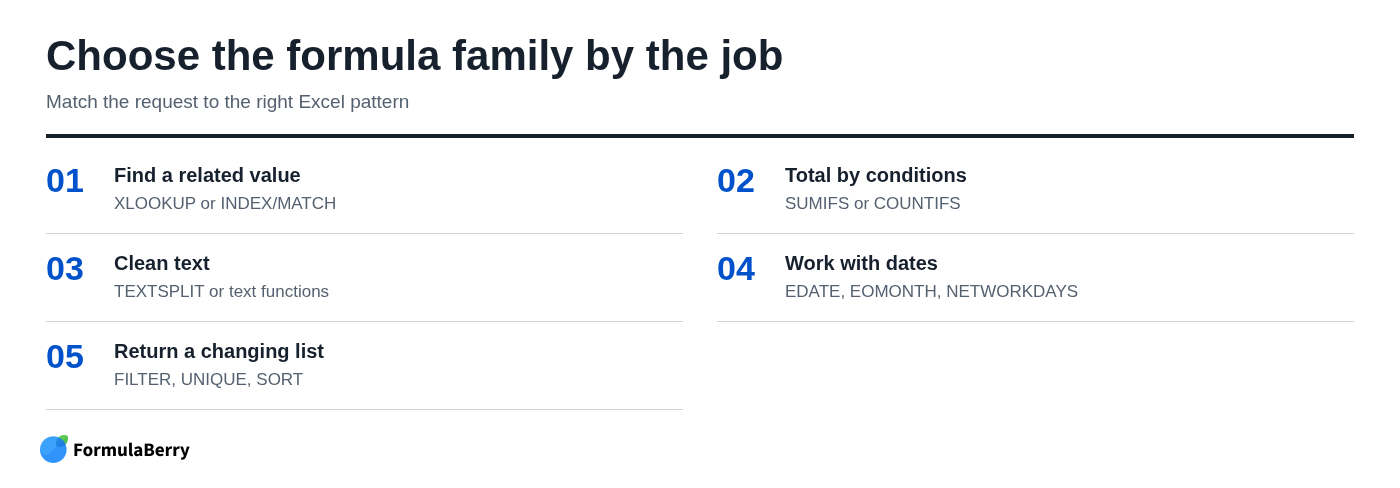
Most formula requests fall into a few recognizable job types. Identifying the pattern first makes it easier to ask for the right formula and easier to spot an answer that does not match the underlying task.
Lookups and matching: XLOOKUP, INDEX/MATCH, and multiple criteria
XLOOKUP is the clearest default for many modern Excel lookup tasks. It can look left or right, specify a missing-value result, and perform exact matching without the limitations associated with older VLOOKUP setups.
Ask for the match behavior explicitly: first exact match, last match, approximate match, or a custom message when no result exists. For example: "Return the product price for the first exact Product ID match; show 'Missing ID' if no match exists."
INDEX/MATCH remains useful for older Excel compatibility and in workbooks where it is already the established pattern. For a multiple-criteria lookup, tell the assistant every matching field, such as Customer ID plus Month, and whether duplicates should return the first record, the last record, or trigger a warning.
Conditional calculations: IF, IFS, SUMIFS, COUNTIFS, and AVERAGEIFS
Use IF or IFS when the output is a label, category, or decision. For example, an account might be "High Risk" when the balance exceeds a threshold and the payment is overdue.
Use SUMIFS, COUNTIFS, or AVERAGEIFS when the goal is an aggregate across many rows. SUMIFS adds matching amounts, COUNTIFS counts matching records, and AVERAGEIFS averages matching numeric values. The distinction matters: "Is this order approved?" is an IF question; "How many approved orders were placed this month?" is a COUNTIFS question.
When several conditions apply, describe whether all conditions must be true or whether any one of several conditions is enough. Excel handles AND and OR logic differently, and that difference should never be left to assumption.
Text cleanup and extraction: TEXTBEFORE, TEXTAFTER, TEXTSPLIT, and legacy alternatives
Text formulas are often needed after exporting data from another system. Describe the delimiter, the messiness of the input, and the exact output you want. "Return the text before the first hyphen, remove leading and trailing spaces, and convert it to uppercase" is a strong request.
In current Excel, TEXTBEFORE, TEXTAFTER, and TEXTSPLIT make many extraction jobs far clearer than long combinations of LEFT, RIGHT, MID, FIND, and LEN. Older Excel versions may need those legacy functions, so request a compatible alternative when necessary.
Also mention whether the delimiter can occur more than once, whether spacing is inconsistent, and whether case matters. These details determine whether a formula works only on clean examples or on the data you actually have.
Dates, working days, and aging calculations
Date formulas often fail because the business rule was never fully defined. Ask whether the start and end dates are inclusive, what happens with future dates, and whether weekends or holidays should count.
EDATE moves a date by whole months, EOMONTH finds the end of a month, NETWORKDAYS counts working days, and TODAY supplies the current date. A receivables aging formula may need different output bands for 0-30, 31-60, 61-90, and over 90 days, but the exact boundary comparisons must be confirmed.
Make sure dates are genuine Excel date values rather than text that merely looks like a date. A value such as 04/05/2026 can also be ambiguous across locales, so use an unambiguous format or explain the regional convention.
Use AI to Explain an Existing Excel Formula
Formula generation gets attention, but explanation is often more valuable in real workbooks. You may inherit a report with a formula that works most of the time, yet nobody can explain the assumptions embedded in it.
Ask for a plain-English explanation plus a breakdown of references, criteria, intermediate steps, and final output. That makes the formula reviewable instead of merely copyable.
Ask for a line-by-line explanation of nested logic
For a long nested formula, request an inside-out explanation. Ask what each function does, what each referenced range represents, how every criterion is evaluated, and what happens when a match is missing or a source value is blank.
Also ask the assistant to identify hard-coded values, volatile functions, and hidden assumptions. A formula containing 0.15 may be using a commission rate that should live in a clearly labeled input cell. A formula using TODAY can change its output every day, which may be intentional or may undermine a historical report.
Turn an opaque formula into maintainable logic
A rewrite should improve readability without silently changing the business rule. LET can name intermediate calculations within one formula, while named ranges and helper columns can make complex models easier for a teammate to audit.
For example, instead of repeating the same lookup three times inside a nested IF, a LET formula can calculate it once, assign it a meaningful name, and reuse it. That reduces repetition and makes later changes safer. As covered in the section on advanced formulas, readability is often a better goal than the shortest possible formula.
Use an AI Formula Checker to Find and Fix Errors
An Excel formula checker online can be useful for reviewing syntax, references, criteria, and possible corrected alternatives. It can help identify why Excel is returning an error, but it cannot verify a business rule that you never stated.
If a formula says every order over $10,000 earns a premium rate, a checker can inspect the comparison and ranges. It cannot know whether the policy actually applies at $10,000 or only above it unless you provide that rule.
Diagnose common Excel error messages
| Error | Common cause | Useful information to provide |
|---|---|---|
| #N/A | A lookup did not find a match | Lookup value, lookup range, match type, and expected missing-value behavior |
| #VALUE! | Wrong data type or incompatible argument | Sample values, data types, and the complete formula |
| #REF! | Deleted or invalid reference | Formula location and which rows, columns, or sheets changed |
| #DIV/0! | Division by zero or blank denominator | Expected behavior when the denominator is zero or blank |
| #NAME? | Misspelled function, name, or unsupported function | Excel version and regional syntax details |
| #SPILL! | Dynamic-array output is blocked | Formula cell, intended output range, and nearby occupied cells |
Do not automatically wrap every formula in IFERROR. That can conceal a broken reference, missing record, or data-quality problem that deserves attention. Handle expected errors deliberately; investigate unexpected errors before hiding them.
Check references, criteria, and copy behavior
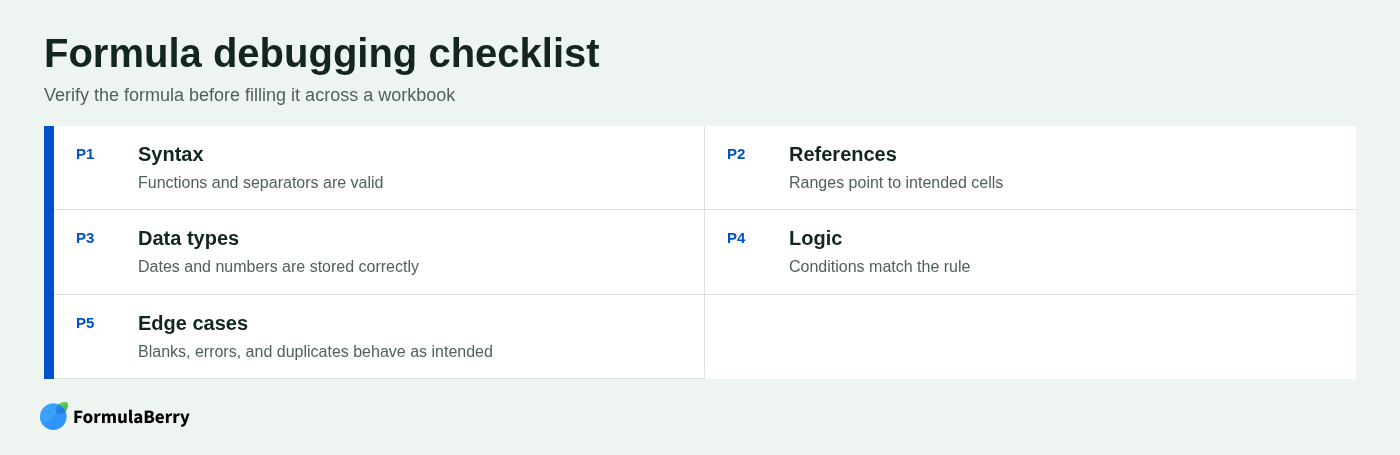
Review whether ranges point where you think they point. A formula can work in the first row and fail after being filled down because a reference that should have been fixed moved with the formula.
Check absolute references such as $A$1, mixed references such as $A2 and A$2, and relative references such as A2. Then check for text-versus-number mismatches, unwanted wildcard characters, extra spaces, and inconsistent criteria spelling.
Finally, verify the intended use: fill down, copy across, or spill. These are not interchangeable behaviors, and each requires a different reference design.
Test logic with a small truth table
A truth table is a compact validation sheet that compares representative inputs with the result the rule should produce. It turns formula review into a repeatable process rather than a quick visual scan.
| Test case | Expected result | Actual result | Pass? |
|---|---|---|---|
| Valid matching record | Return matching value | Check after entry | Yes/No |
| Missing lookup | Blank or custom message | Check after entry | Yes/No |
| Boundary amount | Correct tier or category | Check after entry | Yes/No |
| Blank source value | Defined blank/error behavior | Check after entry | Yes/No |
Include normal records, boundaries, and deliberately bad inputs. A formula that passes only the easy case is not ready to fill across thousands of rows.
Worked Example: Build, Explain, and Validate a Sales Commission Formula
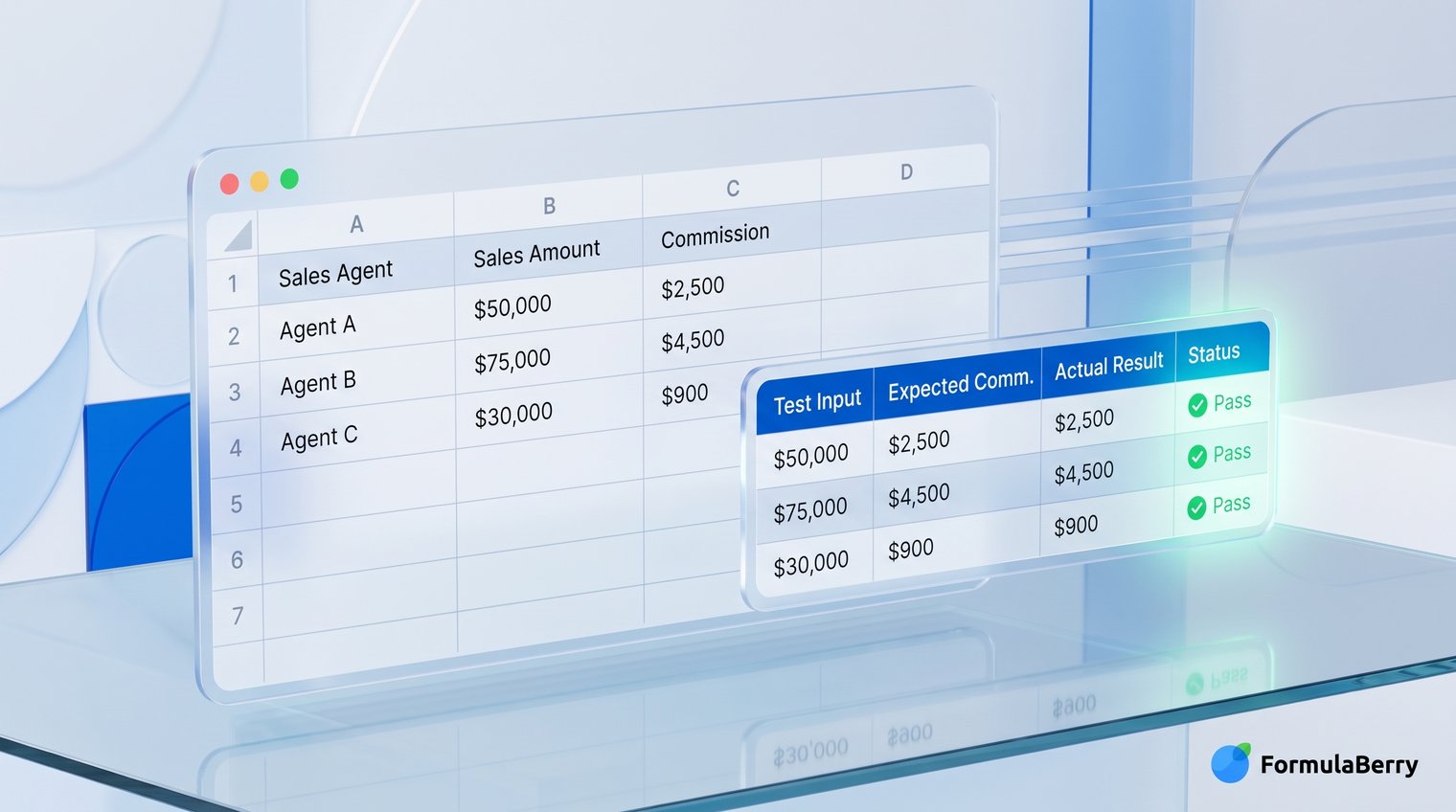
Consider a sales commission worksheet with these columns: Rep, Closed Date, Revenue, Status, and Commission Rate. The task is to calculate the commission for each row without paying commission on incomplete, cancelled, or ineligible deals.
Define the rule and data assumptions
Assume the rule is: a deal earns commission only when Status is "Closed Won," Closed Date is not blank, and Revenue is greater than zero. Deals below $10,000 earn 5%; deals of $10,000 or more earn 8%. If the revenue cell is blank, return blank. If the date is invalid or the status does not qualify, return 0.
Before automating this, confirm the actual policy with the workbook owner. Does a $10,000 deal earn 5% or 8%? Is the date required to be in the current month? Is the rate determined by the deal amount or by a rep-specific lookup table? These decisions cannot be inferred safely.
Draft the formula and inspect each decision point
Suppose Revenue is in C2, Status is in D2, and Closed Date is in B2. A clear candidate formula is:
=IF(C2="","",IF(OR(D2<>"Closed Won",B2=""),0,IF(C2>=10000,C2*8%,C2*5%)))
Read it in stages. First, a blank revenue cell stays blank. Next, a deal that is not Closed Won, or has no close date, receives zero. Finally, eligible deals receive 8% at $10,000 and above, otherwise 5%.
If this formula grows to include rep-specific rates, product exclusions, and calendar periods, it may be clearer to use LET or helper columns. One helper column could determine eligibility, another could determine rate, and the final column could multiply revenue by the rate. That is usually easier to audit than one enormous nested formula.
Validate normal, boundary, and failure cases
| Revenue | Status | Closed Date | Expected commission |
|---|---|---|---|
| 8,000 | Closed Won | Valid date | 400 |
| 10,000 | Closed Won | Valid date | 800 |
| 12,000 | Proposal | Valid date | 0 |
| Blank | Closed Won | Valid date | Blank |
| 12,000 | Closed Won | Blank | 0 |
| Text instead of date | Closed Won | Invalid date value | Confirm required behavior |
The exact-threshold row is especially important. It catches the common off-by-one mistake of using > when the policy requires >=. The invalid-date row exposes another important choice: whether the formula should reject bad data visibly or simply apply the zero result.
Advanced Excel Formula Generation: Modern Functions and Reusable Models
Once the basic formula is correct, the next goal is a model that remains understandable as the workbook changes. Modern Excel functions can make that easier, but compatibility matters. Many of these features require Excel for Microsoft 365.
Use LET and LAMBDA to make complex logic readable
LET lets you name intermediate values inside a formula. Rather than repeating the same calculation or lookup several times, you calculate it once and give it a name. This can improve both readability and performance in a long formula.
LAMBDA lets advanced users define a reusable custom function without VBA. It is helpful when the same business logic is needed throughout a workbook. Ask for readable variable names and an explanation of each named step, not merely the shortest possible answer.
A good request might say: "Use LET to name the revenue, eligibility result, and commission rate. Keep the formula readable and explain each variable. Excel for Microsoft 365 only." That gives the assistant clear design priorities.
Generate formulas for Excel Tables and structured references
Excel Tables are often the best foundation for formula-driven reports because references use meaningful column names and formulas extend automatically as rows are added. A formula such as =[@Revenue]*[@[Commission Rate]] is easier to understand than a collection of ordinary cell references.
When requesting a formula for a Table, provide the table name and exact column headers. For example: "In the Orders table, calculate Net Amount from Gross Amount, Discount, and Tax columns." That prevents incorrect assumptions about where the data lives.
Design formulas that scale without recalculating unnecessarily
For small spreadsheets, clarity should come first. For large workbooks, formula design can affect recalculation time. Avoid unnecessarily broad references, repeated expensive calculations, and volatile functions used thousands of times when a more targeted design is available.
Full-column references are convenient, but they are not always ideal in complex models. Repeating the same XLOOKUP inside several branches of a nested formula is another opportunity for LET or helper columns. Optimize only when workbook size or speed actually creates a problem.
Excel Formula Generator vs. Manual Excel Features
An AI formula assistant is one option in a broader Excel toolkit. The right choice depends on the complexity of the task, how much explanation you need, the sensitivity of the workbook, and whether the result must be maintained by others.
When to use an AI formula assistant
Use an assistant when you have a detailed requirement but do not know the formula syntax, when you need to interpret unfamiliar logic, or when an existing formula needs troubleshooting. It is also useful for exploring a modern alternative, such as replacing a complicated INDEX/MATCH setup with XLOOKUP where compatibility allows.
Do not share sensitive customer, payroll, financial, or proprietary workbook data unless your organization approves the tool and workflow. In many cases, anonymized headers and representative sample values are enough to generate the right formula.
When Excel's built-in tools are enough
AutoSum is excellent for obvious totals. Insert Function can help you discover a function and its arguments. Formula Auditing tools, including Trace Precedents, Trace Dependents, and Evaluate Formula, are valuable when reviewing what a formula already does.
Flash Fill can quickly recognize a text pattern, such as separating first and last names, but it does not create formulas. That distinction matters: Flash Fill may produce static output that will not update when the source data changes.
When Power Query, PivotTables, or a helper column are better
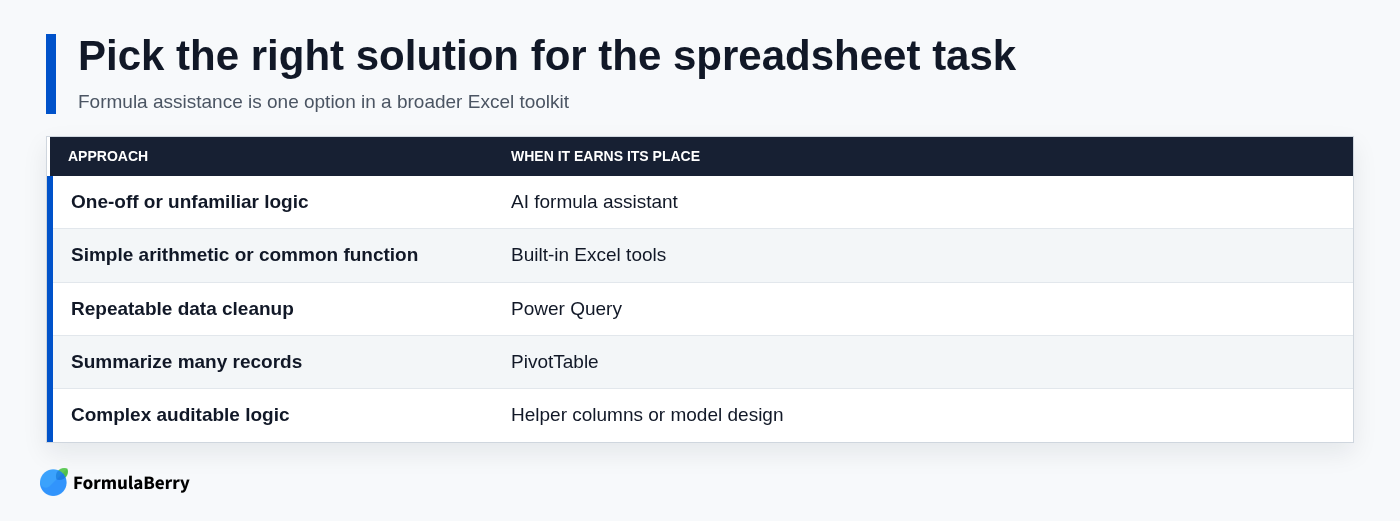
Not every spreadsheet problem should be forced into a single formula. Power Query is often better for repeatable data cleanup and imports. PivotTables are better for summarizing many records by category, date, or owner. Helper columns are frequently better for multi-stage calculations that need to be audited and handed off.
Choose the simplest maintainable solution. A one-off lookup may belong in a formula. A recurring monthly data transformation may belong in Power Query. A complicated pricing model may need clear input, calculation, and output columns rather than one cell containing 400 characters of logic.
Use the Same Prompting Method for Google Sheets Formulas
The same request method works for a Google Sheets formula generator: define the result, identify the data layout, state conditions and edge cases, then test representative rows. Many core concepts and functions overlap with Excel, but syntax and feature availability are not always identical.
Google Sheets has its own strengths, including functions such as QUERY and ARRAYFORMULA, while current Excel has its own dynamic-array behavior and modern function set. Do not assume that a formula which looks similar will behave identically in both platforms.
State the spreadsheet platform and version up front
Start the request with the platform: "Excel for Microsoft 365," "Excel 2019," or "Google Sheets." This immediately affects which functions are available and whether a dynamic-array formula is appropriate.
Also mention separators, locale requirements, and platform-specific functions. Even when the generated syntax appears correct, test it in the exact spreadsheet environment where it will be used.
Common Mistakes That Make Generated Formulas Unreliable
Generated formulas become unreliable less because of AI and more because of rushed implementation. A few habits prevent the most expensive spreadsheet mistakes.
Accepting a formula without checking representative rows
A formula can produce plausible numbers while applying the wrong rule. Test records you know are correct, boundary amounts, missing values, duplicates, and intentionally invalid inputs before filling the formula across a large dataset.
As the commission example showed, a single row at the exact threshold can reveal a rule error that hundreds of ordinary rows will not expose.
Requesting a formula without stating compatibility needs
XLOOKUP, FILTER, LET, and dynamic arrays are not universally available. Regional settings can also change argument separators, and localized installations may use localized function names. State your version and ask for a legacy-compatible alternative if the workbook must work in older Excel.
Compatibility is not a cosmetic detail. A formula that works on your laptop but fails for a colleague can disrupt a shared report at exactly the wrong time.
Overloading one formula when a clearer model is available
A giant formula may feel efficient because it occupies one cell, but it can be difficult to audit, update, and explain. Helper columns, named ranges, Excel Tables, or Power Query often make a workbook more durable.
This becomes especially important when thresholds, statuses, source columns, or business rules change. A clear model lets the next person update one visible part of the workbook instead of reverse-engineering a nested formula under deadline pressure.
A Reliable Workflow for Faster, Safer Excel Formulas
Use formula generation as a disciplined workflow: define the business rule, provide real worksheet context, generate a candidate, ask for an explanation, validate normal and edge cases, then document the final formula and its assumptions.
That process is faster than writing every formula from memory, but it still protects the part that matters most: whether the result is right for your workbook. For natural-language formula generation, explanation, and formula correction, FormulaBerry can be a practical part of that workflow.