

A formula that looks right can still quietly break a report. It may reference the wrong row, treat numbers as text, or rely on an Excel function your version does not support. That is why the best Excel formula generator is not simply the one that produces a long formula fastest.
The useful tools help you translate a business rule into a formula, understand what it does, and fix it when real spreadsheet data exposes a problem. Here is how the leading options compare, and how to choose one without handing over more workbook data than necessary.
What makes the best Excel formula generator?
A good formula generator should do more than turn a sentence into an expression. It should produce accurate formulas, cover the Excel functions you actually use, explain its reasoning in plain English, and help diagnose a formula that is already failing. For a closer look at that workflow, see this Excel Formula Generator guide.
For most spreadsheet users, the practical criteria are straightforward:
- Formula accuracy: Does the output match the rule you described, including exceptions?
- Function coverage: Can it handle lookups, conditional logic, date calculations, text cleanup, dynamic arrays, and newer Excel functions where appropriate?
- Explanation quality: Can you understand a nested formula well enough to maintain it later?
- Correction help: Can it identify likely causes of errors such as #N/A, #VALUE!, or incorrect results?
- Workbook context: Does the tool work from the details you provide, or can it use information from the workbook itself?
- Privacy and access: What data do you need to paste or permit the tool to access, and does that fit your organization's policy?
- Price and friction: Is there a useful free option, a sign-up requirement, or a paid plan that makes sense for the frequency of use?
Even the best AI formula generator cannot validate your business logic automatically. Always check formulas against your actual ranges, data types, regional settings, and Excel version. A formula using commas may need semicolons in some locales, and a dynamic-array function may not work in an older installation of Excel.
Quick verdict
For a focused formula assistant for Excel or Google Sheets, FormulaBerry is the strongest fit when you want natural-language help to generate, explain, and correct formulas. ChatGPT is the better conversational option for a back-and-forth discussion about a complicated rule. Microsoft Copilot in Excel is the best Excel-native option when you already have eligible access and want assistance closer to the workbook.
The best choice is really about workflow. Pick a browser-based assistant for quick formula requests, a conversational tool for iterative troubleshooting, or an Excel-native option when in-workbook context is more valuable than a separate interface.
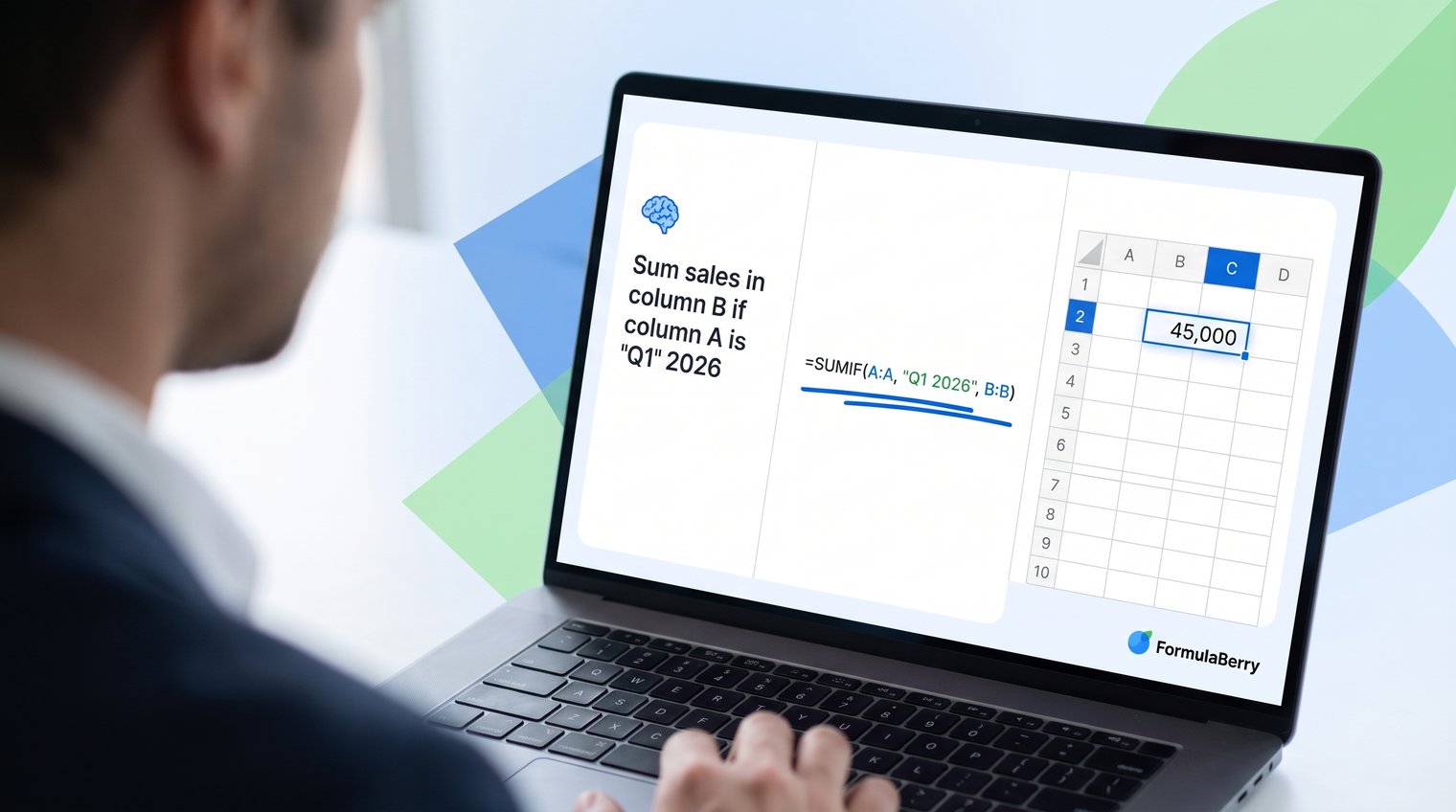
Excel formula generator comparison at a glance
Feature availability, free limits, and pricing can change frequently, so check each product's current plan details before committing. The comparison evaluates each tool by its access model, formula help, workbook context, Excel or Sheets fit, and the workflow it serves best rather than treating every AI product as interchangeable.
| Tool | Access model | Formula help | Workbook context | Excel and Sheets | Best fit |
|---|---|---|---|---|---|
| FormulaBerry | Browser-based formula assistant | Generate, explain, and correct formulas | Based on details you provide | Excel and Google Sheets | Focused formula assistance without a full AI workspace |
| ChatGPT | Web and app-based conversational AI | Generate, explain, revise, and troubleshoot through follow-ups | Usually based on pasted context or supplied files | Can discuss both, but is not a spreadsheet application | Complex requirements that benefit from iterative discussion |
| Microsoft Copilot in Excel | Excel-native Copilot features for eligible accounts | Formula guidance plus broader spreadsheet help | Can work with workbook and table context, subject to availability | Excel | Teams already working in supported Microsoft environments |
| Numerous.ai | Spreadsheet-oriented AI workflow | AI-assisted spreadsheet tasks and functions | Designed for work in spreadsheet workflows | Assess current platform support | Users who need enrichment or repeatable AI-driven operations |
| Formula Bot | Browser-based AI toolset | Formula generation with adjacent data and automation features | Primarily prompt-driven | Assess current platform support | Users who want formula help alongside broader data tasks |
| Excel Formula Bot | Browser-based Excel assistance | Formula help and related VBA assistance | Primarily prompt-driven | Excel-focused | Users who need formulas and occasional code-oriented help |
Free-access considerations are not a permanent ranking factor because quotas and account requirements change. A tool may offer a limited free tier, require sign-up before use, or reserve advanced features for paid plans. Treat current product pages as the source of truth before making a purchasing decision.
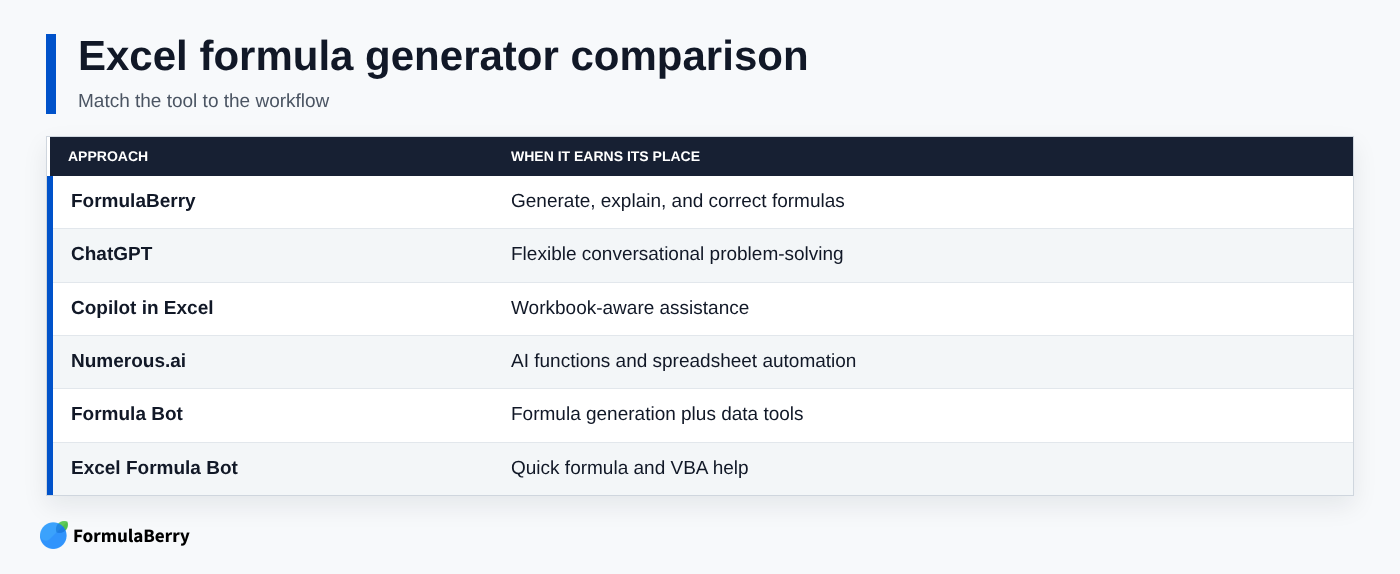
How the leading Excel formula generators compare
The right tool is not necessarily the one with the most features. A person trying to repair a SUMIFS formula has a different need from a team enriching thousands of spreadsheet rows or an analyst working in a Microsoft-managed workbook.
FormulaBerry
FormulaBerry is designed around the full formula workflow: describe what you need in everyday language, generate a formula, ask for an explanation, or get help correcting an existing expression. It supports Microsoft Excel and Google Sheets, which is useful for people who move between the two platforms or collaborate with clients using different spreadsheet software.
It is ideal for a small business owner building a budget, a professional updating a monthly report, or anyone who needs a formula without learning every detail of nested IF statements, XLOOKUP syntax, or date logic. For example, you can describe the result you want from columns in your sales report and then test the returned formula in the relevant cell.
The honest trade-off is that it is a focused formula assistant, not a full spreadsheet application with direct workbook awareness. You still need to verify references, assumptions, and results before putting a generated formula into a production report.
ChatGPT
ChatGPT is useful when formula creation is only one part of the problem. You can explain a business rule in detail, paste a sample of your headers and data, ask for an initial formula, then refine it through follow-up questions. It can also be helpful when you need an explanation of why a formula returns an unexpected result.
It is a good choice for users who can describe their problem precisely and want to reason through alternatives. For example, you might ask for an XLOOKUP-based solution, then request a version compatible with an older Excel installation, then ask how to handle blank source values.
Its limitation is important: ChatGPT does not inherently see your workbook. It can suggest unsupported syntax, assume the wrong data structure, or miss a local Excel setting unless you provide the relevant context. Give it sample values, the intended output, your Excel version, and your locale rather than asking, "Why doesn't this formula work?"
Microsoft Copilot in Excel
Microsoft Copilot in Excel has an obvious advantage for eligible users: it operates closer to the place where the work happens. When supported features, accounts, and workbook conditions are in place, the ability to work with workbook or table context can reduce the manual effort of describing columns and ranges.
It is best suited to organizations already committed to Microsoft 365 and willing to manage the relevant licensing, account, and IT requirements. It can be especially useful when formula questions are connected to a broader task, such as understanding a table, summarizing data, or creating an analysis workflow.
Do not confuse Excel-native access with automatic formula correctness. Copilot availability varies by plan, version, account, and feature rollout, and formula help is only one part of its wider spreadsheet assistance. For a simple one-off formula request, a separate focused assistant may be faster.
Numerous.ai
Numerous.ai is more compelling when the spreadsheet task involves AI functions, repeatable content generation, enrichment, or automation across many rows. In that scenario, the important question is not just "What formula should I write?" but "Can I perform this AI-assisted operation repeatedly in my spreadsheet workflow?"
That makes it a better fit for users handling larger operational workflows than for someone who only needs help constructing a conditional commission formula. Its broader approach may be valuable when the formula request sits beside repetitive data-processing work.
The limitation is scope. Before choosing it for Excel formula authoring alone, assess its cost, permissions, and whether its workflow solves a genuine automation problem rather than adding more tooling than you need.
Formula Bot
Formula Bot combines formula generation with adjacent data-analysis and automation-oriented capabilities. That broader toolkit can appeal to users who routinely switch between writing formulas, interpreting datasets, and handling related spreadsheet tasks.
It is a reasonable option for someone who wants more than a simple Excel formula generator online and expects to use those adjacent features. A user working through several data tasks in one session may prefer an all-in-one environment over several narrow tools.
The trade-off is simplicity. If your recurring need is to generate, explain, or fix a formula quickly, a broad platform can feel unnecessary compared with a dedicated formula assistant.
Excel Formula Bot
Excel Formula Bot is oriented toward quick Excel help, including formula generation and, where applicable, VBA-related assistance. That can be useful for users whose needs cross the boundary between worksheet formulas and basic automation code.
It suits people who occasionally need both a formula and help with a macro-related task. For example, an operations manager may need a lookup formula today and a small VBA routine for repetitive formatting later.
But VBA assistance is not automatically a benefit for every spreadsheet user. If you do not intend to write or maintain code, avoid paying for complexity you will not use. A formula tool should be judged first on whether it produces a clear, testable answer to your actual worksheet problem.
Formula quality: generation, explanation, and correction are different jobs
Getting a formula string is only the beginning. A tool can generate a plausible answer yet struggle to explain nested logic, diagnose an #N/A result, or adapt an existing formula without breaking the rest of the worksheet.
Evaluate formula tools across the entire lifecycle: create the formula, audit it before deployment, and correct it when live data uncovers an issue.
Generating a formula from a precise request
The quality of the answer depends heavily on the quality of the request. Include your sample headers or ranges, the matching rule, expected output, exception handling, Excel version, and any restrictions on functions.
Consider a commission worksheet with Region in A2, Quarterly Revenue in B2, and a commission rate in C2. Your rule might be: return 8% for West region revenue of at least 100,000, 5% for all other regions at or above 75,000, and 0% otherwise.
A vague request such as "make a commission formula" leaves too much open to interpretation. A precise request tells the assistant whether 100,000 is inclusive, whether region names have inconsistent capitalization, whether blank revenue should return blank rather than 0%, and whether you need a formula that works in Excel 2019 or Microsoft 365.
Explaining and auditing a formula before use
A trustworthy explanation should tell you what each function does, which references move when copied down, and what stays fixed. It should also identify whether a formula spills results into adjacent cells and whether it depends on a newer function such as LET, FILTER, or XLOOKUP.
Pay special attention to absolute and relative references. A formula can work perfectly in C2 but fail when copied to C3 because a lookup range moved from $H$2:$H$10 to H3:H11. That is not an AI-specific mistake; it is one of the most common spreadsheet errors.
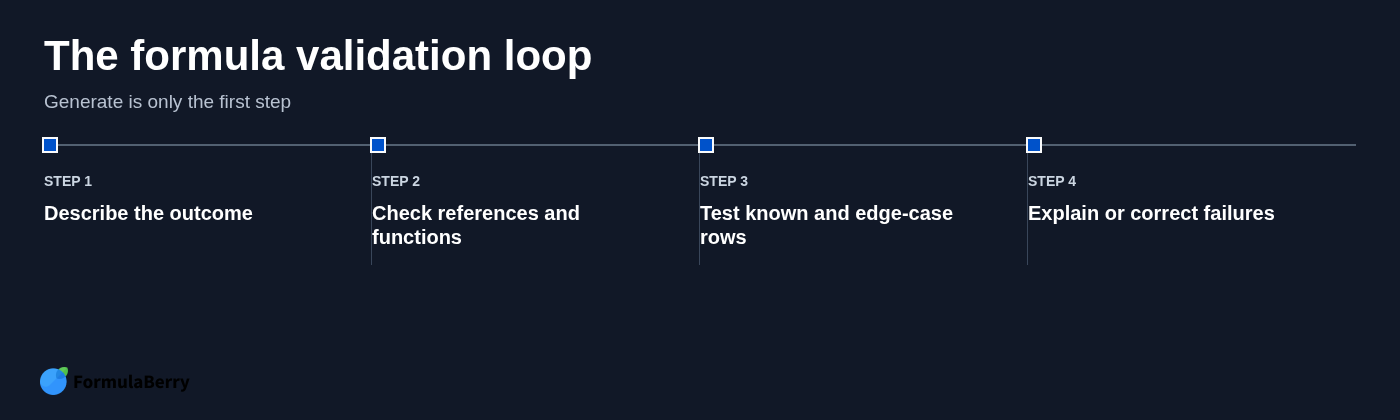
Test the formula with known rows before filling it down an entire table. Use an obvious qualifying row, an obvious non-qualifying row, a blank value, and a boundary value such as exactly 100,000 in the commission example.
Correcting an existing formula or error
When asking for help with a broken formula, provide the current formula, the exact error or incorrect output, the intended result, and a small representative sample of the data. That is far more effective than pasting an error message alone.
Common issues include lookup values that do not match because of extra spaces, numbers stored as text, lookup ranges with incompatible dimensions, and missing error handling. An #N/A error may mean the value is absent, but it can also mean one side of the lookup is text and the other is numeric.
For the commission example, a formula that returns 0% for every row may be checking formatted text such as "$100,000" instead of a true number. A correction request should include the displayed values, the cell formats if relevant, and what result you expected for at least two rows.
Free access, sign-up friction, and data-handling trade-offs
Searches for the best Excel formula generator free usually hide several different questions: Can I try it without paying? Can I use it without creating an account? Will the free option handle a complex formula? And what happens to the data I enter? This comparison of free Excel formula generators with no sign-up can help when access friction is your main concern.
Do not assume a free tier means unlimited access, and do not assume a no-sign-up experience means no data is retained. Review the current usage limits, account requirements, feature gates, privacy policy, and business-data terms before using any AI service for work.
For sensitive spreadsheets, share the smallest useful example. Replace customer names with placeholders, remove account numbers, redact personal identifiers, and use representative values instead of live financial records where possible. If your organization has rules on external AI tools, follow them even when the formula itself seems harmless.
ChatGPT for Excel formulas can be useful, including on plans with limited access, but its cost and available features are plan-dependent and can change. The same is true of dedicated formula tools and Excel add-ins. Compare the workflow you need before comparing price alone: paying for a workbook-integrated system makes little sense if you only need occasional formula explanations.
When an Excel add-in beats a browser-based formula generator
An Excel add-in or native Copilot workflow is most useful when you spend most of your day inside large workbooks and context matters. Working in the spreadsheet can reduce the effort of describing sheet names, table names, column headers, and relevant ranges.
Browser-based formula generators are often faster for isolated requests. You can ask for an INDEX-MATCH replacement, a date calculation, or a Google Sheets equivalent without installing anything or navigating an in-sheet interface. They also work well when you want a second opinion before changing a shared workbook.
Conversational tools occupy the middle ground. They are better when the rule itself is complicated and needs discussion, such as deciding how to handle returns, exceptions, duplicate records, or blank dates before a formula is written.
- Choose an add-in or Excel-native workflow when approved access, workbook context, and in-sheet convenience matter most.
- Choose a browser formula assistant when you want focused help with generation, explanation, or correction and can provide the necessary context safely.
- Choose a general conversational AI tool when you need multiple rounds of reasoning before you know what formula should do.
Installation permissions and IT policy can be the deciding factor. An add-in that cannot be approved is not a practical solution, while a browser tool may be acceptable for sanitized examples. Conversely, a browser tool may be inappropriate if the task requires access to confidential workbook context.
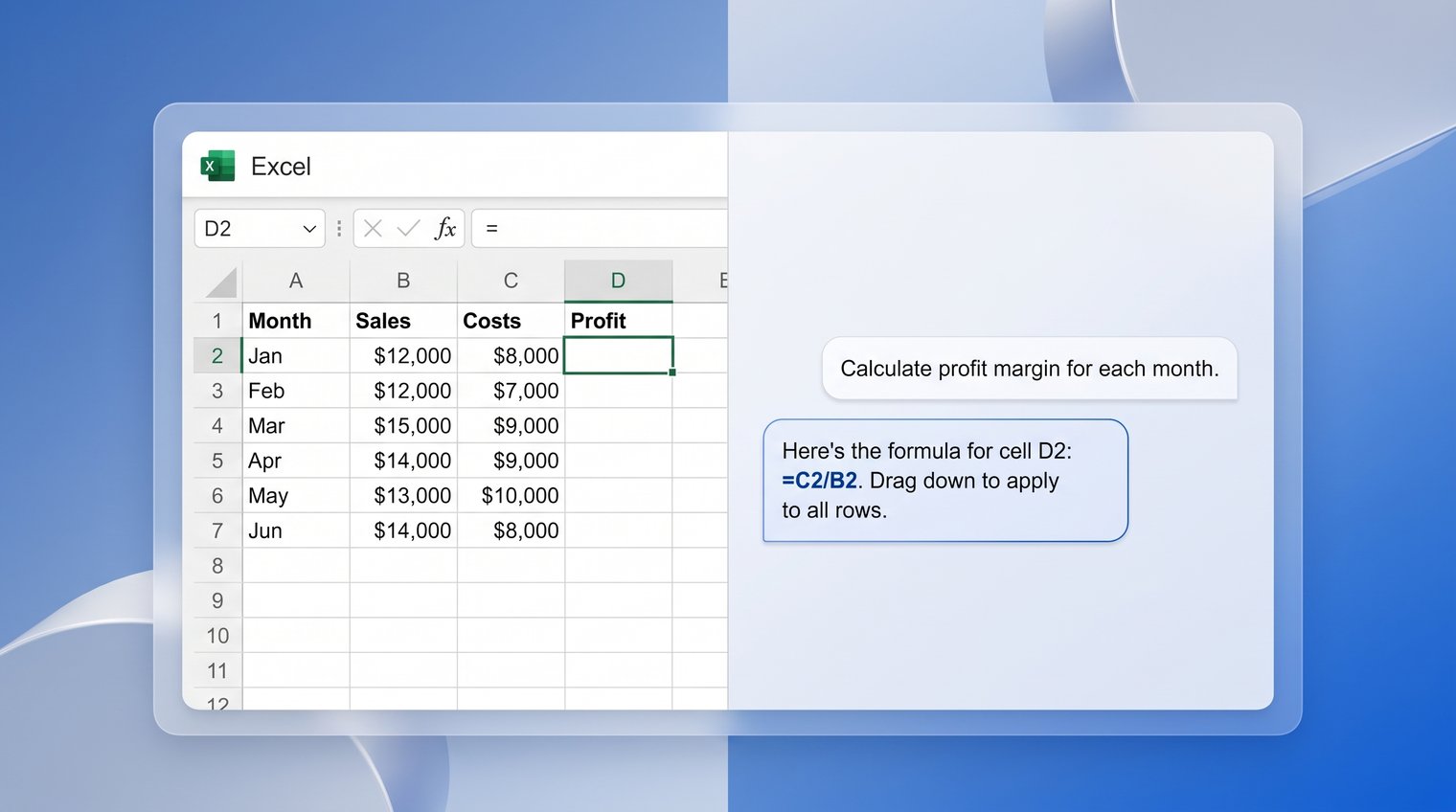
How to get accurate formulas from AI
Use a structured request. It takes a minute to write and can save an hour of fixing a formula that was built on unstated assumptions.
Copy and adapt this template:
Goal: [Describe the result you want.]
Headers and ranges: [For example, A2:A500 = Region; B2:B500 = Quarterly Revenue.]
Rule: [State each condition and the order in which it should be applied.]
Expected result: [Give two or three example rows and outputs.]
Exceptions: [Explain blanks, errors, duplicates, or invalid values.]
Excel version and locale: [For example, Microsoft 365, English functions, comma separators.]
Error behavior: [State whether the formula should return blank, 0, or a message when no match exists.]
For a modern dynamic-array request, you might write: "In Microsoft 365, return a spilled list of unique customer names from A2:A500 where the corresponding revenue in B2:B500 exceeds 10000. Exclude blanks and sort the result alphabetically. Use comma separators."
If the workbook may be opened in an older version of Excel, add: "Also provide a legacy-compatible alternative that does not use FILTER, UNIQUE, SORT, LET, or XLOOKUP." That one sentence prevents a common compatibility failure.
Finally, validate the response. Check range references, copy behavior, function availability, and edge cases. Never paste confidential identifiers, payroll details, customer records, or sensitive financial data unless the tool's controls and your organization's policy explicitly permit it.
Choose the Excel formula generator that fits your workflow
Pick FormulaBerry if you want focused Excel or Google Sheets formula generation, explanation, and correction without adopting a broader AI workspace. It is a practical choice for reports, budgets, and day-to-day spreadsheet tasks where you can describe the relevant columns and verify the output.
Pick ChatGPT if the formula problem needs a real conversation. It is especially useful when you need to clarify business rules, compare formula approaches, and iterate through several versions, but you must provide careful context and test every result.
Pick Microsoft Copilot in Excel if you have eligible access and benefit from Excel-native assistance with workbook or table context. This is the strongest fit for organizations already working within supported Microsoft environments.
Pick broader spreadsheet AI tools such as Numerous.ai or Formula Bot if formula writing is only part of the job and you also need AI functions, enrichment, automation, or related data workflows. Choose Excel Formula Bot when formula help and VBA-oriented assistance both matter.
If you want a focused starting point, try FormulaBerry with a real but non-sensitive formula request. Then test the result on known rows in Excel before using it across a live workbook.