
Duplicates make spreadsheet reports unreliable fast. A customer list looks clean until "Northwind", "Northwind " and "NORTHWIND" produce three separate results. Fortunately, modern Excel has a direct way to extract a distinct list without manually sorting, filtering, or deleting anything.
Use Excel's UNIQUE function to return distinct values from a range. It creates a dynamic result that updates when the source data changes, which is far more useful than a one-time cleanup in most reports.
Use UNIQUE to extract distinct values in Excel
The basic distinct Excel formula is:
=UNIQUE(array, [by_col], [exactly_once])
For a simple list in cells A2 through A100, enter this formula in an empty cell:
=UNIQUE(A2:A100)
Excel returns each value once and spills the results into the cells below the formula. If your source list changes, the distinct list recalculates automatically.
The first argument, array, is the data you want to check for duplicates. The optional by_col argument is used when values are arranged across columns rather than down rows. The optional exactly_once argument lets you return only values that occur one time, covered later in this guide.
Check that your Excel version supports UNIQUE
UNIQUE requires a version of Excel with dynamic-array functions. It is available in Microsoft 365, Excel 2021, Excel 2024, and Excel for the web.
If you are searching for a unique formula in Excel 2016, the important answer is that UNIQUE is not available in that version. Do not try to force the formula to work with an add-in or a copied function name. Use one of the legacy methods later in this article instead.
Google Sheets also has a UNIQUE function, but the examples and troubleshooting below focus on Excel. The overall idea is similar, though menu options and some formula behavior differ between the two applications.
Prepare the source list before extracting distinct values
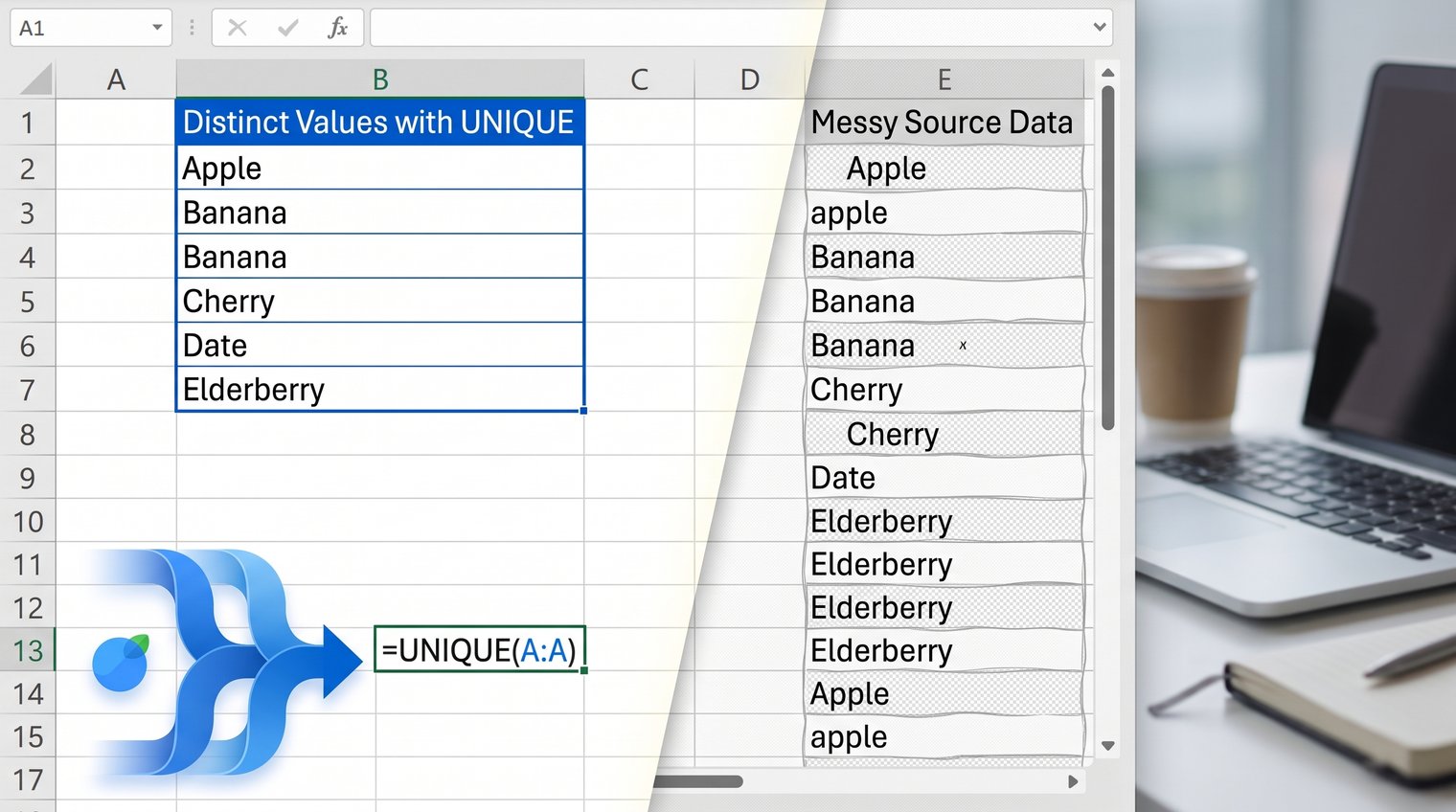
UNIQUE only compares what is actually stored in a cell. That means a list that appears to contain duplicates may still return several versions of the same item if the source data is inconsistent.
Start your range below the heading unless you deliberately want the header included. For example, use =UNIQUE(A2:A100) when A1 contains the heading "Customer." Including A1 would add "Customer" to the distinct output.
Check for these common causes of apparent duplicates:
- Leading or trailing spaces, such as "Acme" versus "Acme "
- Nonprinting characters copied from web pages, exports, or other systems
- Inconsistent capitalization
- Mixed data types, such as a numeric ID stored as both a number and text
For recurring reports, put the source data in an Excel Table or use a sensible bounded range. A Table grows with new rows and keeps formulas easier to maintain than manually revising references every month.
Remove invisible spaces and nonprinting characters
If a source was pasted from another application, clean it before relying on a distinct-values formula. In a helper column, use:
=TRIM(CLEAN(A2))
CLEAN removes many nonprinting characters, while TRIM removes extra spaces and leaves a single space between words. Fill the formula down, then run UNIQUE against the helper column instead of the original source.
For example, if B2 contains =TRIM(CLEAN(A2)), use =UNIQUE(B2:B100). Visually identical entries can remain separate when hidden characters differ, so this is often the right fix when UNIQUE seems to "miss" duplicates.
Extract distinct values from one Excel column
To get unique values in an Excel column, click the first empty cell where you want the results to start and enter:
=UNIQUE(A2:A100)
Suppose A2:A8 contains the following names:
| Source list |
|---|
| Maria |
| James |
| Maria |
| Priya |
| James |
| Elena |
| Priya |
The formula returns Maria, James, Priya, and Elena, in the order each name first appears.
Do not copy the formula down. UNIQUE is a dynamic-array formula, so one formula creates the full spilled range. If any cell in the intended output area contains data, Excel returns #SPILL!.
Clear the cells below and beside the formula as needed, then enter the formula again. A frequent mistake is typing labels or notes directly underneath the formula cell; place those items outside the expected spill area instead.
Return the distinct list in a chosen order
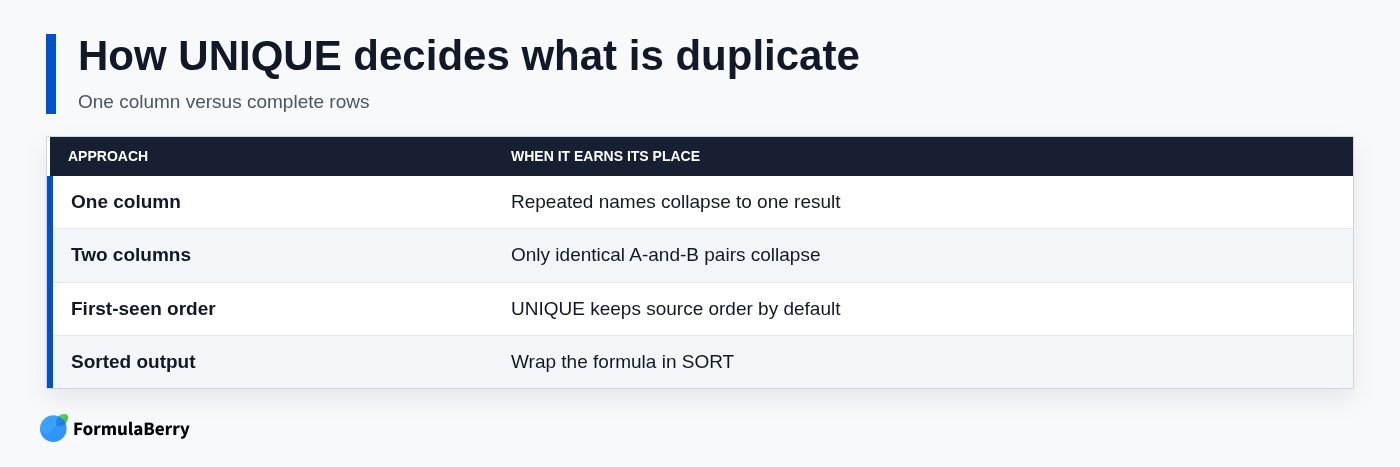
UNIQUE keeps first-seen order by default. If you need an alphabetical list of names or an ascending list of numbers, wrap it in SORT:
=SORT(UNIQUE(A2:A100))
This first removes duplicates and then sorts the resulting list. That order matters: you are sorting only the distinct results, not trying to remove duplicates from an already sorted source range.
Return distinct rows from multiple columns
When you need distinct Excel formula results from multiple values, pass the entire multi-column range to UNIQUE:
=UNIQUE(A2:B100)
Excel compares complete rows. This is useful for a report that needs unique customer-and-region pairs rather than a separate list of customers and a separate list of regions.
For example, these rows are not duplicates:
| Customer | Region |
|---|---|
| Contoso | West |
| Contoso | East |
Although Contoso appears twice, the full records differ because the regions differ. UNIQUE collapses only rows where both the customer and region match exactly.
Get values that appear exactly once
A distinct list and a list of values that occur only once are not the same thing. A standard UNIQUE formula returns Maria once even if Maria appears ten times in the source. Sometimes you want to exclude repeated values entirely.
Use the third argument, exactly_once:
=UNIQUE(A2:A100,,TRUE)
The two commas matter. They leave the optional by_col argument blank and set exactly_once to TRUE.
For a source list containing Maria, James, Maria, Priya, James, and Elena, this formula returns only Priya and Elena. Maria and James are excluded because each appears more than once.
Pull distinct values from another worksheet
You can extract a distinct list from a source tab and place the results on a summary or reporting sheet. If the source worksheet is named Sales Data, use:
=UNIQUE('Sales Data'!A2:A1000)
Sheet names containing spaces must be enclosed in single quotation marks. Names without spaces, such as SalesData, can be referenced as =UNIQUE(SalesData!A2:A1000).
For a growing dataset, an Excel Table is usually the cleaner option. If your table is named Sales and its customer column is named Customer, use:
=UNIQUE(Sales[Customer])
New records added to the table become part of the formula automatically. That is more reliable than setting a fixed range that eventually stops before the latest data.
Filter the source before returning distinct values
Often, you do not want every distinct value. You want distinct customers with active accounts, distinct products sold in a particular region, or distinct expense categories for one department.
Combine FILTER with UNIQUE. If customer names are in A2:A100 and account statuses are in B2:B100, use:
=UNIQUE(FILTER(A2:A100,B2:B100="Active"))
FILTER first returns only rows where the status equals Active. UNIQUE then removes duplicates from that filtered result.
The array and include ranges must cover matching rows. If your customer array is A2:A100, the criteria range should also begin on row 2 and end on row 100. Misaligned ranges cause errors or incorrect results.
To avoid an error when no rows match, add FILTER's optional if_empty argument:
=UNIQUE(FILTER(A2:A100,B2:B100="Active","No active customers"))
Use a message that makes sense in the report. Remember that it becomes an output value when no matches exist, rather than a true customer name.
Exclude blanks from the distinct list
Blank source cells commonly appear as a blank item in a UNIQUE spill range. To return only nonblank values, filter blanks out before applying UNIQUE:
=UNIQUE(FILTER(A2:A100,A2:A100<>""))
This pattern is especially useful when your source range intentionally extends beyond the current data, such as A2:A1000 for a list that may grow later.
Fix common UNIQUE formula errors
Most UNIQUE problems come from worksheet layout, version compatibility, or messy source data rather than the formula itself.
- #SPILL!: One or more cells in the output range are not empty. Clear the blocking cells, move the formula, or reduce the expected output area.
- #NAME?: Your Excel version does not support UNIQUE, or the function name was misspelled. Excel 2016 users should use a legacy method.
- Unexpected duplicates: Clean whitespace and hidden characters with TRIM and CLEAN. Also inspect whether values that look the same are actually numbers in some rows and text in others. The TEXT formula guide can help explain how formatting affects displayed values.
- Slow workbook performance: Avoid references such as =UNIQUE(A:A) in a large workbook. Use a realistic range, such as A2:A5000, or an Excel Table column.
UNIQUE is not case-sensitive when determining duplicates. "ACME", "Acme", and "acme" are treated as the same value under normal behavior. Case-sensitive distinct extraction needs a more advanced formula approach and is not the default use case for UNIQUE.
Use a legacy alternative when UNIQUE is unavailable
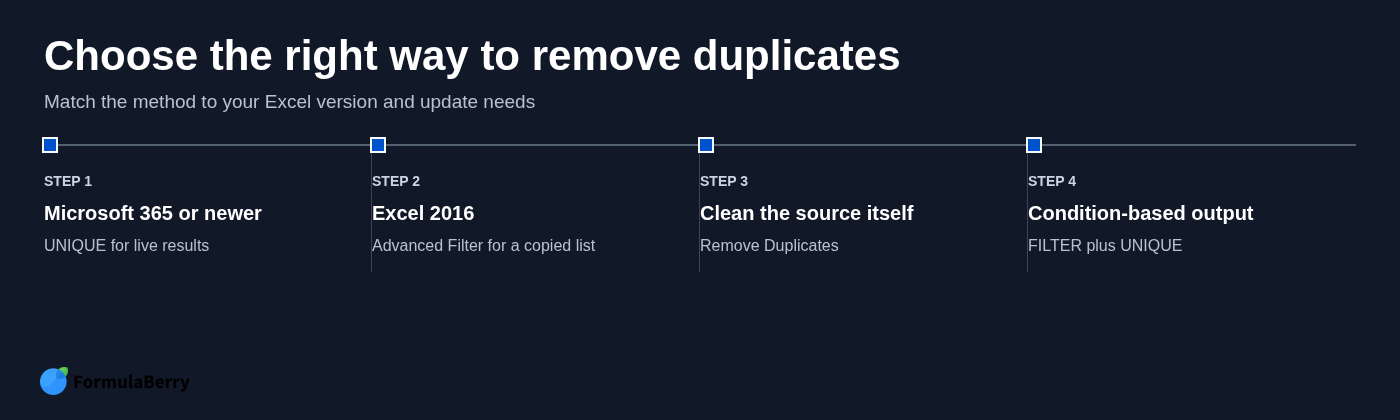
If you work in Excel 2016 or another non-dynamic-array version, choose a method based on whether you need a copied result or want to permanently alter the source.
Advanced Filter is the best default when you need a separate distinct list. Select the source column, go to Data > Advanced, choose Copy to another location, select a destination cell, and check Unique records only. This creates a static copied list, so repeat the process after source data changes.
Remove Duplicates is appropriate when you want to clean the original dataset itself. Select the relevant columns, choose Data > Remove Duplicates, and confirm the columns Excel should compare. Make a backup first: this action deletes duplicate records from the source rather than generating a live report output.
Older array formulas can also return unique values, but they are difficult to build, require special entry methods in older Excel, and are harder for other people to maintain. Advanced Filter is usually the practical choice for a one-time distinct list.
The key difference is update behavior. UNIQUE creates a live spilled result; Advanced Filter and Remove Duplicates are one-time actions until you run them again.
Build a reliable distinct-values formula
Choose the formula pattern that matches the job:
- =UNIQUE(A2:A100) for a distinct list from one column
- =UNIQUE(A2:B100) for distinct complete rows across two columns
- =UNIQUE(A2:A100,,TRUE) for values that occur exactly once
- =UNIQUE(FILTER(A2:A100,B2:B100="Active")) for distinct values that meet a condition
Keep the source data clean, leave room for the spill range, and use a Table when the list will grow over time. Those small choices prevent most distinct-value problems before they start.
If you can describe the spreadsheet result you need but are unsure how to write it, FormulaBerry can help translate a plain-English request into an Excel or Google Sheets formula, explain an existing formula, or help correct one that is not returning the expected result.