

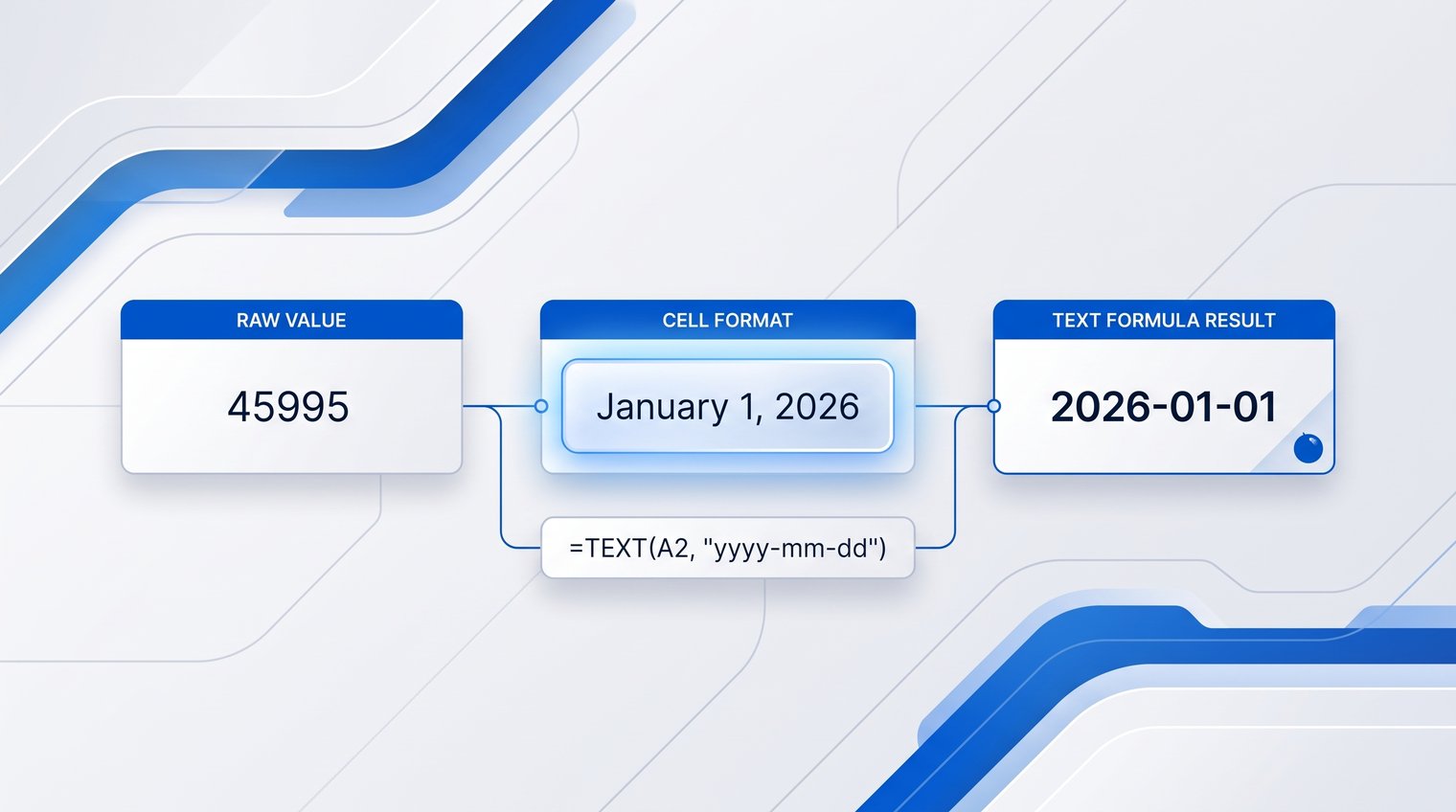
A value can look perfect in Excel and still be wrong for the job. A date formatted in a cell may display as "September 19, 2026," for example, but when you combine it with a sentence, Excel may insert its underlying serial number instead.
The Excel TEXT formula solves that problem. It lets you control exactly how a number, date, or time appears when a formula needs to return text for a label, report line, message, export field, or dashboard note.
What the Excel TEXT function does - and when to use it
The TEXT function converts a number, date, or time into a formatted text string. Its basic structure is =TEXT(value, format_text).
For example, if A2 contains a date, =TEXT(A2,"mmmm d, yyyy") can return September 19, 2026. If A2 contains 1250.5, =TEXT(A2,"$#,##0.00") returns $1,250.50.
The important trade-off is that TEXT returns text, not a live number or date. The result may look like currency, a percentage, or a date, but Excel will not reliably treat it as one in later calculations. Keep the original numeric or date value available when you still need to calculate, sort, filter, or look it up.
This is different from ordinary cell formatting. Cell formatting changes how a value appears while preserving the underlying value. TEXT changes the formula result itself into text, which is exactly what you want when the value must become part of a written output.
Understand the TEXT formula syntax before choosing a format code
Every TEXT formula has two arguments:
- value: The number, date, time, cell reference, or calculation to format.
- format_text: The display pattern Excel should apply, enclosed in double quotation marks.
The full pattern is =TEXT(value,"format code"). For instance, =TEXT(A2,"0.00") formats the value in A2 with two decimal places.
The value can be much more than a cell reference. You can format a fixed number, a date serial, a time, or a calculation such as =TEXT(SUM(A2:A10),"#,##0"). That flexibility is why TEXT is so useful in report formulas. For more examples of adding and conditionally totaling values, see the Excel SUM Formula guide.
Be aware that regional settings can affect format behavior. Excel installations may use commas or periods differently for decimal and thousands separators, and date separators can vary by locale. If you share workbooks internationally, test the formula in the environment where it will be used.
How Excel treats dates and times
Excel stores dates as serial numbers and times as fractions of a day. That is why a date can participate in calculations, such as finding the number of days between two deadlines, even though it displays as a calendar date.
TEXT turns that stored value into a readable label. If A2 contains a valid Excel date, use =TEXT(A2,"mmmm d, yyyy") to return an output such as September 19, 2026. For related date calculations and troubleshooting, see this Excel date formula guide.
Once converted, the result is text. You can place it in a sentence or export it in a consistent format, but you should continue using the original date cell for date calculations.
Format numbers as text with TEXT
Number-to-text formulas are most useful when the result will appear inside a message, a dashboard label, an invoice note, or an exported text field. Instead of accepting Excel's default display, you can specify the exact decimal places, separators, currency symbol, percentage style, or digit length you need.
Add decimal places and thousands separators
Use 0 when a digit must appear and # when a digit should appear only if it exists. That small distinction controls whether Excel pads a value with zeros.
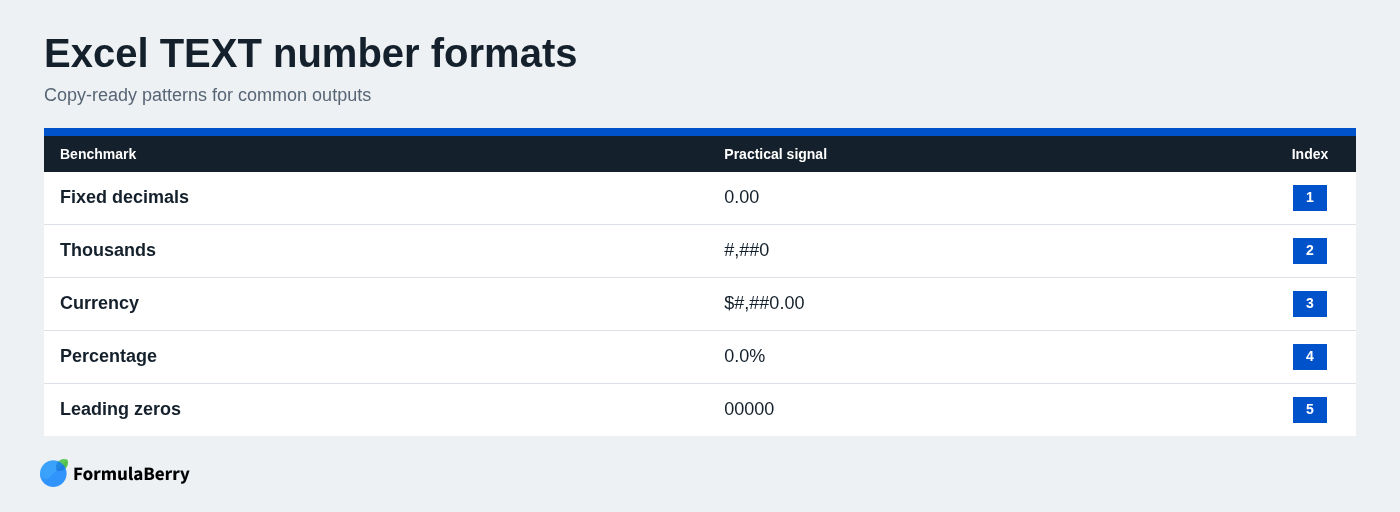
- =TEXT(A2,"0.00") returns two decimal places. A value of 7 becomes 7.00.
- =TEXT(A2,"#,##0") adds thousands separators without decimal places. A value of 12500 becomes 12,500.
- =TEXT(A2,"#,##0.00") adds separators and forces two decimals. A value of 12500.5 becomes 12,500.50.
A common mistake is using only # when a fixed number of decimal places is required. The format #,##0.## can suppress unnecessary decimals, but it will not always show two places. Choose #,##0.00 when consistency matters.
Format currency and percentages
To create a currency string, include the symbol in the format code. For example, =TEXT(A2,"$#,##0.00") converts 86.4 into $86.40.
For percentages, use a percent sign in the code: =TEXT(A2,"0.0%"). If A2 contains 0.125, the output is 12.5%.
Remember that percentage formatting displays the stored decimal multiplied by 100. Entering 12.5 and then formatting it as a percentage produces 1250%, not 12.5%. For a 12.5% result, the source value should normally be 0.125.
Preserve leading zeros
TEXT is especially handy for identifiers that need a fixed number of digits. Use =TEXT(A2,"00000") to turn the value 42 into 00042.
This works well for invoice fragments, sequence numbers, internal codes, and ZIP-like values. But identifiers are not quantities. If you might later need arithmetic, retain the unformatted number in a separate source cell and use the TEXT result only for display or output.
Format dates and times as text with TEXT
Date and time formatting is one of the strongest use cases for the TEXT function. It lets you create readable report labels, compact sortable dates, month-based headings, and consistent timestamps without manually typing or updating them.
Create readable dates for reports and messages
Use a full month name when a date will be read by people in a report or email-style message:
- =TEXT(A2,"mmmm d, yyyy") returns September 19, 2026.
- =TEXT(A2,"ddd, mmm d") returns Sat, Sep 19.
- =TEXT(A2,"mmmm yyyy") returns September 2026.
In date formats, m shows the month number without a leading zero, while mm uses two digits. Similarly, d shows a day such as 9, and dd shows 09. Use ddd for an abbreviated weekday such as Mon and dddd for the full weekday name, such as Monday.
Create consistent date and time stamps
For a text date that stays in chronological order when sorted alphabetically, use =TEXT(A2,"yyyy-mm-dd"). A date such as September 19, 2026 becomes 2026-09-19.
For a 12-hour time, use =TEXT(A2,"h:mm AM/PM"). A stored time of 14:05 becomes 2:05 PM.
When you need both parts, use =TEXT(A2,"yyyy-mm-dd hh:mm"). Before relying on this formula, check that the source cell actually contains a time. A date-only value will display midnight, typically 00:00, because Excel has no time information to format.
Combine text and formula results in one Excel cell
TEXT becomes essential when a formatted value is part of a larger sentence. The ampersand character, &, joins text pieces together, while TEXT controls how dates, totals, rates, and times appear inside that sentence.
Add text before or after a formatted value
To display a calculated total as a polished message, use:
="Total: "&TEXT(SUM(B2:B10),"$#,##0.00")
If the sum is 1834.5, the output is Total: $1,834.50.
You can also add wording after a formatted result:
=TEXT(A2,"0.0%")&" complete"
If A2 contains 0.875, Excel returns 87.5% complete. Put spaces, punctuation, and labels inside quotation marks. The ampersand joins every piece into one text result.
Build date-based labels and status messages
Live report labels are easy to build with TEXT. For example:
="Report generated "&TEXT(TODAY(),"mmmm d, yyyy")
This returns a label such as Report generated September 19, 2026. For a deadline message, use:
="Due: "&TEXT(A2,"ddd, mmm d")
Formula-generated messages update when the underlying source value changes. That is usually useful, but it can be a problem if you need a permanent historical statement. In that case, copy the completed result and paste it as a value when you are ready to freeze it.
Use TEXT with calculations without losing the original numeric result
You can apply TEXT directly to a calculation. For example, =TEXT(AVERAGE(B2:B12),"0.0%") creates a percentage string from an average, while =TEXT(SUM(C2:C10),"#,##0") returns a comma-separated total.
That is appropriate when the output is purely presentational. If the result will also feed another formula, take a different approach: calculate in one cell, keep that result numeric, and use TEXT only in a separate label or narrative cell.
Converting too early creates avoidable spreadsheet problems. TEXT output can interfere with SUM and AVERAGE, sort unexpectedly as text, and fail to match numeric or date values in lookups. A clean spreadsheet keeps calculation values as values and presentation strings as presentation strings.
Avoid the most common Excel TEXT formula mistakes
Most TEXT errors come from small syntax issues or from expecting a text result to behave like its original value. These fixes address the problems you are most likely to encounter.
Use quotes around the format code
The format code must be inside double quotation marks. This pattern is incorrect:
=TEXT(A2,mm/dd/yyyy)
Use this instead:
=TEXT(A2,"mm/dd/yyyy")
Without quotation marks, Excel tries to interpret the format pattern as names or references rather than as formatting instructions.
Do not expect TEXT results to behave like numbers or dates
A result such as $1,250.00 from TEXT is text, even though it looks like currency. The same is true for a result such as 2026-09-19: it looks like a date but is no longer a date value.
Keep the original source cell for calculations. If you genuinely need to convert a text result back, functions such as VALUE or DATEVALUE may help, but rebuilding a value after converting it to text is usually a sign that TEXT was applied too early.
Do not rely on General for presentation output
You may see =TEXT(A2,"General") suggested as a way to convert a value to text. It can produce a general-looking text result, but it gives you little control over the final display.
Use an explicit code whenever appearance matters: 0.00 for fixed decimals, #,##0 for readable whole numbers, yyyy-mm-dd for sortable dates, or mmm d, yyyy for reader-friendly dates. "General" is not a formatting plan.
Choose TEXT, cell formatting, or CONCAT based on the job
These tools solve different problems, and choosing the right one prevents many formula mistakes.
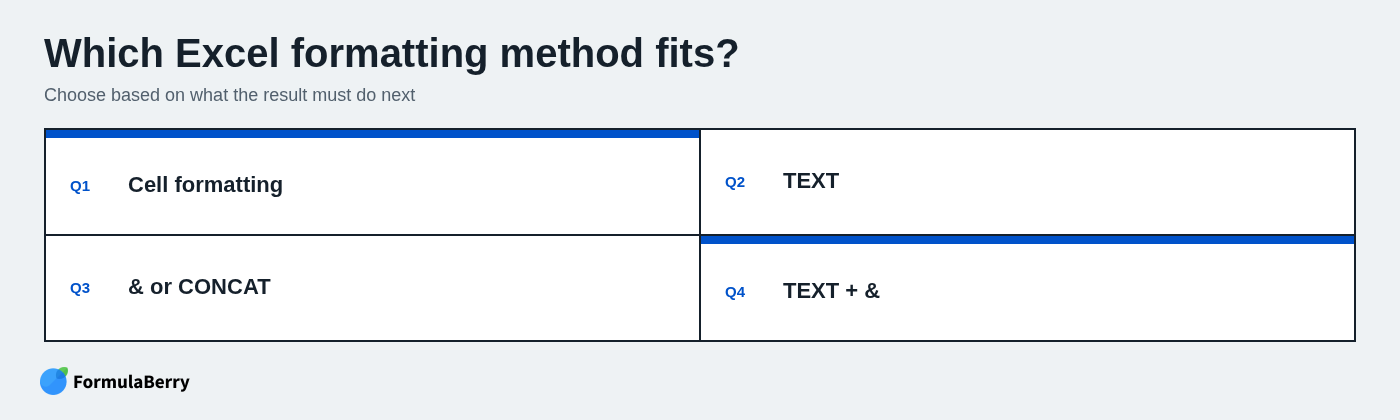
- Use cell formatting when the value must remain numeric or date-ready for calculations, sorting, filtering, charts, or lookups.
- Use TEXT when the formula must return a formatted text result.
- Use & or CONCAT when you only need to join strings together.
- Use TEXT with & when you need a polished label that includes a live number, date, time, currency amount, or percentage.
TEXT does not replace concatenation. In practice, it often sits inside a larger concatenation formula to control the formatting of one changing value.
Copy-ready Excel TEXT formula examples
Use these formulas as starting points, then change the cell reference or wording to match your worksheet.
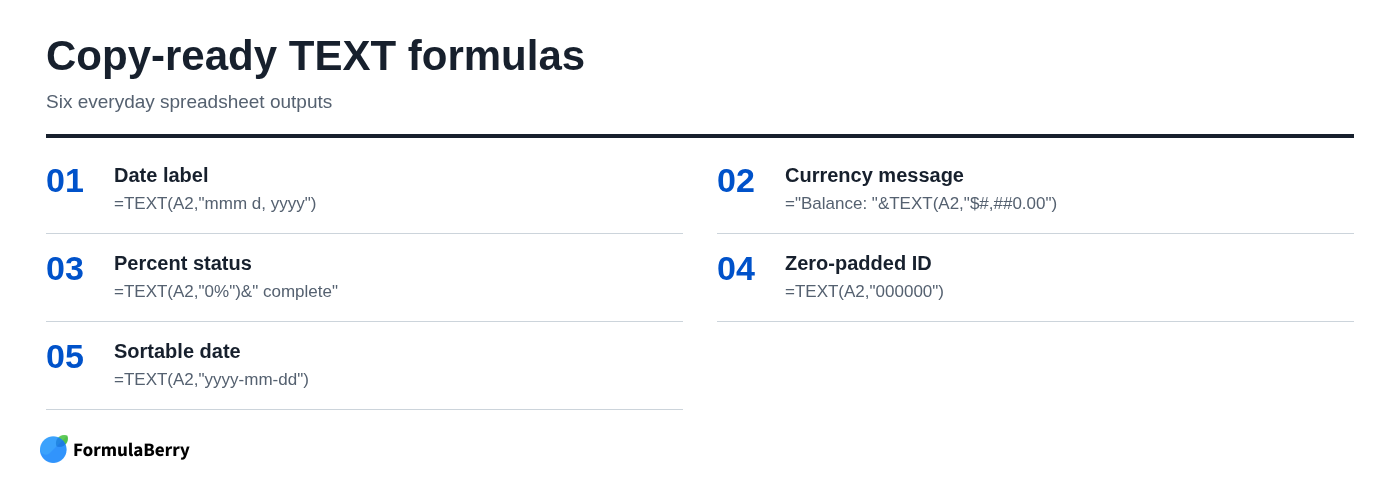
| Task | Source value in A2 | Formula | Output |
|---|---|---|---|
| Date label | 9/19/2026 | =TEXT(A2,"mmm d, yyyy") | Sep 19, 2026 |
| Currency message | 2480.5 | ="Balance: "&TEXT(A2,"$#,##0.00") | Balance: $2,480.50 |
| Percent status | 0.76 | =TEXT(A2,"0%")&" complete" | 76% complete |
| Zero-padded ID | 891 | =TEXT(A2,"000000") | 000891 |
| Sortable date | 9/19/2026 | =TEXT(A2,"yyyy-mm-dd") | 2026-09-19 |
| One-decimal measurement | 18.236 | =TEXT(A2,"0.0") | 18.2 |
Turn raw Excel values into clear text output
The practical rule is simple: preserve raw numbers and dates for calculation, then use TEXT only when a formula needs controlled text presentation. That keeps your spreadsheet accurate while making reports, labels, and messages easier to read.
If you know what you want to say but are unsure which Excel format code to use, FormulaBerry can turn a plain-English request into an Excel or Google Sheets formula, explain an existing formula, or help correct one that is not returning the expected output. For help creating or troubleshooting formulas, see the Excel Formula Generator guide.