
Division looks simple until a formula is copied down 500 rows, a rate cell shifts, or one blank divisor fills a report with #DIV/0! errors. The good news is that Google Sheets handles all of these cases with a small set of reliable formula patterns.
Start with the slash operator for ordinary division, then use absolute references, ARRAYFORMULA, and error checks only when the layout of your sheet calls for them.
Divide in Google Sheets with the / operator
The direct way to divide in Google Sheets is to type an equals sign, the number or cell you want to divide, a slash, and the divisor. For example:
=A2/B2
The / operator is the standard Google Sheets divide formula. It works with typed numbers, cell references, and larger calculations. In most day-to-day sheets, it is the best choice because it is short and easy to read.
Google Sheets also has a DIVIDE function, but you usually do not need it for ordinary spreadsheet work. The slash operator does the same job with less typing.
Divide two numbers or two cells
To divide two numbers directly, enter a formula such as:
=20/4
The result is 5. To divide the value in one cell by the value in another, use cell references:
=A2/B2
Here, the value in A2 is the dividend and the value in B2 is the divisor. Their order matters. =A2/B2 is not the same as =B2/A2, so check that the value being divided is on the left side of the slash.
Divide a cell by a fixed number
To divide a Google Sheets cell by 2, type the cell reference followed by /2. For example:
=A2/2
You can type any fixed number directly after the slash. If B2 contains a percentage stored as a whole number, such as 25 instead of 0.25, you can convert it with:
=B2/100
This is also useful for common calculations such as halving inventory quantities, converting cents to dollars, or calculating a per-unit amount. If A2 contains total revenue and you want the value per 10 units, use:
=A2/10
A fixed number does not need its own cell unless you expect to change it later. If the divisor may change, storing it in a separate cell is usually safer.
Divide columns and fill the formula down
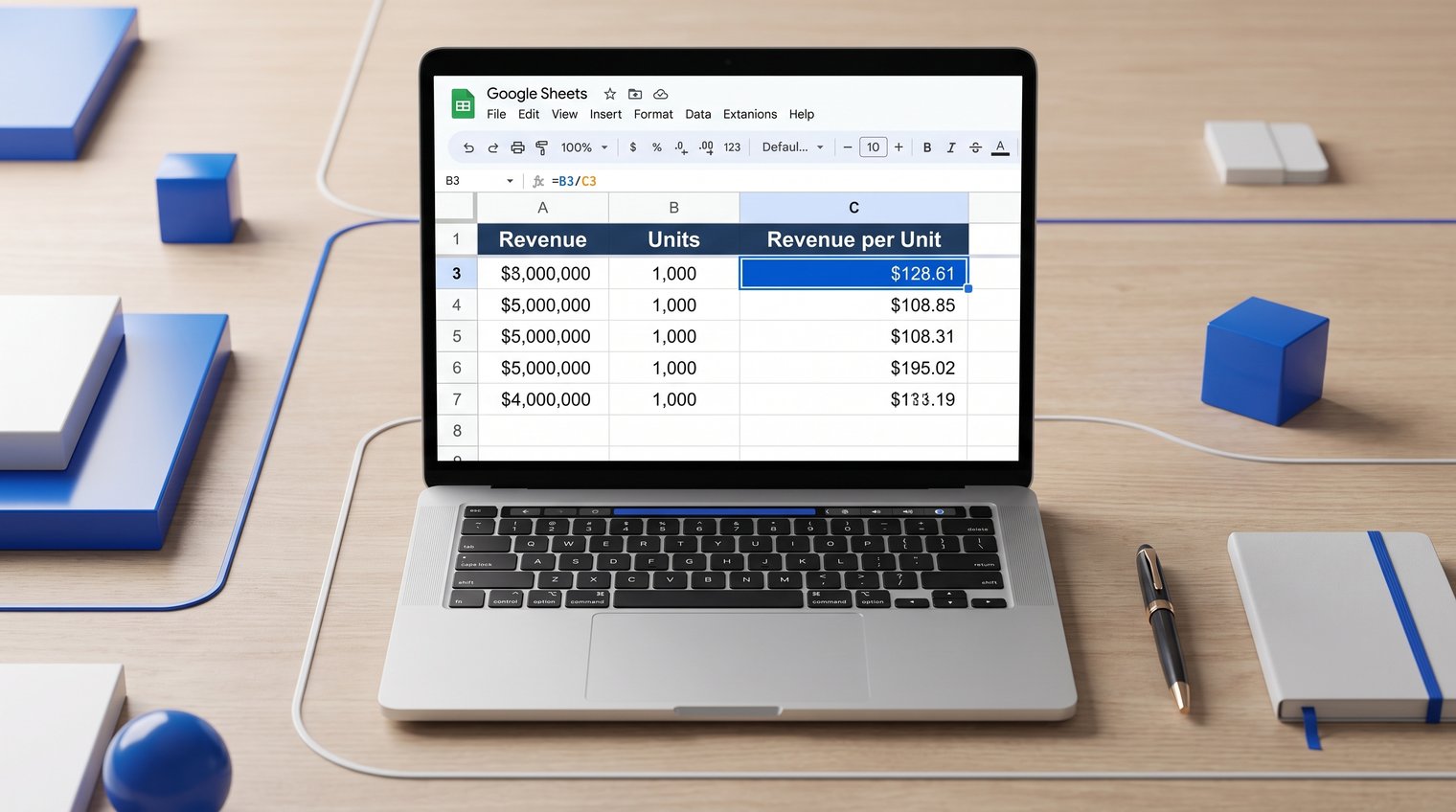
When each row contains a matching pair of values, enter the division formula in the first result cell and fill it down. For example, if column A contains revenue and column B contains units sold, enter this in C2:
=A2/B2
Then copy C2 and paste it into the cells below, or drag the small square at the bottom-right corner of the selected cell downward. Google Sheets adjusts relative references as it fills the formula.
| Revenue | Units | Revenue per Unit |
|---|---|---|
| A2: 500 | B2: 25 | =A2/B2 returns 20 |
| A3: 720 | B3: 30 | =A3/B3 returns 24 |
| A4: 360 | B4: 12 | =A4/B4 returns 30 |
Notice how the formula changes by row. The formula in C3 becomes =A3/B3, not =A2/B2. That automatic adjustment is exactly what you want when dividing two columns.
Keep a divisor fixed with absolute cell references
A regular filled-down formula is not enough when every row must divide by the same cell. In that case, lock the divisor with dollar signs.
For example, if amounts are in A2:A and the fixed divisor is in D1, use:
=A2/$D$1
When you fill this formula down, A2 changes to A3, A4, and so on, while $D$1 stays fixed. Without the dollar signs, Google Sheets would shift the divisor as well:
=A2/D1 becomes =A3/D2 when copied down.
You can add dollar signs manually or use the F4 key while editing a cell reference. Keyboard shortcuts vary by device, so manually typing $D$1 is often the most dependable approach.
Example: divide every amount by one exchange rate or target
Suppose A2:A contains sales amounts in euros and D1 contains an exchange rate of 0.92. To divide each amount by that rate, enter this in B2:
=A2/$D$1
Fill the formula down column B. Every amount uses the rate in D1, even as the amount reference changes from A2 to A3, A4, and beyond.
A common mistake is locking the wrong reference, such as =$A$2/D1. That formula keeps using the first amount for every row and lets the divisor move, which is the opposite of the intended result. In this example, only the repeated divisor should be locked.
Divide an entire column with ARRAYFORMULA
Filling formulas down works well for a limited range, but ARRAYFORMULA is cleaner when a result column should calculate automatically as new rows are added.
For example, place this formula in C2 to divide values in A by matching values in B:
=ARRAYFORMULA(IF(A2:A="","",A2:A/B2:B))
This formula processes the full columns rather than one row at a time. The first IF check keeps result cells blank when the matching cell in column A is blank. Otherwise, Sheets divides each value in A by the corresponding value in B.
ARRAYFORMULA needs an empty spill range below the cell where you enter it. Do not type manual results or separate formulas in C3, C4, and the other cells the formula needs to populate. If there is existing content in that range, the array cannot expand.
Use ARRAYFORMULA with a fixed divisor
To divide every value in a column by one fixed cell, use:
=ARRAYFORMULA(IF(A2:A="","",A2:A/$D$1))
This is a good choice for an ongoing sheet where new rows are added regularly. Instead of copying =A2/$D$1 down each time, the formula handles current and future values in column A automatically.
For a small, static table, filling down a normal formula is often easier to inspect. Use ARRAYFORMULA when automation outweighs the need to edit individual result cells.
Prevent divide-by-zero errors with IFERROR and checks
Google Sheets returns #DIV/0! when the divisor is zero or, in many cases, blank. That error is useful because it tells you the source data needs attention, but it can make a report difficult to read.
To replace an error with a blank cell, use:
=IFERROR(A2/B2,"")
To display a clear message instead, use:
=IFERROR(A2/B2,"Check divisor")
Do not hide errors automatically if they could signal a meaningful data problem. For example, a missing units-sold value in a sales report may need correction rather than a blank result.
If you specifically want to handle zero divisors while allowing other errors to remain visible, use an explicit check:
=IF(B2=0,"",A2/B2)
This approach makes the logic easier to audit: if B2 is zero, return a blank; otherwise, divide A2 by B2.
Handle errors in an ARRAYFORMULA
For a full column, combine the blank-row check with IFERROR:
=ARRAYFORMULA(IF(A2:A="","",IFERROR(A2:A/B2:B,"")))
The formula checks whether the source row is empty first. If it is, the result remains blank. For rows with data, it attempts the division and returns a blank only if the calculation produces an error.
Use DIVIDE when readability matters
The DIVIDE function produces the same numeric result as the slash operator. These formulas are equivalent:
=A2/B2
=DIVIDE(A2,B2)
For a simple calculation, DIVIDE(A2,B2) can be readable because the function name states the action. In practice, most Google Sheets users prefer =A2/B2 because it is shorter and easier to combine with multiplication, subtraction, and parentheses.
There is no special protection in DIVIDE against zero values. Both versions still need a valid, nonzero divisor.
Combine division with other calculations safely
Division formulas become error-prone when the order of operations is unclear. Use parentheses whenever the calculation should happen in a particular sequence.
For example, to subtract costs in B2 from revenue in A2 before dividing by units in C2, use:
=(A2-B2)/C2
To divide A2 by the product of B2 and C2, use:
=A2/(B2*C2)
Without parentheses, Sheets follows its normal order of operations, which may not match the calculation you intended. Parentheses make the formula easier to verify later, especially in shared reports.
For percentages, divide the part by the total and format the result as a percentage:
=A2/B2
If A2 is 25 and B2 is 100, the formula returns 0.25. Apply the Percent format to display it as 25%. Avoid multiplying by 100 unless you specifically need a whole-number output such as 25 rather than a percentage-formatted result.
If division does not calculate as expected, check whether the source values are actually numbers. Values imported from another system may look numeric while being stored as text. Remove stray spaces, currency symbols, or apostrophes, or convert the source data before relying on the formula.
Troubleshoot common Google Sheets division formula problems
- #DIV/0! appears: The divisor is zero, blank, or not usable as a number. Check the cell after the slash, then decide whether to correct the data, use IFERROR, or add an explicit zero check.
- The result is blank: An IF or IFERROR formula may be intentionally returning an empty string. Review the formula bar to see whether a condition is suppressing the result.
- The result looks rounded: Number formatting may display fewer decimal places than the underlying value. Use the increase-decimal option in the toolbar to reveal more precision.
- The formula displays as text: Make sure it starts with an equals sign. Also check that the cell is not formatted as Plain text; change the format to Automatic or Number, then re-enter the formula.
- ARRAYFORMULA will not expand: Clear cells below and beside the formula where its results need to spill. A manually entered value or formula in that range blocks the array.
- The filled-down results use the wrong cells: Review your absolute references. A repeated divisor should usually look like $D$1, while row-level values such as A2 and B2 should remain relative.
Formatting changes how a value looks, not the underlying math. A result displayed as 3.3 might internally be 3.333333, so use more decimals before assuming the formula is wrong.
Choose the simplest division formula for your sheet
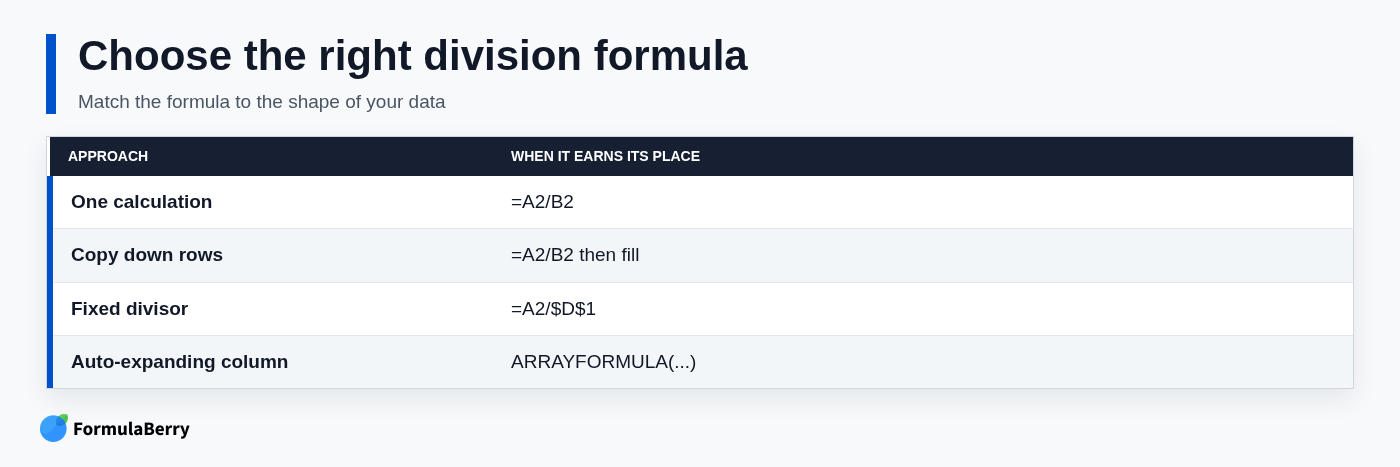
For a one-off calculation, use =A2/B2. When every row divides by the same rate, target, or conversion factor, lock that cell with an absolute reference such as =A2/$D$1. If a result column should grow automatically with new data, use ARRAYFORMULA. Add IFERROR or a direct zero check when incomplete source data is expected.
The simplest formula is usually the best formula because it is easier to review, copy, and fix. When the logic becomes more involved, Google Sheets Formula Generator can help generate, explain, or correct a formula from a plain-language request. You can also visit FormulaBerry for spreadsheet formula help.