
The simplest Google Sheets end of month formula is =EOMONTH(A2,0). It returns the last calendar day of the month containing the date in A2. For a result that always uses the current month, use =EOMONTH(TODAY(),0).
EOMONTH is the function built specifically for month-end dates. It is more reliable than trying to calculate month lengths manually, and it handles February and leap years without extra logic.
The Google Sheets formula for the last day of a month
To return the final day of the month for a date in cell A2, enter:
=EOMONTH(A2,0)
The 0 tells Google Sheets to stay in the same month as the source date. If A2 contains any valid date in April, the formula returns April 30. If A2 contains a date in February during a leap year, it returns February 29 automatically.
For a rolling current-month result, use:
=EOMONTH(TODAY(),0)
This is useful in monthly dashboards, budget trackers, and reports where the reporting period should update without anyone changing a date manually.
How the EOMONTH formula works
The syntax is:
=EOMONTH(start_date, months)
start_date is the date Google Sheets uses as its starting point. months is the number of months to move before returning the final day of that month.
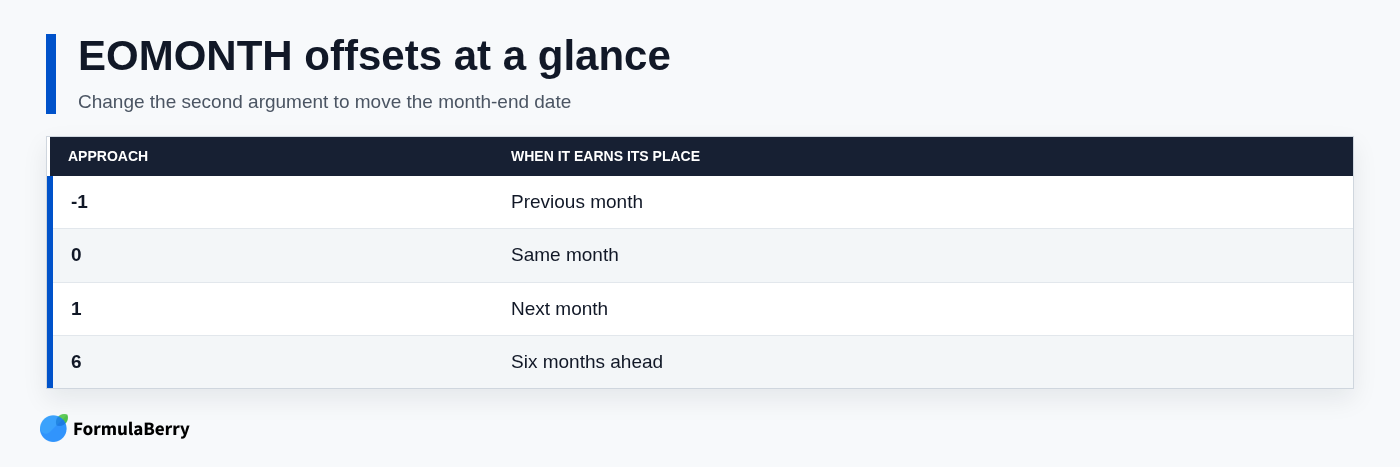
- 0 returns the last day of the same month.
- 1 returns the last day of the next month.
- -1 returns the last day of the previous month.
- 6 returns the last day of the month six months ahead.
EOMONTH returns a real date value, even though Sheets stores dates internally as serial numbers. That distinction matters: a true date can be sorted, filtered, compared, and used in another formula. You can change its appearance with formatting without changing the underlying result.
Use a date in a cell
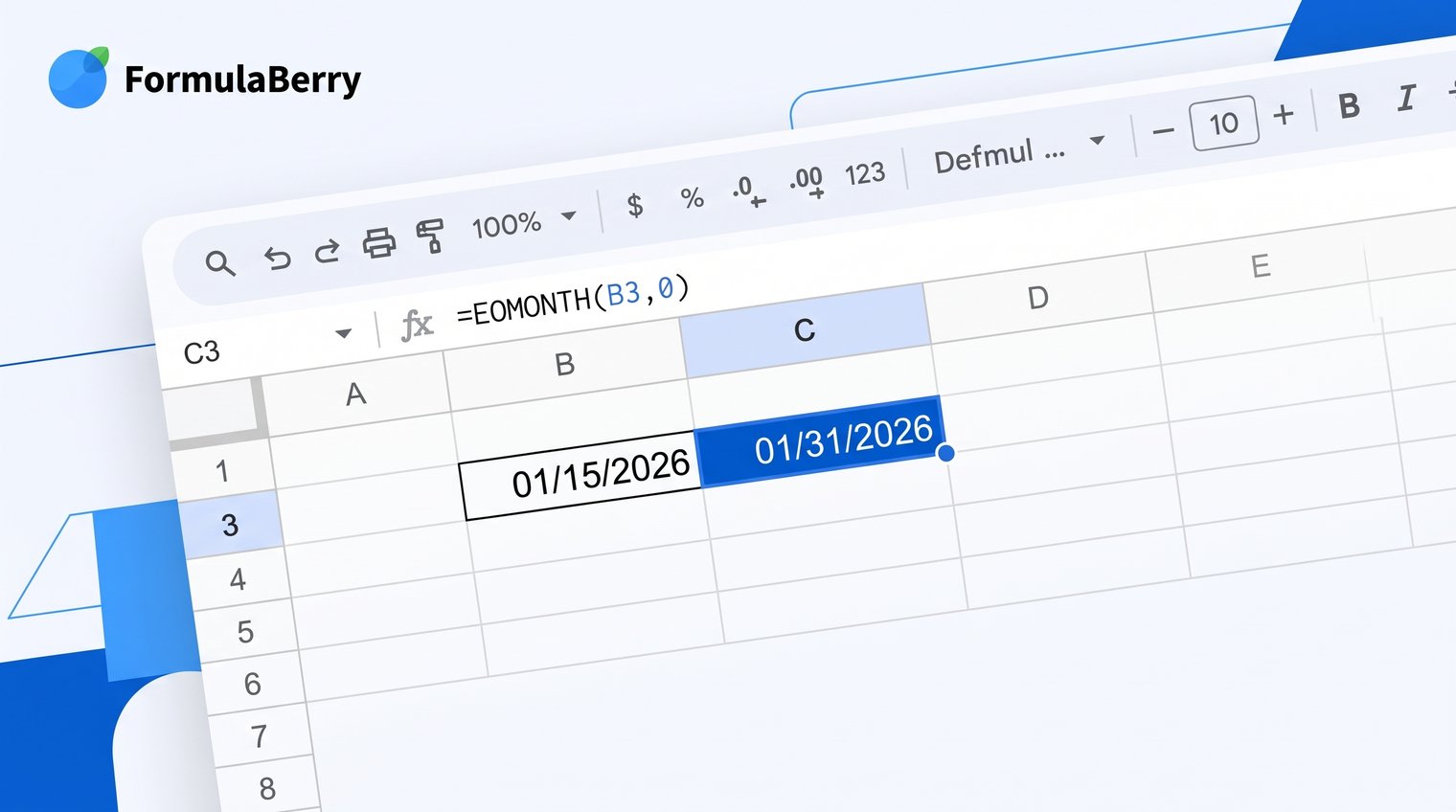
Use =EOMONTH(A2,0) when you have a source date in a cell and need the corresponding month-end date.
For example, if A2 contains 4/12/2026, the formula returns 4/30/2026. The day in A2 does not matter; any date in April 2026 produces the same month-end result.
Use today's date for a rolling result
Use =EOMONTH(TODAY(),0) when the sheet should always display the end of the current month. If TODAY() falls in October, it returns October 31; when the month changes, the result updates to the new month's final day when the sheet recalculates.
This is a better choice than typing a month-end date into a recurring report. Just remember that TODAY is dynamic, so it is not appropriate when you need to preserve a historical reporting date unchanged.
End-of-month formulas for common date ranges
Most month-end tasks come down to choosing the correct offset in the second EOMONTH argument. Rather than changing dates by hand, use the formula that matches the reporting period you need.
Last day of the previous, current, and next month
| Needed date | Formula using A2 | Formula based on today |
|---|---|---|
| Previous month end | =EOMONTH(A2,-1) | =EOMONTH(TODAY(),-1) |
| Current month end | =EOMONTH(A2,0) | =EOMONTH(TODAY(),0) |
| Next month end | =EOMONTH(A2,1) | =EOMONTH(TODAY(),1) |
For example, a monthly report run in the first week of a new month may need =EOMONTH(TODAY(),-1) to identify the period that just closed.
Last day of a month a set number of months away
To find a later or earlier month-end date, change the offset:
- =EOMONTH(A2,6) returns the last day of the month six months after A2's month.
- =EOMONTH(A2,-6) returns the last day of the month six months before A2's month.
The offset counts months, not a fixed number of days. That is why it remains accurate across 28-, 29-, 30-, and 31-day months. Adding 180 days is not an equivalent substitute for six months.
How to get the first day of a month from EOMONTH
EOMONTH returns a month end, not a month start. But it is still an easy way to calculate the first day of a month: find the end of the prior month, then add one day.
For the first day of the month containing A2, use:
=EOMONTH(A2,-1)+1
If A2 contains 4/12/2026, this returns 4/1/2026. EOMONTH finds 3/31/2026, and adding one creates the next calendar date.
For the first day of the next month, use:
=EOMONTH(A2,0)+1
That pattern is especially useful when building a Google Sheets date range. You can use a month start as the lower boundary and the following month start as the upper boundary.
Practical examples: month-end reporting, deadlines, and due dates
Month-end dates are most useful when they remain real dates inside a working formula, not just labels displayed in a report. EOMONTH can define reporting windows, calculate deadlines, and create consistent period names.
If you only need a readable period label, this formula converts the month-end date into text:
=TEXT(EOMONTH(A2,0),"mmmm yyyy")
For a date in April 2026, the result is April 2026. Use this for headings and labels, but keep a separate EOMONTH date value for calculations, sorting, or filtering.
Filter records through the end of the selected month
For date-only data, a month-end criterion can include every date through the selected month. For example, if column B contains transaction dates and D2 contains a date in the desired month:
=FILTER(A2:C, B2:B<=EOMONTH(D2,0))
This returns all records through the selected month-end and works well when column B contains dates without times. Timestamped data needs a more careful boundary because an entry at 4/30/2026 3:00 PM is greater than a date value representing the start of 4/30/2026.
For timestamps, use an exclusive first-day-of-next-month boundary instead:
=FILTER(A2:C, B2:B>=EOMONTH(D2,-1)+1, B2:B<EOMONTH(D2,0)+1)
This includes every timestamp in the chosen month without relying on a fragile 23:59:59 cutoff. If you need to apply similar date logic across many rows, an Array Formula in Google Sheets can help extend the calculation without copying it manually.
Calculate a month-end due date
If an invoice or task is due at the end of the following month, use:
=EOMONTH(A2,1)
When A2 is the invoice date, the formula returns the last day of the next calendar month. Keep the result as a date rather than wrapping it in TEXT. That lets you sort upcoming deadlines correctly, calculate days remaining, and apply conditional formatting for overdue items.
Why EOMONTH may show a number or an error
When EOMONTH does not look right, the formula itself is often fine. The usual problem is date formatting, a source value that looks like a date but is actually text, or an invalid offset.
The result is a five-digit number
A result such as 46142 usually means Google Sheets is displaying the underlying date serial number. Dates are stored as numbers so Sheets can perform date arithmetic.
Select the formula cell, then choose Format > Number > Date. Do not convert the result to text merely to make it look like a date; formatting preserves its usefulness in later formulas.
The source date is text, not a recognized date
EOMONTH needs a valid date value. Imported data can cause trouble when values look like dates but are stored as text, particularly when day-month order differs from the spreadsheet's locale.
Check whether the source values align and behave like dates when you change their format. If the text is in a format Google Sheets recognizes, =DATEVALUE(A2) can convert it before you apply EOMONTH. When the source comes from an import, cleaning it into a consistent date format first is usually more dependable than trying to fix every formula downstream.
Also make sure the months argument is numeric. Use values such as -1, 0, or 1, rather than text like "next month."
Return the right month-end date every time
The core Google Sheets end of month formula is =EOMONTH(date,0). Change the second argument to -1 for the previous month or 1 for the next month, and use larger positive or negative values for more distant reporting periods.
Keep the output as a true date, then apply display formatting after the calculation works. That small habit prevents problems with filtering, deadlines, date ranges, and month-end reports. For counting records within those date ranges, see this guide to the COUNTIF formula in Google Sheets.
If you know the spreadsheet rule you need but not the exact syntax, FormulaBerry can help generate, explain, or correct an Excel or Google Sheets formula from a plain-language request.