
A Google Sheets row formula looks simple until a header, blank row, sort, or inserted record makes the numbers stop lining up. The key is understanding that ROW does not create a sequence by itself: it reports a position in the sheet.
Once you use that distinction correctly, ROW becomes useful for automatic row numbers, formulas that follow the current record, running totals, lookup auditing, and dynamic references that do not need manual edits.
What the ROW function returns in Google Sheets
The ROW function returns the numeric position of a row. If a cell sits on row 7, ROW can return 7. If you point ROW at a cell in row 15, it returns 15.
The syntax is ROW([cell_reference]). The cell reference is optional. Without one, Google Sheets uses the row containing the formula.
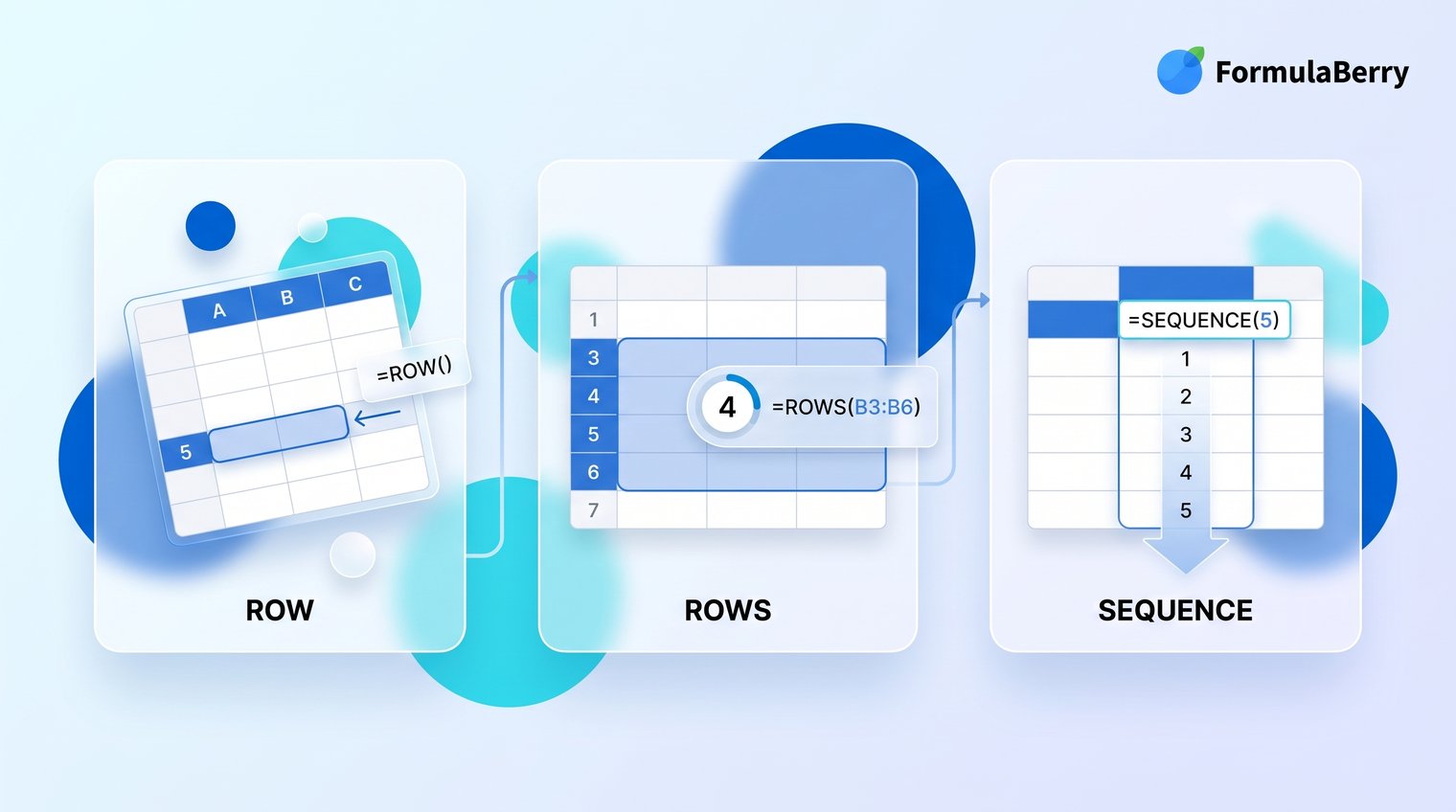
Do not confuse ROW with ROWS. ROW reports a row position, while ROWS counts how many rows exist in a range.
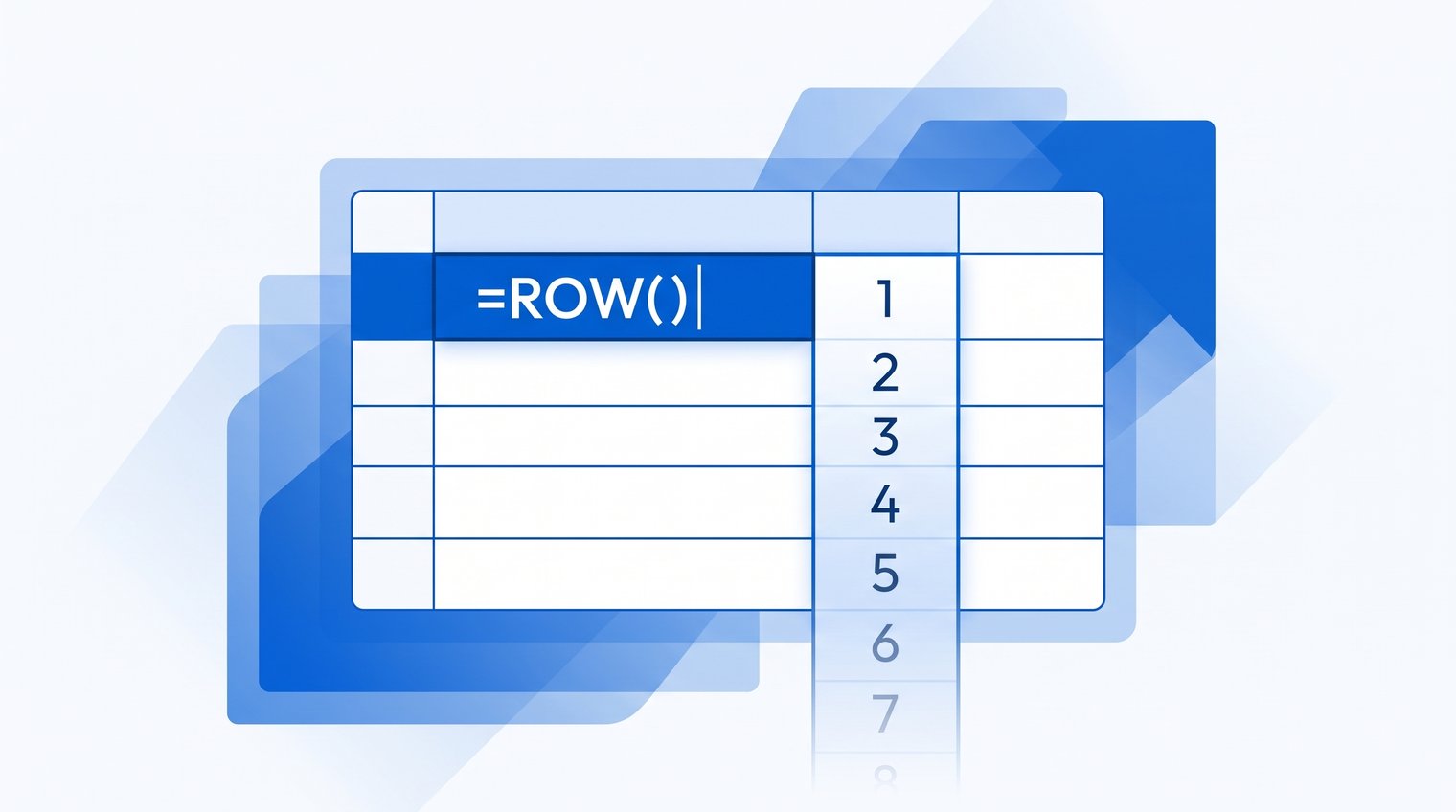
Use =ROW() to return the current cell's row number
Enter =ROW() in any cell, and Google Sheets returns the number of the row where that formula lives. For example, if you enter it in C7, the result is 7.
Copy the formula down and the results update automatically: a formula copied to C8 returns 8, then C9 returns 9. This is the basic Google Sheets row number formula when you want numbering tied to the sheet's actual positions.
Use =ROW(A15) to return a referenced row number
With a reference inside the function, ROW returns the row of that reference rather than the row holding the formula. =ROW(A15) returns 15 whether you place it in B2, H30, or another sheet location.
The reference can be a cell or a range. In a normal single-cell formula, =ROW(A15:A20) returns 15 because that is the first row in the referenced range. In an array-enabled context, it can return multiple row values.
Create a row-number column that stays accurate
A row-number column is most useful beside a working dataset: orders, expenses, tasks, contacts, or report lines. Unlike numbers typed manually, ROW-based numbering adjusts when you insert or delete rows.
That behavior is usually what you want for a display number. It is not suitable for a permanent customer, invoice, or transaction ID, which should not change when the sheet is sorted.
Number every row starting at 1
Suppose row 1 contains headers and your first record begins on row 2. In A2, enter:
=ROW()-1
The result in A2 is 1 because the actual sheet row is 2. Fill the formula down to number each data row: A3 becomes 2, A4 becomes 3, and so on.
For a simple table with headers such as Number, Customer, and Total in row 1, this is the best default. It remains aligned with the displayed row position after records are inserted or removed.
Start numbering from any value
Use this general pattern when your first data row and starting number differ:
=ROW()-first_data_row+starting_number
For example, assume data starts in row 5 and you want the first visible ID to be 1001. Enter this in the ID cell on row 5:
=ROW()-5+1001
At row 5, the calculation is 5 - 5 + 1001, so it returns 1001. On row 6 it returns 1002. If you move the first data row later, update the 5 in the formula to match the new starting row.
Fill row numbers down automatically with ARRAYFORMULA
If you do not want to copy a formula down, place an array formula in A2 and let it generate numbers for the full column. For more examples of this approach, see Array Formula in Google Sheets: Examples and How to Use It.
=ARRAYFORMULA(IF(B2:B="","",ROW(B2:B)-1))
This version checks column B before showing a number. If B is blank, the matching cell in column A stays blank. If B contains data, the formula returns the row number minus 1.
Use a column that is required for every genuine record in the blank check. If column B is optional, the numbering may have gaps even though the row contains data elsewhere. For very large sheets, replace the open-ended range with a practical boundary such as B2:B5000 to avoid asking the sheet to calculate more rows than needed.
Reference cells in the current row without editing each formula
Many users search for a current-row formula when they simply need a calculation to follow each record down a table. In that situation, ROW is often unnecessary. Standard relative references already do the job.
Use direct relative references for straightforward row calculations
Suppose column D contains sales, column F contains refunds, and column G contains fees. In H2, enter:
=D2-F2-G2
Fill it down. Google Sheets changes the references for each row: H3 becomes =D3-F3-G3, H4 becomes =D4-F4-G4, and so on. This is clearer than building the same logic through ROW and INDEX.
Use dollar signs only when part of a reference must stay fixed. $D$2 locks both the column and row. D$2 lets the column change but keeps row 2 fixed. $D2 keeps column D fixed while allowing the row to change. A common mistake is adding dollar signs everywhere, then wondering why copied formulas keep pointing to the first record.
Use INDEX with ROW when the target column is chosen dynamically
ROW becomes useful when you need to retrieve a value from a fixed source column while following the formula's current row. For example:
=INDEX($D:$D,ROW())
This formula returns the value in column D from the same row as the formula. If it is in row 12, it returns D12. The $D:$D portion keeps the source column fixed, and ROW() supplies the current row number.
Use this pattern when a larger formula needs a dynamic column reference or when the formula is designed to be moved across a report. For a basic same-row calculation, direct references such as =D2-F2-G2 are easier to read and maintain.
Build dynamic ranges with ROW
ROW is more valuable when a formula must adapt to its position. Instead of merely showing a number, it can control which source row INDEX retrieves or where an expanding calculation ends.
Return values from a selected starting row
Use =INDEX(B:B,ROW()+1) to return the value from column B one row below the formula.
If the formula is in row 10, ROW() returns 10. Adding 1 produces 11, so INDEX returns B11. Change the offset to control the shift: ROW()-1 returns the source value one row above, while ROW()+2 returns the value two rows below.
This is useful when a report layout and a source layout do not start on identical rows. Keep the offset small and documented; complicated offsets are a sign that the sheet structure may need simplification.
Sum a range that expands to the current row
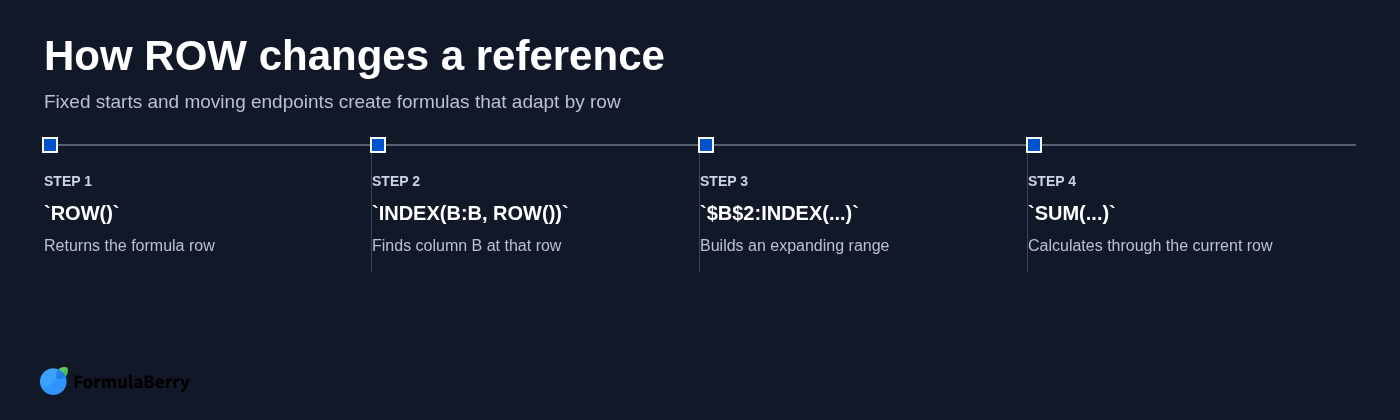
A running total needs a fixed start and a moving endpoint. If values begin in B2, enter this formula in the row where you want the total to end:
=SUM($B$2:INDEX(B:B,ROW()))
$B$2 is fixed as the first amount in the series. INDEX(B:B,ROW()) identifies the cell in column B on the current formula row. Together, they create a range from B2 through the current row, and SUM adds it.
For example, in row 8 the endpoint becomes B8, so the formula calculates B2:B8. In row 9, it expands to B2:B9. Ensure the formula is not placed within the values being summed unless that is intentional, or you can create a circular reference.
Generate row-aware labels and IDs
ROW can also produce labels that are easy to scan in a task list or internal report. These labels reflect a row's current position, so treat them as display labels rather than permanent database identifiers.
Create a label with the current row number
With headers in row 1, enter this formula in row 2:
="Task-"&TEXT(ROW()-1,"000")
The output is Task-001 in row 2, Task-002 in row 3, and so on. TEXT adds leading zeroes, which keeps labels aligned when the list grows beyond nine or 99 tasks.
If your headers occupy more than one row, adjust the subtraction. For example, if records start on row 4 and the first label should still be Task-001, use ROW()-3.
Choose the right identifier for data that will be sorted
Do not use a ROW-based value as a stable record ID when the data will be sorted, filtered, inserted, or deleted. After sorting, a record can move from row 12 to row 4, and its formula-based label will change accordingly.
For invoices, orders, customer records, or any item referenced outside the sheet, use a static value created at the time the record is added. ROW is appropriate when the number should describe position, not identity.
Use ROW with FILTER, MATCH, and lookup results
ROW is especially useful when you need to identify where a result came from in the original sheet. That is different from showing a sequential number in a filtered report.
Return the sheet row numbers for filtered matches
To return the original sheet row numbers for records marked Open in column C, use:
=FILTER(ROW(A2:A),C2:C="Open")
ROW(A2:A) produces the source row positions, while FILTER keeps only the rows where column C contains Open. If matching records are on sheet rows 4, 9, and 15, those are the values returned.
This is useful for auditing a filtered output, troubleshooting a report, or quickly locating the source record that produced a result. The returned values are actual sheet row positions, not a newly numbered list of matches.
Convert a MATCH position into an actual sheet row number
MATCH returns a position within its lookup range, not necessarily the actual row number of the sheet. For example, if Widget is the third item in A2:A, MATCH returns 3 even though the item is on sheet row 4.
To convert that position into the sheet row number, use:
=ROW(A2)-1+MATCH("Widget",A2:A,0)
ROW(A2) returns 2. Subtracting 1 establishes the offset before the lookup range begins, then MATCH adds the position within A2:A. If Widget is the third item, the result is 4.
This offset matters whenever your lookup range begins below row 1. Forgetting it is a common cause of lookup results that are off by one or more rows. For related lookup patterns, see VLOOKUP Formula in Google Sheets: How to Use and Fix It.
Avoid the most common ROW formula mistakes
Most ROW problems come from confusing a sheet position with a sequence number, or from expecting a range reference to behave like a single cell. These fixes address the symptoms directly.
Your numbering starts at 2 instead of 1
ROW reports the actual sheet row. If your first data record is on row 2, =ROW() correctly returns 2.
To start the visible numbering at 1 when headers are in row 1, use =ROW()-1. If there are multiple header rows, subtract the number of rows before the first data row.
ROW returns an unexpected result for a range
In a normal single-cell context, =ROW(A2:A10) returns 2 because A2 is the first row in the range. It does not automatically display every row number in that range.
To generate a list, use an array-enabled formula such as =ARRAYFORMULA(ROW(A2:A10)). Keep the range bounded when you only need a defined block; using A2:A may create far more results than intended.
Your row-based ID changed after sorting
That behavior is expected. ROW tracks where a record sits in the sheet, not what the record is.
If an identifier must remain unchanged after sorting, use a static ID instead. Reserve ROW-based labels for rankings, line numbers, task positions, and other values that should move with the row.
ROW vs. ROWS vs. SEQUENCE: choose the right function
These functions all involve rows, but they solve different problems. Choosing the correct one prevents unnecessarily complicated formulas.
Choose ROW for a position-aware formula
Use ROW when a calculation needs the current row number or the row number of a referenced cell. It is the right choice for formulas that follow sheet position, such as dynamic endpoints, source-row auditing, and row-aligned labels.
Choose ROWS for the size of a range
Use =ROWS(A2:A10) when you need the number of rows in a range. It returns 9 because the range includes rows 2 through 10.
ROWS does not tell you where the range sits on the sheet. It counts its height.
Choose SEQUENCE for a standalone number series
Use =SEQUENCE(10) to spill a list from 1 to 10. This is ideal when you need a fixed-length series that does not depend on the physical row positions in the sheet.
Choose ROW instead when inserted or deleted rows should keep visible numbering aligned with sheet positions. SEQUENCE generates values; ROW reads positions.
Make row-based formulas easier to write and check
ROW is best when the formula needs to know where it is: numbering a live table, locating a source row, or creating a range that expands to the current record. For simple calculations across columns in the same row, use ordinary relative references first.
After filling or spilling any row-based formula, check the first few results, a middle result, and the last populated row. Pay particular attention to header rows, blank records, and the point where data begins.
When the workbook layout makes an offset hard to calculate, FormulaBerry can generate, explain, or help correct a ROW formula from a plain-language description of your sheet. You can also use the Google Sheets Formula Generator: Create, Explain, and Fix Formulas for a more guided approach.