
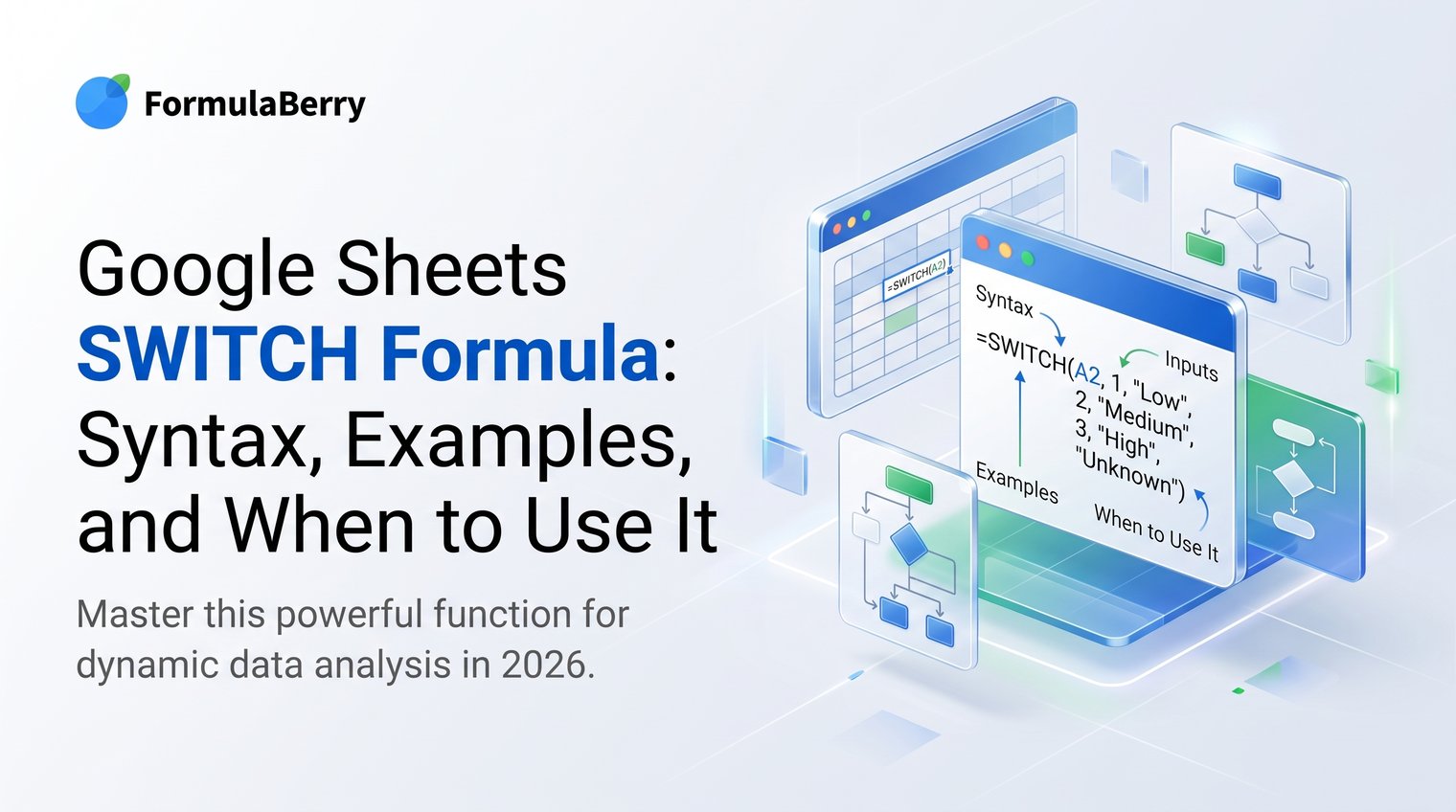
Nested IF formulas are one of the fastest ways to turn a simple spreadsheet mapping into something nobody wants to edit. When one cell contains a code, rating, status, or category and you need a matching output, the Google Sheets SWITCH formula gives you a cleaner option.
Use SWITCH when you are matching one value against a known set of exact choices. It is easy to read, easy to extend for a few cases, and much less error-prone than stacking several IF statements inside each other.
What the Google Sheets SWITCH function does
The Google Sheets SWITCH function evaluates one expression, compares it with a list of case values, and returns the result associated with the first exact match. In plain terms, it lets you translate compact spreadsheet values into useful labels, numbers, references, or calculations.
For example, a sheet may use 1, 2, and 3 for customer ratings, while your report needs to display Bronze, Silver, and Gold. SWITCH handles that translation in one formula without deeply nested IF statements.
It works best for discrete, exact values: codes such as "N" and "P", plan names such as "Basic" and "Pro", or ratings such as 1 through 5. It is not the right choice for ranges and inequality tests, such as values greater than 100 or dates before a deadline. For those decisions, use IF or IFS instead.
Understand the SWITCH syntax before you build a formula
The syntax is:
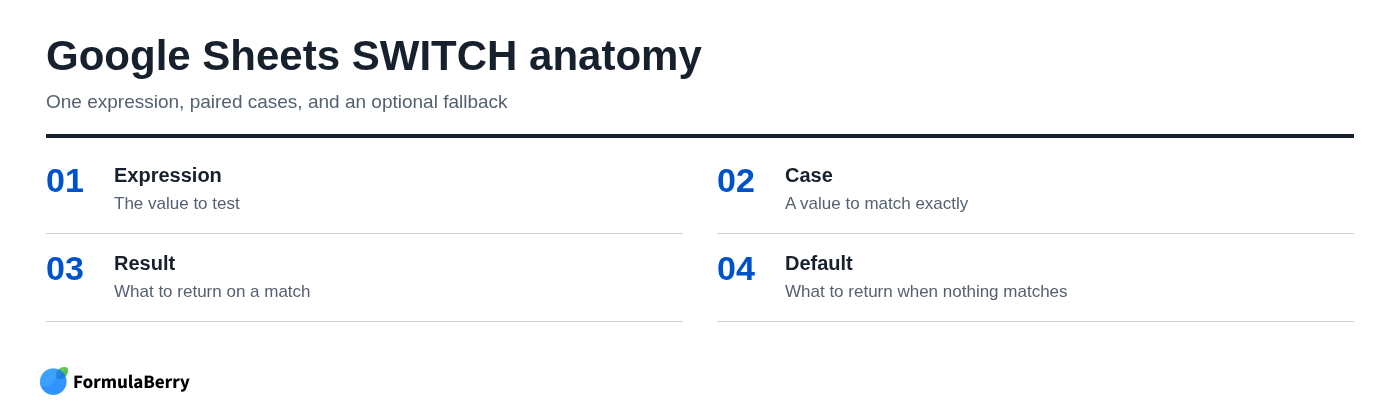
=SWITCH(expression, case1, value1, [case2, value2, ...], [default])
- expression is the value you want to test. This is often a cell reference such as A2.
- case1 is a value that could match the expression.
- value1 is what Google Sheets should return when that case matches.
- Additional cases and results are added as pairs: case2, value2, case3, value3, and so on.
- default is optional. It is what the formula returns if none of the listed cases match.
The important structural rule is that every case needs a matching result immediately after it. If you insert or remove one argument in the wrong position, all later pairs can shift and produce misleading results.
Put literal text in quotation marks. For instance, use "Active" and "Inactive". Do not quote cell references such as A2, and do not quote ordinary numeric values such as 1 or 250.
Build a basic SWITCH formula with a cell reference
Suppose column A contains a rating from 1 to 3, and you want column B to show a named level. Click the first result cell, such as B2, and enter:
=SWITCH(A2,1,"Bronze",2,"Silver",3,"Gold","Unrated")
If A2 contains 1, the formula returns Bronze. If it contains 2, it returns Silver. If it contains 3, it returns Gold. Any other value returns Unrated because that is the default at the end of the formula.
Google Sheets checks the cases from left to right and stops at the first exact match. Once the formula works in B2, drag the fill handle down to apply it to later rows. Because A2 is a relative reference, Sheets changes it to A3, A4, and so on as it fills.
Use SWITCH with text values for statuses and categories
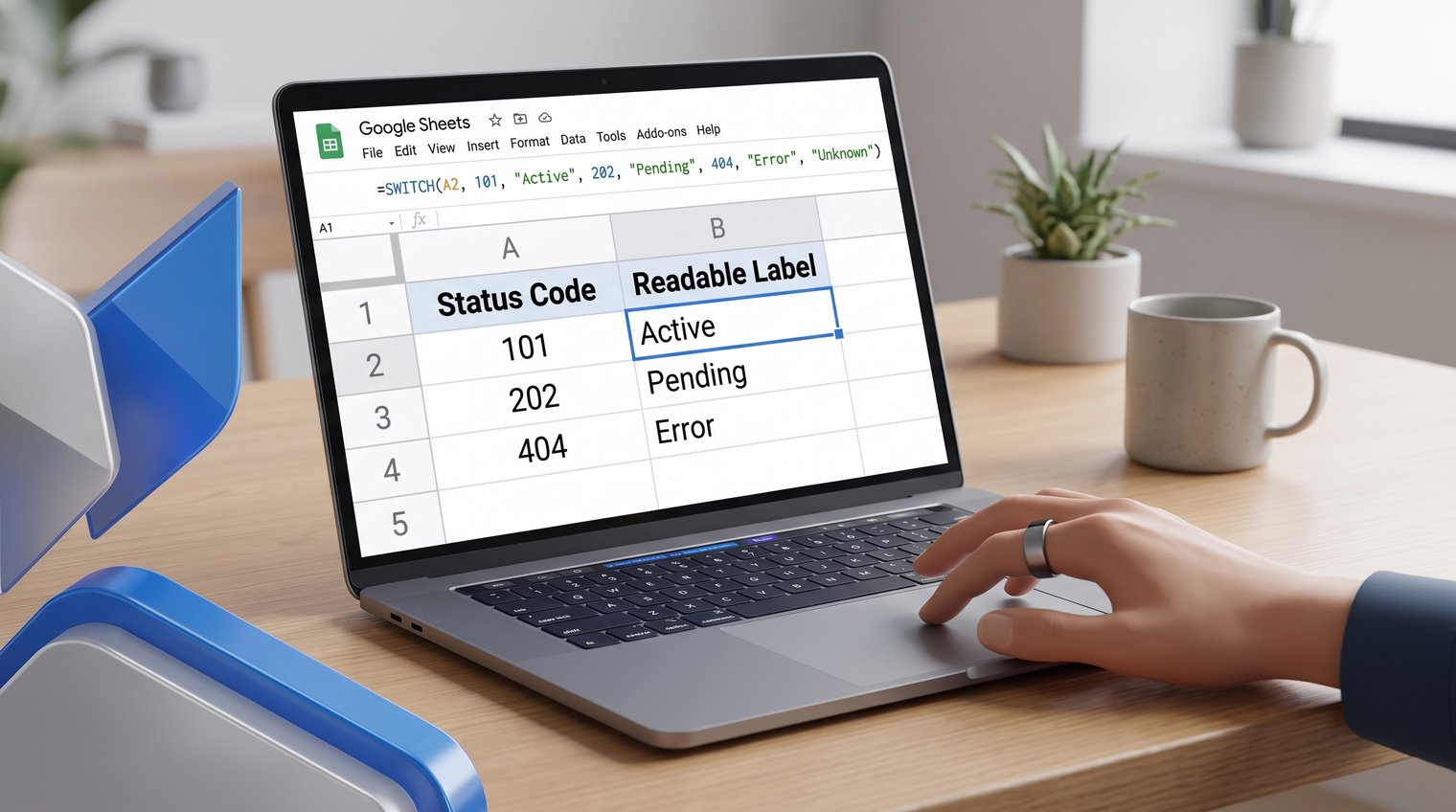
Text codes are one of the most common reasons to use SWITCH. For a project tracker where B2 contains N, P, or C, use:
=SWITCH(B2,"N","New","P","In Progress","C","Complete","Unknown status")
This formula requires an exact text match. A value of "P " with a trailing space will not match "P", and neither will an alternate code such as "Progress". Inconsistent source data is a common reason a formula unexpectedly falls through to its default.
When values may have extra spaces or inconsistent capitalization, normalize the input before matching it:
=SWITCH(UPPER(TRIM(B2)),"N","New","P","In Progress","C","Complete","Unknown status")
TRIM removes leading, trailing, and repeated spaces. UPPER converts the code to uppercase, so p and P are treated consistently. This is a useful defensive pattern for data pasted from forms, exports, or multiple contributors.
Return calculations, cell references, and other formulas from SWITCH
SWITCH does not only return text labels. Each result can be a number, a cell reference, or another formula. That makes it useful when a category determines a rate, a price, a target, or a calculation rule.
For example, a customer tier in A2 could return a discount rate:
=SWITCH(A2,"Standard",0,"Member",0.05,"VIP",0.1,0)
If the order amount is in B2, calculate the discounted total with:
=B2*(1-SWITCH(A2,"Standard",0,"Member",0.05,"VIP",0.1,0))
For assumptions you expect to revise, references are usually better than hard-coded values. If E2, E3, and E4 hold the editable discount rates for Standard, Member, and VIP customers, use:
=SWITCH(A2,"Standard",E2,"Member",E3,"VIP",E4,0)
Now a rate change happens in one visible assumptions area instead of inside every formula.
Example: Calculate a price based on a selected plan
Imagine A2 holds a plan name and B2 holds the number of licenses. Put the monthly prices in E2:E4: $15 for Starter, $29 for Team, and $59 for Business. Then calculate the total monthly charge with:
=SWITCH(A2,"Starter",E2,"Team",E3,"Business",E4,0)*B2
If A2 is Team and B2 is 4, the formula returns the value in E3 multiplied by 4. Keeping prices in dedicated cells makes the sheet easier to audit and update.
Common mistake: do not place all plan names first and all prices afterward. SWITCH requires alternating pairs: plan, price, plan, price. Otherwise, Sheets treats a supposed plan name as a result or a supposed price as the next case.
Add a default result so unmatched values stay useful
Without a default, an unmatched value can return an error. In a live report, that is rarely helpful. An explicit fallback makes the result understandable and gives you a chance to spot data that needs attention.
Choose a default that fits the job. For category labels, use a response such as "Other" or "Unknown status". For data validation, "Check input" is more direct. For numeric formulas, use a suitable fallback such as 0 only if zero is truly safe for the calculation.
Do not confuse an unmatched value with a blank cell. A blank may be normal while a misspelled status is a problem. Handle those situations differently when the report needs to stay visually clean.
Handle blank cells separately when blanks should remain blank
To leave empty inputs empty while still flagging invalid entries, wrap SWITCH in IF:
=IF(A2="","",SWITCH(A2,"H","High","M","Medium","L","Low","Check input"))
The first IF checks whether A2 is blank. If it is, the formula returns an empty string. If it is not blank, SWITCH runs normally and returns Check input for unrecognized values.
This pattern is useful in templates where future rows are intentionally empty. If you are checking a required field, however, showing a default message for blanks may be more useful because it exposes missing data immediately.
Use SWITCH with dates, booleans, and calculated expressions
The first argument in SWITCH can be a calculation, not only a direct cell reference. This is especially handy when you want to convert a calculated code into a readable result.
For example, WEEKDAY can turn a date in A2 into a weekday number. Using return type 2 makes Monday equal 1 and Sunday equal 7:
=SWITCH(WEEKDAY(A2,2),1,"Monday",2,"Tuesday",3,"Wednesday",4,"Thursday",5,"Friday",6,"Saturday",7,"Sunday","Invalid date")
That formula is clear because every possible WEEKDAY result has a matching label. For a shorter weekday display, a direct date-formatting approach may be easier to maintain, but SWITCH remains useful when the outputs are custom.
You can also match date serial values and boolean values such as TRUE or FALSE. Still, favor the most readable approach. If the real question is simply whether a condition is true, a standard IF is often clearer than a SWITCH formula built around TRUE.
Know when to use SWITCH, IFS, IF, or a lookup table
The right function depends on the logic, not on which formula you remember first.
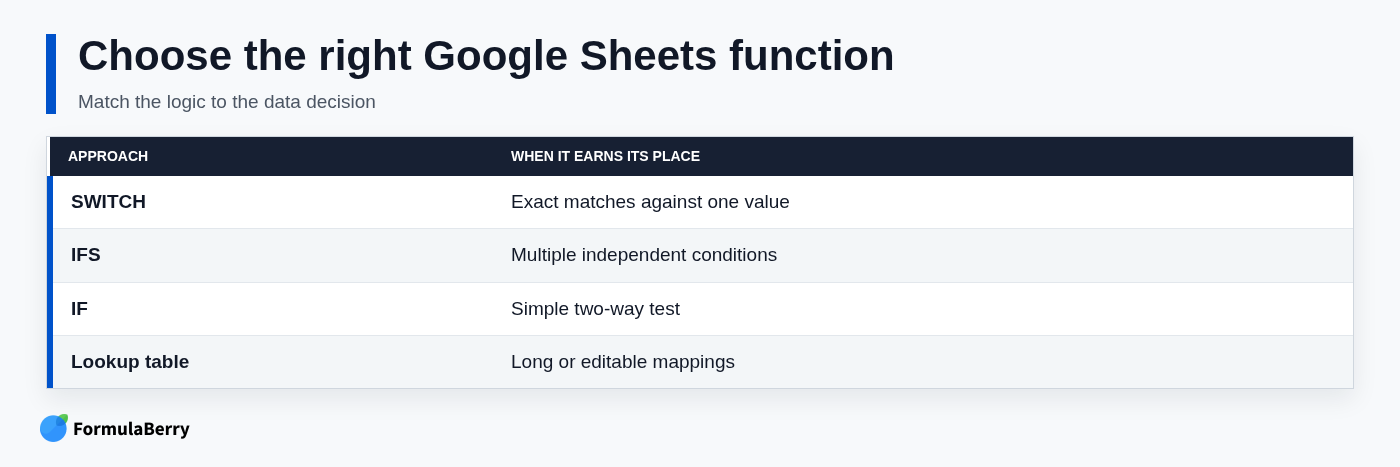
| Use this option | Best for |
|---|---|
| SWITCH | Exact matches against one expression, such as codes, plans, statuses, or ratings. |
| IFS | Several independent conditions, especially comparisons such as greater than, less than, or date ranges. |
| IF | A simple two-way decision, such as pass/fail or yes/no. |
| Lookup table | A long mapping list or a mapping that non-formula users need to maintain. |
Use SWITCH when every branch compares the same value for equality. For example, converting A2 from "Low", "Medium", or "High" into a numeric priority is a good fit.
Use IFS or IF for thresholds. A sales amount in A2 that needs one result below $1,000, another between $1,000 and $4,999, and another above $5,000 is not an exact-match problem. Trying to force comparisons such as A2>1000 into SWITCH cases is a common mistake because SWITCH compares the expression to the value of each case; it does not evaluate each case as an independent condition.
For a mapping with dozens of codes, use a lookup table instead of a huge SWITCH formula. A small two-column reference table is easier to update, review, and reuse across worksheets. If you need to retrieve values from that kind of table, see this guide to the VLOOKUP formula in Google Sheets.
If you are replacing a nested IF, make the switch only when each branch tests the same cell for equality. A formula that repeatedly checks A2="New", A2="Active", and A2="Closed" can become SWITCH. A formula that checks several different cells or multiple thresholds should usually stay with IF or IFS.
Avoid the most common SWITCH formula mistakes
The first mistake is breaking the case-result pattern. Read the formula in pairs: match this value, return this output. If a pair is missing, the rest of the formula may be misaligned.
The second is forgetting quotation marks around literal text. Use "P", not P, when P is a text code. Conversely, do not put quotes around a cell reference if you want Sheets to read the value inside that cell.
Third, check the source data before blaming the formula. Extra spaces, inconsistent capitalization, numbers stored as text, and unexpected spelling variations all prevent an exact match. TRIM and UPPER can help with text cleanup, while formatting and data entry rules can prevent the issue at the source.
Finally, do not omit a default when unexpected inputs are possible. A default result turns a confusing error into an actionable message.
When debugging, use a simple sequence:
- Test the expression by itself, such as =A2 or =WEEKDAY(A2,2), to confirm what it returns.
- Check the value type and formatting: text versus number, leading spaces, dates, and capitalization.
- Build a SWITCH formula with one case pair and confirm it works.
- Add the remaining pairs one at a time, then add the default last.
Generate, explain, and repair a SWITCH formula with AI help
If you know the result you need but are unsure about formula syntax, describe the mapping in plain language. A useful request includes the input cell, expected cases, desired outputs, and any blank-handling rule.
For example, you might ask: "Create a Google Sheets formula that reads the status code in B2, returns New for N, In Progress for P, Complete for C, keeps blanks blank, and returns Check input for any other value."
You can also ask why a formula returns its default: "Explain why this SWITCH formula does not match the value in A2 and show a version that ignores leading spaces and capitalization." Before filling any generated formula down a sheet, verify the cell references, case values, expected result, and the separators required by your spreadsheet locale.
For help generating or repairing formulas, see FormulaBerry's Google Sheets formula generator guide.
FormulaBerry is an AI formula assistant that can generate, explain, and correct Excel and Google Sheets formulas from natural-language requests. It is useful when you need help translating a business rule into a formula, but it does not replace checking whether the codes, cell references, and assumptions in your sheet are correct.
FormulaBerry
FormulaBerry is best suited to spreadsheet users who need a formula for a specific mapping task without manually piecing together function syntax. Describe the source cell, exact values to match, outputs to return, and whether blanks need separate treatment.
Its meaningful limitation is that the formula can only reflect the rule you provide. If the underlying data contains inconsistent codes or your pricing assumptions are wrong, the generated formula will not fix those business inputs. Choose it when the formula logic is the obstacle, then review the finished formula against a few real rows before applying it widely.
Put SWITCH to work in your next mapping task
Use SWITCH when one value needs to produce an exact-match label, output, reference, or calculation. It is an excellent fit for status codes, plan names, ratings, and short category lists. Use IFS for thresholds and other logical conditions, and move long or frequently changed mappings into a lookup table.
Start with one row, add a clear default, and test both a valid value and an unexpected one before filling the formula down. For larger ranges, an Array Formula in Google Sheets may help automate the results. If you get stuck, describe the mapping you want in FormulaBerry, then review the generated result before using it in your sheet.