
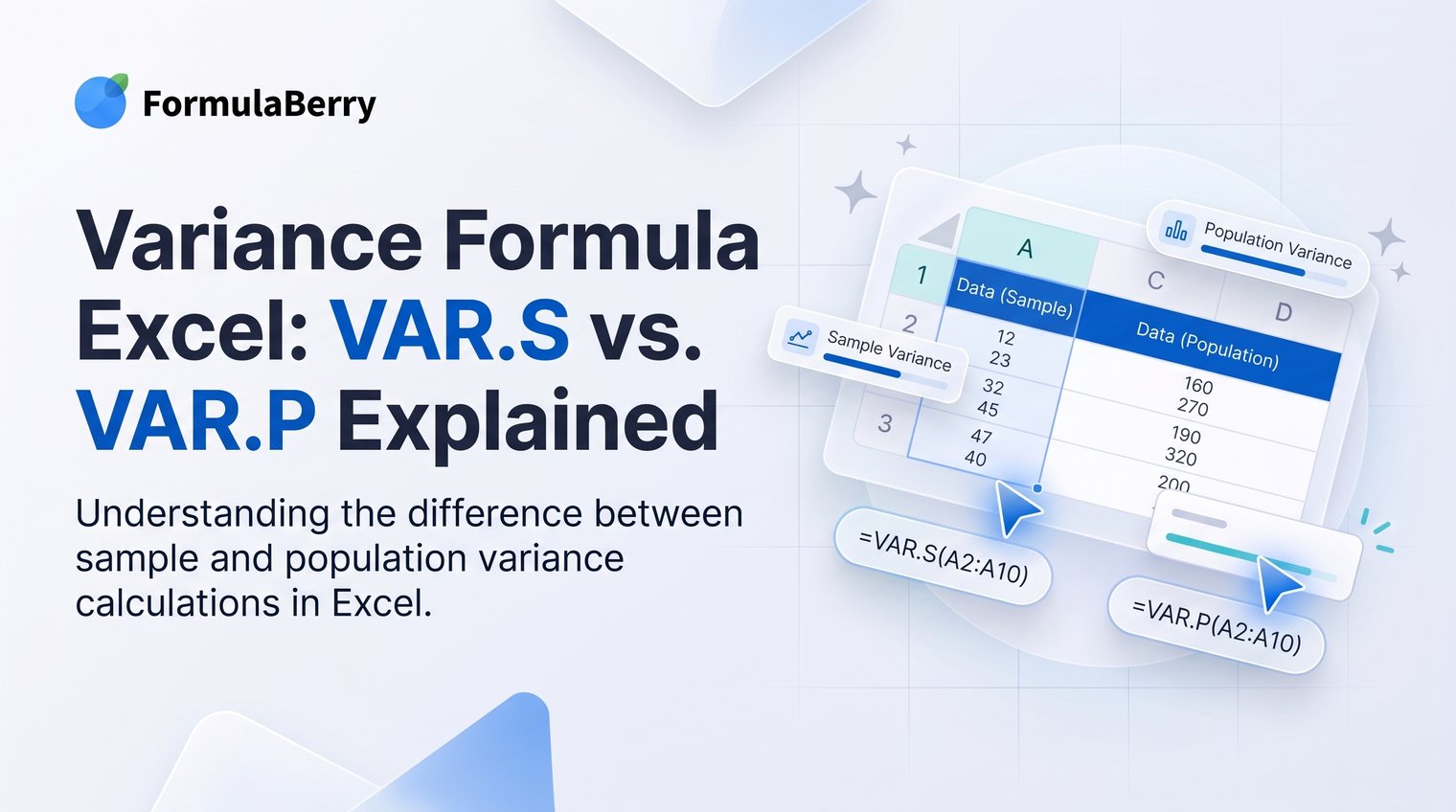
Use VAR.S when your data is a sample from a larger group, and use VAR.P when your range contains every value in the population you want to describe. That single distinction determines which Excel variance formula is correct.
For new workbooks, choose VAR.S and VAR.P rather than the older VAR and VARP functions. The legacy versions still work for compatibility, but the newer names make your intent much easier for someone else to understand later.
Which Excel variance formula should you use?
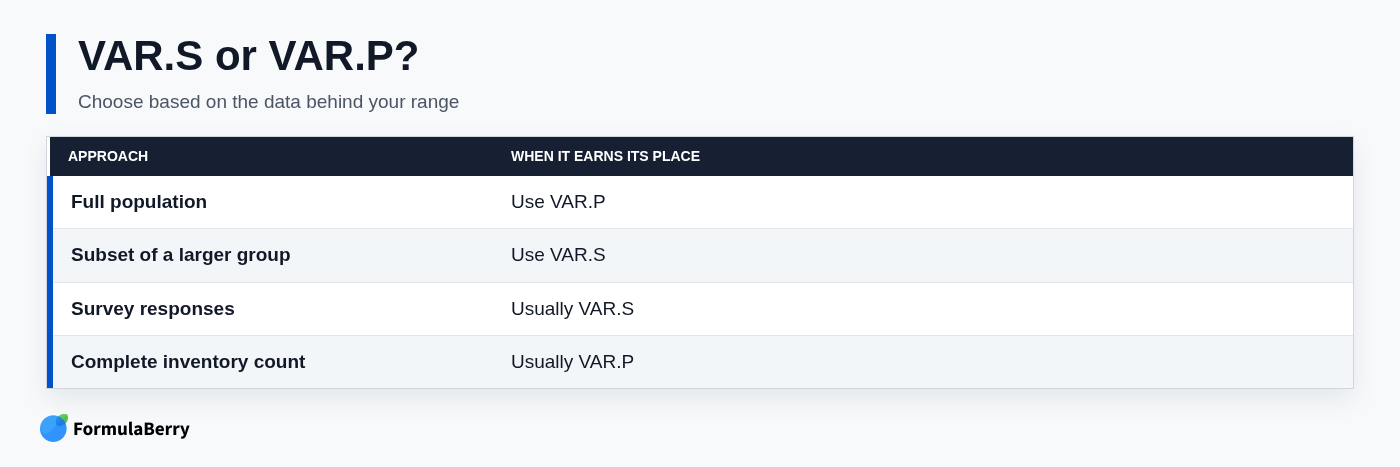
The practical rule is simple: ask whether there are relevant values outside your spreadsheet range. If yes, use VAR.S. If no, use VAR.P.
For example, a list of 50 customer orders chosen from a year's orders is a sample, so VAR.S is appropriate. A list containing every daily temperature measurement recorded during a defined five-day experiment is the full population for that experiment, so VAR.P fits.
- Use VAR.S for a sample that represents a larger group.
- Use VAR.P for the complete population being analyzed.
- Use VAR and VARP only when maintaining an older workbook that already uses them.
Variance measures how spread out your values are
Variance tells you how widely values are spread around their average. A low variance means values tend to cluster near the mean; a high variance means they are more dispersed.
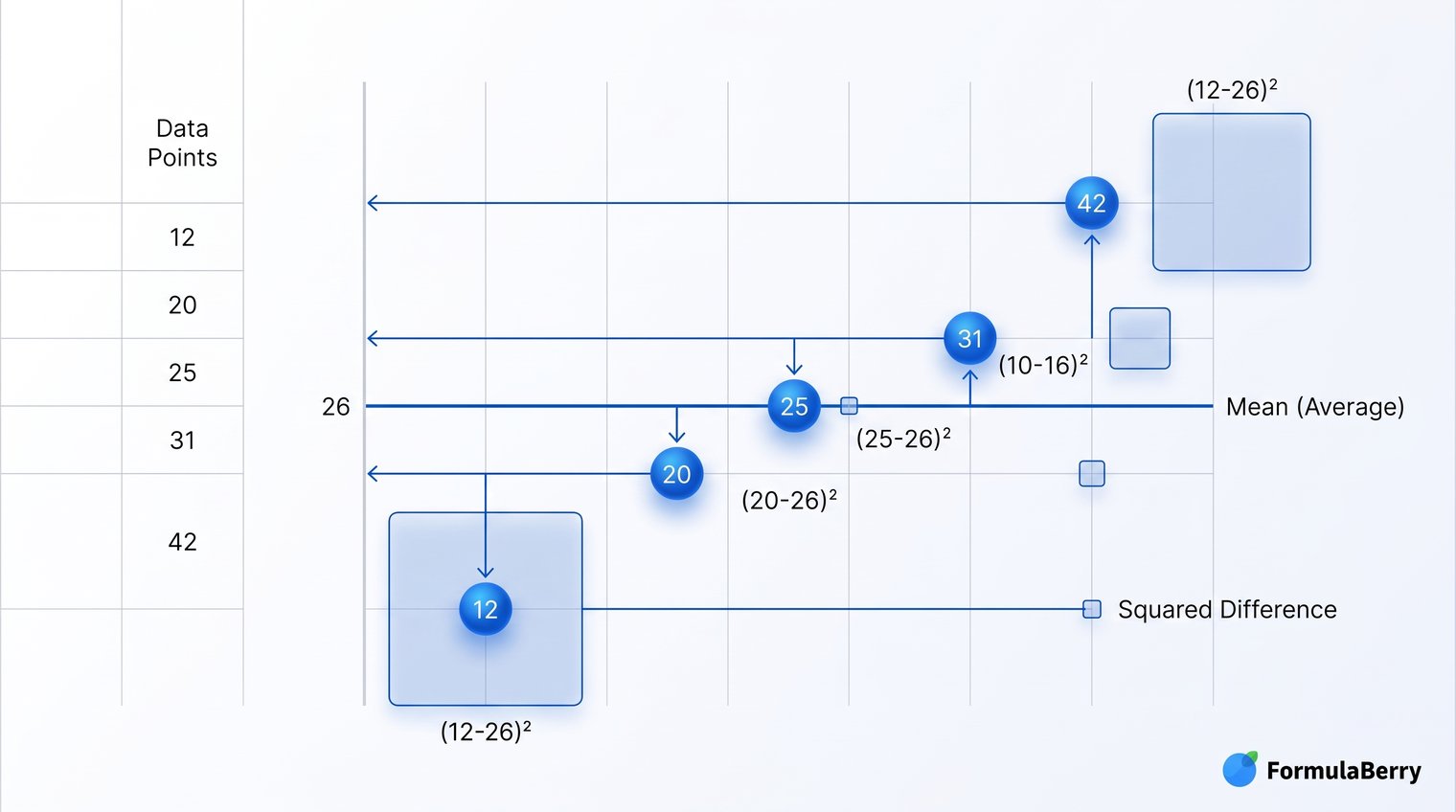
Excel calculates variance by finding each value's distance from the mean, squaring those distances, and averaging them using either a population or sample denominator. Squaring prevents positive and negative differences from canceling out, but it also means variance is expressed in squared units.
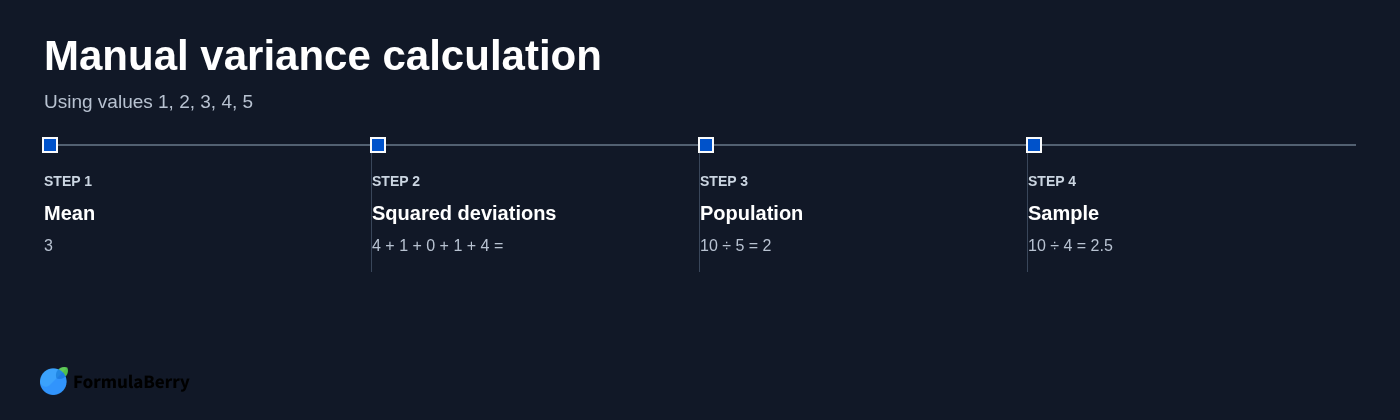
Consider the values 1, 2, 3, 4, and 5. Their mean is 3. The distances from the mean are -2, -1, 0, 1, and 2. Once squared, those become 4, 1, 0, 1, and 4, for a total of 10.
That squared-unit result is why standard deviation is often easier to communicate. Standard deviation is simply the square root of variance, so it returns to the original unit of measure.
Sample variance vs. population variance: the one decision that matters
A population is the complete group you want to study. A sample is only part of that group, used to estimate what the larger group is like.
Excel's two functions differ in the denominator they use. VAR.P divides by the number of values, or n. VAR.S divides by one fewer value, or n - 1. This adjustment is called Bessel's correction, and its purpose is to avoid consistently understating variability when a sample stands in for a larger population.
Do not decide based only on whether your range includes all rows currently available. A customer survey may include every response received, for example, but it is usually still a sample of the customer base or of future customer opinions. In that case, VAR.S is normally the better choice.
A useful decision rule is this: if unobserved members could exist in the group you want your result to describe, treat your data as a sample.
How to calculate sample variance in Excel with VAR.S
To calculate sample variance in Excel, use VAR.S. Its syntax is:
=VAR.S(number1,[number2],...)
In most worksheets, you will point the function at a range rather than enter individual numbers. For example:
=VAR.S(A2:A11)
This formula is useful when A2:A11 contains a subset of customer order values, a selection of employee test scores, or sampled production measurements. Excel ignores blank cells and text in referenced cells, but errors in the range can cause the formula to fail. Keep the range limited to clean, numeric observations and exclude headers.
There is a subtle difference when values are typed directly into the function rather than referenced from cells. Logical values and text supplied directly as arguments may be evaluated differently than text inside a referenced range. For reliable analysis, use a well-structured numeric range instead of mixing values and data types inside the formula.
Example: calculate the variance of 1, 2, 3, 4, and 5
Enter 1 through 5 in cells A1:A5, then use:
=VAR.S(A1:A5)
The result is 2.5. The mean is 3, and the squared deviations total 10. Because this is sample variance, Excel divides 10 by n - 1, which is 4: 10 / 4 = 2.5.
The data has not changed from the population calculation. Only the assumption about what that data represents has changed, which is why the denominator matters.
How to calculate population variance in Excel with VAR.P
To calculate population variance, use VAR.P. The syntax follows the same pattern:
=VAR.P(number1,[number2],...)
For a worksheet range, use a formula such as:
=VAR.P(A2:A11)
With the values 1, 2, 3, 4, and 5 in A1:A5, the formula =VAR.P(A1:A5) returns 2. The squared deviations still add to 10, but this time Excel divides by all five values: 10 / 5 = 2.
VAR.P is appropriate when your sheet contains the complete group under study. For example, if you want the variance of every temperature reading collected across a defined five-day period, and those five readings are the entire period you intend to report on, use VAR.P.
Manual variance formula in Excel when you need to audit the calculation
You usually do not need to calculate variance manually. VAR.S and VAR.P are clearer, shorter, and less prone to reference mistakes. Manual steps are valuable, however, when teaching the concept, checking a financial model, or investigating a result that does not look right.
For an auditable worksheet calculation, first find the mean with =AVERAGE(A2:A6). Next, subtract that mean from each value, square each difference with ^2, add the squared differences with SUM, and divide by the correct count.
- For population variance, divide by COUNT(A2:A6).
- For sample variance, divide by COUNT(A2:A6)-1.
You can also use a compact formula. For population variance:
=SUMPRODUCT((A2:A6-AVERAGE(A2:A6))^2)/COUNT(A2:A6)
For sample variance, change the denominator:
=SUMPRODUCT((A2:A6-AVERAGE(A2:A6))^2)/(COUNT(A2:A6)-1)
These formulas make the math visible, but use the built-in functions for routine reporting. A direct VAR.S or VAR.P formula tells the next workbook user exactly what statistical assumption you made.
Variance and standard deviation in Excel: when to use each
Use variance when you are working inside a statistical calculation, comparing spread in a model, or using a formula that specifically requires variance. Use standard deviation when you need to explain variability to a manager, client, or colleague, because it is expressed in the original units.
The matching Excel functions are straightforward:
- VAR.S pairs with STDEV.S for sample data.
- VAR.P pairs with STDEV.P for population data.
Standard deviation is not a competing way to calculate variance. It is the square root of variance. If a set of sales values has a variance of 400 dollars squared, its standard deviation is 20 dollars, which is generally far easier to interpret.
Common Excel variance mistakes to avoid
The most common mistake is choosing VAR.P because the range includes every row in the current sheet. Completeness of the sheet is not the test. The real question is whether those rows represent the entire population you want to describe.
Also check your data range before trusting the result. Headers, unrelated figures, error values such as #N/A, and numbers accidentally included below a table can distort the analysis or stop the formula from calculating.
- Use VAR.S and VAR.P in new workbooks instead of legacy VAR and VARP.
- Exclude headers and unrelated numeric cells from the selected range.
- Resolve error values before calculating variance.
- Do not be alarmed by a large variance result without considering its squared units.
- Review standard deviation when the result needs to be interpreted in dollars, hours, units, or another familiar measure.
Use the formula that matches the data you have
Use VAR.S for a sample and VAR.P for a complete population. The formula choice is less about Excel syntax than the real-world group your numbers are meant to represent.
For important reports and models, document what you consider the population. A short note such as "monthly survey responses are treated as a sample of all customers" can prevent someone from changing a correct formula later.
If you need help turning a worksheet description into the right formula, FormulaBerry can generate, explain, or troubleshoot a VAR.S or VAR.P formula from a plain-English request.