

A pasted URL is not always a usable link, and manually inserting hundreds of links is a tedious way to build a spreadsheet. Excel's HYPERLINK formula solves both problems: it creates clickable links from cell values, builds destinations from IDs, and keeps link labels readable for the people using the workbook. If you need help creating or troubleshooting formulas generally, see the Excel Formula Generator: Create, Explain, and Fix Formulas.
Whether you are linking to customer records, online reports, other worksheets, or shared PDFs, the key is separating the destination from the text displayed in the cell. Here is how to create reliable static and dynamic hyperlinks in Excel.
Use the HYPERLINK Formula to Create Clickable Links
The Excel HYPERLINK formula syntax is:
=HYPERLINK(link_location, [friendly_name])
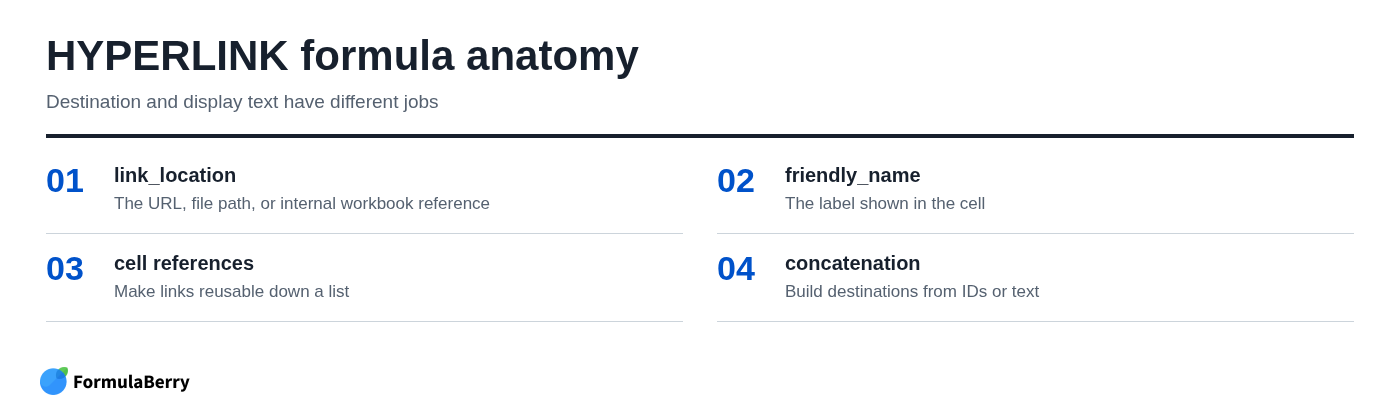
link_location is where the link goes. It can be a web URL, file path, internal cell reference, or named range. friendly_name is optional and controls the text shown in the worksheet.
For example:
=HYPERLINK("https://example.com","Visit Example")
The destination is https://example.com, but the user sees the cleaner label Visit Example. If you omit the second argument, Excel typically displays the destination itself.
This distinction matters when your spreadsheet contains long URLs, file paths, or record-specific links. A meaningful label makes the sheet easier to scan without changing where the link sends someone.
Enter the Formula and Make Sure the Link Is Clickable
Click the cell where you want the link to appear, type your HYPERLINK formula, and press Enter. Excel should format the result as a clickable hyperlink, often with blue underlined text depending on the workbook theme.
To open the link, use the click behavior required by your version of Excel. In many desktop versions, you hold Ctrl while clicking a hyperlink. Some Excel settings and versions allow a regular click instead, so test one link in your workbook before sending it to others.
A formula-generated hyperlink is different from plain URL text. If A2 contains https://example.com, Excel may display it as ordinary text rather than a link. Using =HYPERLINK(A2) or =HYPERLINK(A2,"Open site") explicitly creates the clickable result.
Before troubleshooting anything more complicated, check three basics: the destination begins with a valid protocol such as https://, literal text is enclosed in quotation marks, and any referenced cells contain the expected values.
Use HTTPS and Proper Quotation Marks
Typed text inside a formula needs quotation marks. This is correct:
=HYPERLINK("https://example.com","Visit Example")
Cell references do not need quotation marks because Excel must evaluate them as references, not as literal text:
=HYPERLINK(A2,B2)
If you write =HYPERLINK("A2","B2"), Excel treats A2 and B2 as text characters. It does not retrieve the contents of those cells. This is a common mistake when converting a one-off formula into one that works down a list.
Create a Hyperlink from a Cell Value
For a list of URLs, keep the raw destination in one column and the readable label in another. Then use a third column for the actual clickable link.
For example, assume column A contains URLs and column B contains descriptions:
| Column A: URL | Column B: Label | Column C: Formula |
|---|---|---|
| https://example.com/products/42 | View product | =HYPERLINK(A2,B2) |
| https://example.com/products/43 | View product | =HYPERLINK(A3,B3) |
Enter this formula in C2:
=HYPERLINK(A2,B2)
Then drag the fill handle down, or double-click it if the adjacent columns contain a continuous list of data. Excel adjusts the row references automatically, producing a separate clickable link for each record.
This approach is far more maintainable than inserting each link by hand. If a destination changes, update the URL in column A and the formula-based link updates immediately.

Create a Dynamic URL with Concatenation
Dynamic links are useful when the URL follows a predictable pattern and only one piece changes per row. Order IDs, customer IDs, ticket numbers, product codes, and search terms are common examples.
Suppose A2 contains an order number such as 10482. To create a link to that order's page, use:
=HYPERLINK("https://example.com/orders/"&A2,"View order "&A2)
The ampersand joins text together. Excel builds the destination as https://example.com/orders/10482, while the visible link reads View order 10482.
Use stable, clean IDs when possible. IDs are better than customer names for URLs because names can contain spaces, apostrophes, ampersands, and other characters that may need encoding. If a website requires a specific URL format, match it exactly, including slashes, hyphens, and query parameters.
Build a Search Link from a Keyword Cell
Search URLs are another practical use for dynamic hyperlinks. If A2 holds a keyword or phrase, this formula creates a Google search link:
=HYPERLINK("https://www.google.com/search?q="&ENCODEURL(A2),"Search for "&A2)
ENCODEURL converts spaces and special characters into a URL-safe format. For example, a value of quarterly sales report becomes a working search destination instead of a malformed URL with raw spaces.
Not every older Excel version supports ENCODEURL. When it is unavailable, use a clean ID-based URL where possible, or prepare the search term in a compatible format before building the hyperlink. The important check is simple: after Excel joins the text, the resulting destination must be a valid URL.
Link to Another Sheet, Cell, or Named Range
The HYPERLINK function can also navigate within the same workbook. Internal links start with a # character, which tells Excel the destination is inside the file.
To link to cell A1 on Sheet2, use:
=HYPERLINK("#Sheet2!A1","Go to Sheet2")
If the worksheet name includes spaces, wrap the sheet name in single quotation marks:
=HYPERLINK("#'Monthly Sales'!A1","Open monthly sales")
The missing # is one of the most frequent reasons an Excel hyperlink to another sheet fails. Without it, Excel may interpret the text as an external destination instead of an internal reference.
You can also link to a named range. If you have named a report area SalesDashboard, use:
=HYPERLINK("#SalesDashboard","Open sales dashboard")
Named ranges are especially useful in larger workbooks because they make links easier to understand and maintain. A label such as SalesDashboard is less fragile than repeatedly hard-coding a specific cell address throughout an index sheet.
Create a Table of Contents for a Workbook
An index or dashboard sheet becomes much more useful when it includes links to key reports. Put worksheet names or report labels in column A, then create a corresponding internal hyperlink beside each one.
For a fixed destination, a simple formula is enough:
=HYPERLINK("#'Budget Summary'!A1","Budget summary")
Use this for the worksheets people visit most: monthly reporting, assumptions, source data, forecasts, or summary dashboards. Keep the destination consistent by linking to the top-left cell or a clearly labeled section header, rather than dropping users into an arbitrary cell halfway down a sheet.
Link to a File, Folder, or PDF
You can use HYPERLINK to open a local or shared file, including a PDF. For example:
=HYPERLINK("C:\Reports\Quarterly Report.pdf","Open quarterly report")
This example path is illustrative; replace it with your actual local, network, or approved cloud path.
This can be useful for a reporting workbook that needs to point to supporting documents, invoices, contracts, or exported reports. However, file links are more sensitive than web links because the file location and access permissions must work for the person clicking them.
A path on your computer, such as C:\Reports\..., is usually not helpful to coworkers. Prefer a shared network location or approved cloud location that every intended recipient can access. Test the link from the recipient's environment when possible, especially if the workbook will be emailed or moved to another folder.
Also remember that renaming, moving, or deleting the file breaks the destination. A hyperlink formula cannot make an unavailable document accessible.
Turn URL Text into Clickable Links: What Works and What Does Not
Excel may automatically format a URL as a hyperlink while you type it, but pasted or imported URL text does not reliably become clickable. This is why a column full of web addresses may look correct yet behave like ordinary text.
The reliable method is a helper column. If the plain URL is in A2, enter:
=HYPERLINK(A2,A2)
This creates a clickable version of the URL while preserving the original value. If you prefer a cleaner label, replace the second A2 with text or a label cell:
=HYPERLINK(A2,"Open link")
Excel's AutoCorrect and AutoFormat settings can create links while entering data, but they are not a dependable bulk-conversion workflow. Do not assume that enabling automatic formatting will repair hundreds of existing URL cells. Use HYPERLINK when you need a repeatable result.
If you need static links rather than formulas, create the helper column first and verify the links. Depending on your Excel workflow, you can then copy the resulting cells and use Paste Values where appropriate, but test the result carefully because hyperlink behavior can vary with the paste method and workbook environment.
Use Friendly Link Text Without Losing the Destination
The second argument in the Excel hyperlink formula lets you hide an unwieldy destination behind useful text. The link still goes to the full URL, path, or internal location; the cell simply displays something people can understand quickly. When a label needs formatted dates, numbers, or times, the Excel TEXT Formula: Format Numbers, Dates, and Times as Text can help prepare the displayed value.
For a long web address, use:
=HYPERLINK("https://example.com/reports/2026/q3?source=spreadsheet","Open Q3 report")
For a customer record generated from an ID in A2, use:
=HYPERLINK("https://example.com/customers/"&A2,"Open customer profile")
For a document link, use:
=HYPERLINK("C:\Reports\Quarterly Report.pdf","Quarterly report PDF")
Use labels that describe the action or destination: Open invoice, View product page, Go to forecast, or Download signed agreement. Avoid displaying long tracking URLs unless the actual address is important for audit or review purposes.
Fix #VALUE!, Broken Links, and Other HYPERLINK Formula Problems
A #VALUE! error usually means Excel cannot use the arguments you supplied. Start by checking the formula structure: make sure parentheses are balanced, commas or your regional list separators are correct, quotation marks are paired, and text concatenation uses &.
For external links, verify that the destination is complete. A missing protocol, malformed domain, accidental space, or incomplete query string can prevent the link from working. For internal links, check the sheet name, cell reference, and required # prefix.
Broken links to files often have a different cause: the document was renamed, moved, deleted, or is unavailable to the current user. A correct formula cannot override missing permissions or an inaccessible network drive.
Use this short test sequence:
- Inspect the destination text Excel is building.
- Test the URL, file path, or workbook destination independently.
- Confirm the referenced cells contain the correct values.
- Check that the recipient has permission to access the linked resource.
- Retest after moving, renaming, or sharing the workbook.
Check the Generated URL Before You Click It
When a dynamic formula fails, do not troubleshoot the entire HYPERLINK expression at once. First build only the destination in a separate cell.
For example, if your final formula is:
=HYPERLINK("https://example.com/orders/"&A2,"View order "&A2)
Temporarily enter this in another cell:
="https://example.com/orders/"&A2
Now you can inspect the exact URL. Look for missing slashes, an empty ID, extra spaces, or unexpected characters. Once the generated destination is correct, place the same expression back inside HYPERLINK.
Choose HYPERLINK vs. Insert Link for the Job
Use the HYPERLINK formula when the destination comes from cells, repeats across many rows, or must change automatically as your data changes. It is the better choice for customer lists, order trackers, report indexes, and other structured spreadsheets.
Use Excel's Insert Link command for a one-off static link, such as a single link in a title cell or a note pointing to a fixed document. It is often quicker when there is no need for a formula or a reusable pattern.
Neither method replaces sensible workbook organization or document management. If a team frequently loses files, changes folder structures, or lacks permission to a shared location, fix those processes rather than relying on formulas to compensate for them.
Build Reliable Hyperlinks That Scale with Your Spreadsheet
Start with =HYPERLINK(link_location, [friendly_name]), then move destinations into cells when you need a list of links. Use concatenation for record-specific URLs, add the # prefix for internal workbook links, and test file links from the environment where they will actually be used.
The biggest improvement is usually simple: keep raw destinations separate from readable labels. That makes your workbook easier to update, easier to audit, and much easier for someone else to use.
If you need help writing or debugging a specific Excel HYPERLINK formula, FormulaBerry can generate, explain, or correct the formula from a plain-English description of what you want the link to do.