
To write an Excel IF formula with multiple conditions, combine IF with AND when every requirement must be met, or with OR when any one requirement can qualify. For several possible outcomes, use nested IF statements or IFS.
The key is to decide what your rule actually says before writing the formula. "Score and attendance must meet the minimum" needs AND. "Customer is a member or spent enough" needs OR. That small distinction prevents many spreadsheet mistakes.
How to write an Excel IF formula with multiple conditions
The basic approach is to place AND or OR inside the logical test portion of an IF formula. The result is still a simple decision: if the combined test is true, return one value; if it is false, return another.
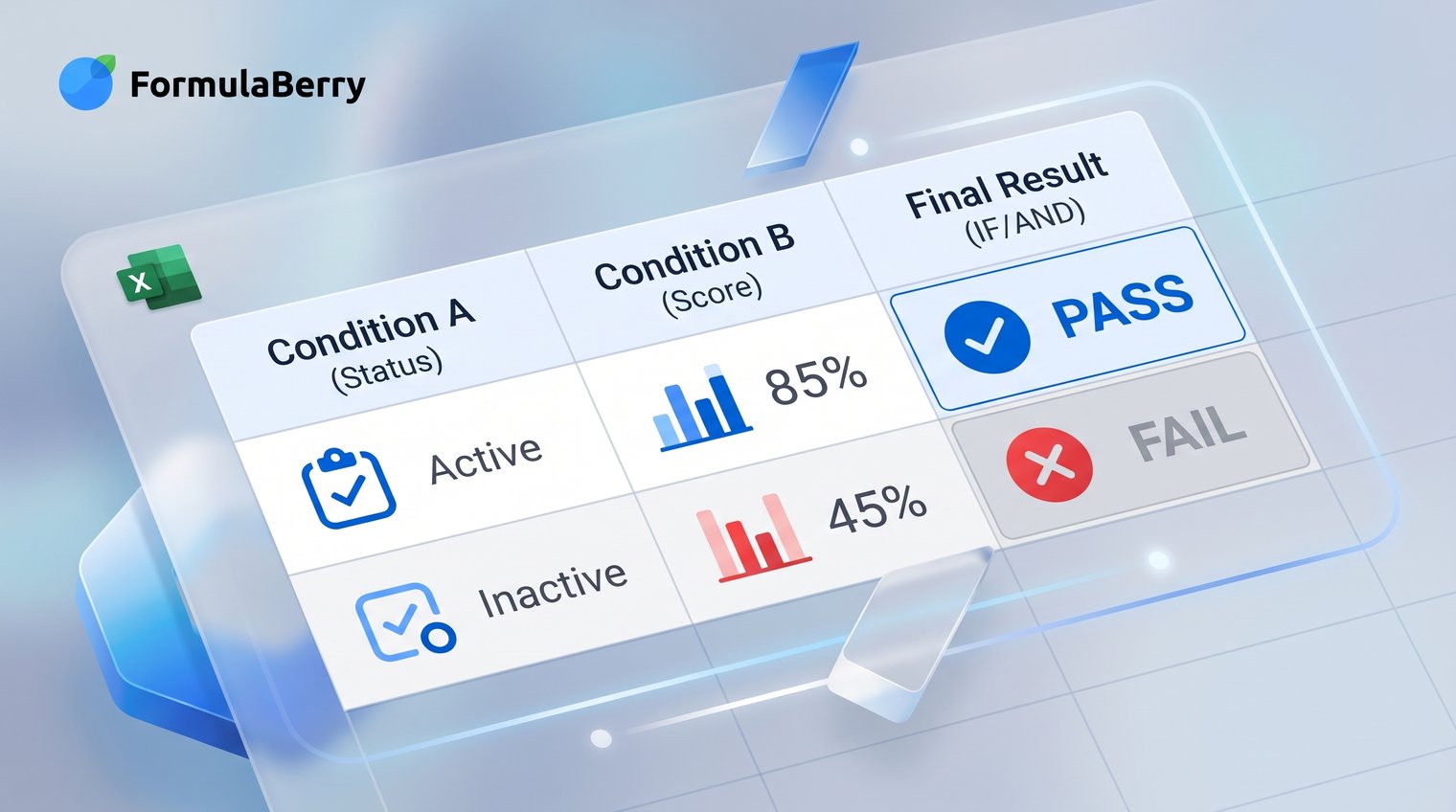
For example, to mark a student as passing only when their score is at least 70 and their attendance is at least 80%, use:
=IF(AND(B2>=70,C2>=80%),"Pass","Fail")
Excel checks both conditions inside AND. Only if both are true does the formula return "Pass."
The basic IF syntax
An IF formula has three parts:
=IF(logical_test,value_if_true,value_if_false)
- logical_test is the condition Excel evaluates, such as B2>=70.
- value_if_true is what Excel returns if the test is true.
- value_if_false is what Excel returns if the test is false.
A basic eligibility example might be =IF(B2>=18,"Eligible","Not eligible"). Once you need more than one requirement, replace the single logical test with AND or OR.
Use IF with AND when all conditions must be met
Use IF with AND when every condition is mandatory. The standard pattern is:
=IF(AND(condition1,condition2),value_if_true,value_if_false)
The pass-or-fail formula above uses this pattern. AND returns TRUE only when every test is true, making it suitable for approval rules, eligibility checks, bonus qualifications, and other all-or-nothing decisions.
Use IF with OR when either condition can qualify
Use IF with OR when meeting just one of the listed conditions is enough. The standard pattern is:
=IF(OR(condition1,condition2),value_if_true,value_if_false)
For example, a store offers free shipping when an order is at least $75 or the buyer is a member. If order value is in B2 and membership status is in C2, use:
=IF(OR(B2>=75,C2="Member"),"Free shipping","Shipping applies")
One true test is enough. A non-member with a $90 order qualifies, and a member with a $20 order also qualifies. Only a non-member with an order below $75 gets the false result.
How to put 3 or more conditions in an IF formula
You can add three or more conditions by placing additional tests inside AND or OR. Excel evaluates each explicit test, so the formula remains understandable as long as you avoid compressing unrelated rules into one long expression.
For longer formulas, use line breaks in the formula bar to make the groups easier to inspect. The formula will still work normally after you press Enter.
Three conditions that must all be true
Imagine a sales bonus is available only when an employee is approved, has at least $10,000 in sales, and meets a date cutoff. If approval is in B2, sales are in C2, and the date is in D2:
=IF(AND(B2="Approved",C2>=10000,D2>=DATE(2026,1,1)),"Bonus eligible","Not eligible")
All three conditions must pass. Adding a third or fourth requirement does not change the logic of AND; it simply adds another mandatory checkpoint.
A mix of AND and OR conditions
Some business rules require a combination. For example, an employee must be active and must either meet a target score or have manager approval.
=IF(AND(B2="Active",OR(C2>=90,D2="Approved")),"Qualifies","Does not qualify")
Here, Excel evaluates the inner OR group as one test: either the score is at least 90 or manager approval is present. The outer AND then requires that result along with active status. Parentheses are not optional in logic like this; they show Excel which conditions belong together.
Return different results with nested IF or IFS
IF with AND or OR is ideal for a yes-or-no decision. When you need several possible result bands, such as grades, commission levels, or performance ratings, use nested IF statements or IFS instead.
Nested IF works across more Excel versions, while IFS is generally easier to read in modern Excel. In both cases, order matters because Excel returns the first true result it finds.
Nested IF for compatibility
A nested IF places one IF inside another. For a simple grade scale based on a score in B2:
=IF(B2>=90,"A",IF(B2>=80,"B",IF(B2>=70,"C","D")))
Excel checks from left to right. A score of 92 returns "A" immediately, so Excel never needs to evaluate the remaining tests. Put the highest thresholds first; starting with B2>=70 would incorrectly assign "C" to a score of 92.
IFS for cleaner multi-outcome formulas
IFS handles multiple test-result pairs without repeatedly nesting IF functions. The same grade rule can be written as:
=IFS(B2>=90,"A",B2>=80,"B",B2>=70,"C",TRUE,"D")
The final TRUE,"D" pair is a fallback. It catches any score that did not meet an earlier threshold. Without a fallback, an unmatched value can return an error.
Examples of Excel IF formulas with multiple conditions
The examples below cover the most common multi-condition patterns. Adjust the cell references and returned text to match your own worksheet.
Pass or fail based on score and attendance
Use the pass-or-fail formula shown above. Its relative references update automatically when you copy it down a column, so B2 and C2 become B3 and C3 in the next row.
Apply a discount based on customer type or order value
To apply a 10% discount when a customer is a VIP or their order reaches $500:
=IF(OR(B2="VIP",C2>=500),10%,0%)
Text values need quotation marks. Write "VIP", not VIP. You can also return text instead of a percentage, such as "Discount applied."
Assign a performance rating from several thresholds
To assign ratings based on a score in B2, list thresholds from highest to lowest:
=IFS(B2>=90,"Excellent",B2>=75,"Good",B2>=60,"Needs improvement",TRUE,"Unsatisfactory")
Descending order is essential. A score of 95 also meets the condition of being at least 75, but Excel reaches the 90 threshold first and correctly returns "Excellent."
When IF is not the best formula for multiple conditions
IF is for making a decision or returning a label. It is not always the best choice when you need to calculate totals, count records, or retrieve matching rows.
Use SUMIFS when you want a total that meets several criteria, such as total sales for a region during a specific month. Use COUNTIFS when you want to count matching records, such as the number of invoices that are overdue and unpaid.
For finding or returning data, use XLOOKUP when you need a matching value from a table. Use FILTER when you need to return all rows that meet one or more conditions. Over-nesting IF formulas to imitate these functions makes a workbook harder to maintain.
Common multiple-condition IF formula errors and fixes
Most IF formula problems are logic problems rather than Excel problems. Start by testing each condition independently, then check how the conditions are grouped.
Using AND when the rule needs OR
Translate the rule into plain language first. If the rule says, "The customer qualifies if they are a member or spend $75," use OR. If it says, "The customer qualifies only if they are a member and spend $75," use AND.
A quick test helps: ask whether one condition can be true while the other is false and still produce the desired outcome. If yes, you likely need OR.
Misplaced parentheses or separators
Every opening parenthesis needs a closing parenthesis. A formula such as =IF(AND(B2>=70,C2>=80%),"Pass","Fail") contains one set for IF and one for AND.
If Excel rejects a formula that appears correct, check your regional list separator. Some Excel installations use semicolons instead of commas, such as =IF(AND(B2>=70;C2>=80%);"Pass";"Fail").
Text, dates, and numbers compared incorrectly
Text comparisons require quotation marks: B2="Approved". For more ways to test text conditions, see this guide to Excel Contains Formula. Dates are more reliable when created with DATE, especially in formulas shared across regional settings: D2>=DATE(2026,1,1).
Also check whether numbers have been stored as text. A value that looks like 100 may not behave like a number if it was imported with an apostrophe, extra spaces, or inconsistent formatting. Text cleanup may require functions covered in this guide to the Excel REPLACE formula.
Overlapping conditions in nested IF or IFS
Broad conditions must come after more specific ones. In a rating formula, B2>=90 must appear before B2>=70; otherwise, a score of 95 will match the broader 70 rule too early.
When results seem wrong, read your tests in order and identify the first condition that could match the value. That is the result Excel will return.
Build clearer formulas before they become hard to debug
A formula does not need to be clever to be useful. If the rule has several moving parts, helper columns often make it easier to audit: one column for approval status, another for sales eligibility, and a final column that combines those results.
Use descriptive headers, named ranges where they genuinely improve readability, and separate tests while building. For example, confirm that B2="Active" works before embedding it inside a larger AND and OR expression.
FormulaBerry
FormulaBerry can help when you can describe the rule clearly but are unsure how to turn it into an Excel or Google Sheets formula. You can ask for a formula such as, "Return Bonus eligible when status is Approved, sales are at least 10000, and the date is on or after January 1, 2026," then review and adapt the result for your cell layout.
It is a formula generation, explanation, and correction assistant rather than a spreadsheet application that manages your data for you. It is most useful for individual users and small teams who need help translating a business rule into a formula, then checking that the logic matches the intended outcome.
Choose the condition pattern first, then write the formula
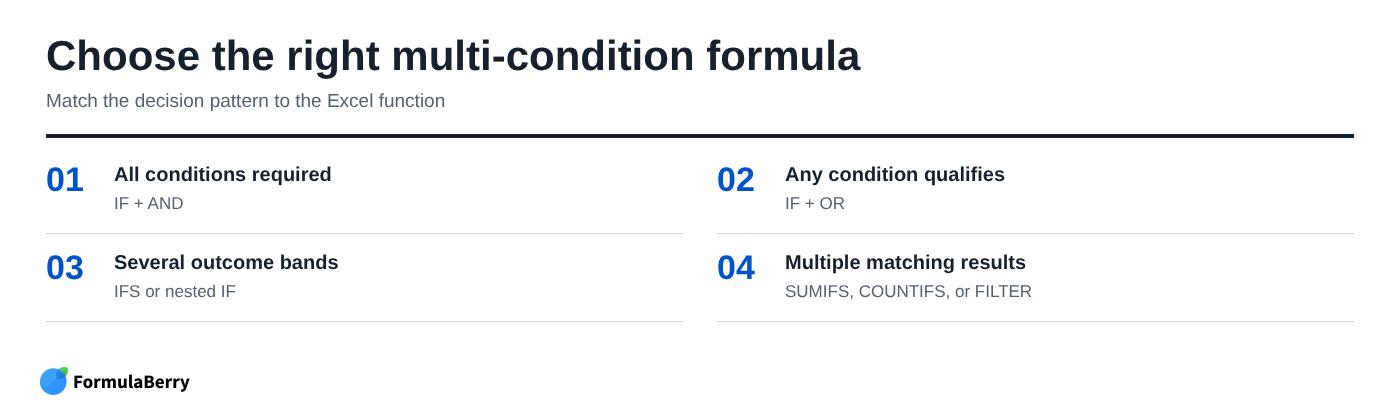
Start with the decision pattern, not the function name. Use IF with AND when every requirement must be true, IF with OR when any qualifying condition is enough, and IFS or nested IF when the formula needs to return several different outcomes.
Keep conditions explicit, group mixed logic with parentheses, and order threshold tests from most specific to broadest. If a multi-condition rule is becoming difficult to read or troubleshoot, FormulaBerry can help you generate or check the formula before you place it in your spreadsheet.