
Percentages look simple until a spreadsheet returns a result that is 100 times too large, a discount barely changes a price, or monthly growth appears backward. In most cases, the math is not the problem. The issue is choosing the wrong base value, mixing up percentage formatting with numbers, or missing a pair of parentheses.
This guide covers the Excel percentage formulas you will use most: finding a percentage of a number, calculating a share of total, adding or subtracting a rate, and measuring percentage change. It also covers percentage difference, markup versus margin, and percentage-change edge cases such as a zero starting value. The same formulas work in Google Sheets.
How Excel handles percentages before you write a formula
Excel stores a percentage as a decimal value. A cell displaying 5% actually contains 0.05; a cell displaying 25% contains 0.25. Percentage formatting changes how you see the value, not the value Excel uses in calculations.
You can enter a rate in several ways, but they do not mean the same thing:
- Enter 5%: Excel stores 0.05.
- Enter 0.05 and apply Percentage formatting: Excel displays 5%.
- Enter 5 and apply Percentage formatting: Excel displays 500%.
The core formula pattern is straightforward: percentage of a number = number * percentage. If A2 contains 200 and B2 contains 5%, use =A2*B2.
When a percentage rate stays the same for many rows, place it in one cell and use an absolute reference such as $B$1. The dollar signs prevent Excel from changing that cell reference when you fill the formula down.
Calculate a percentage of a number in Excel
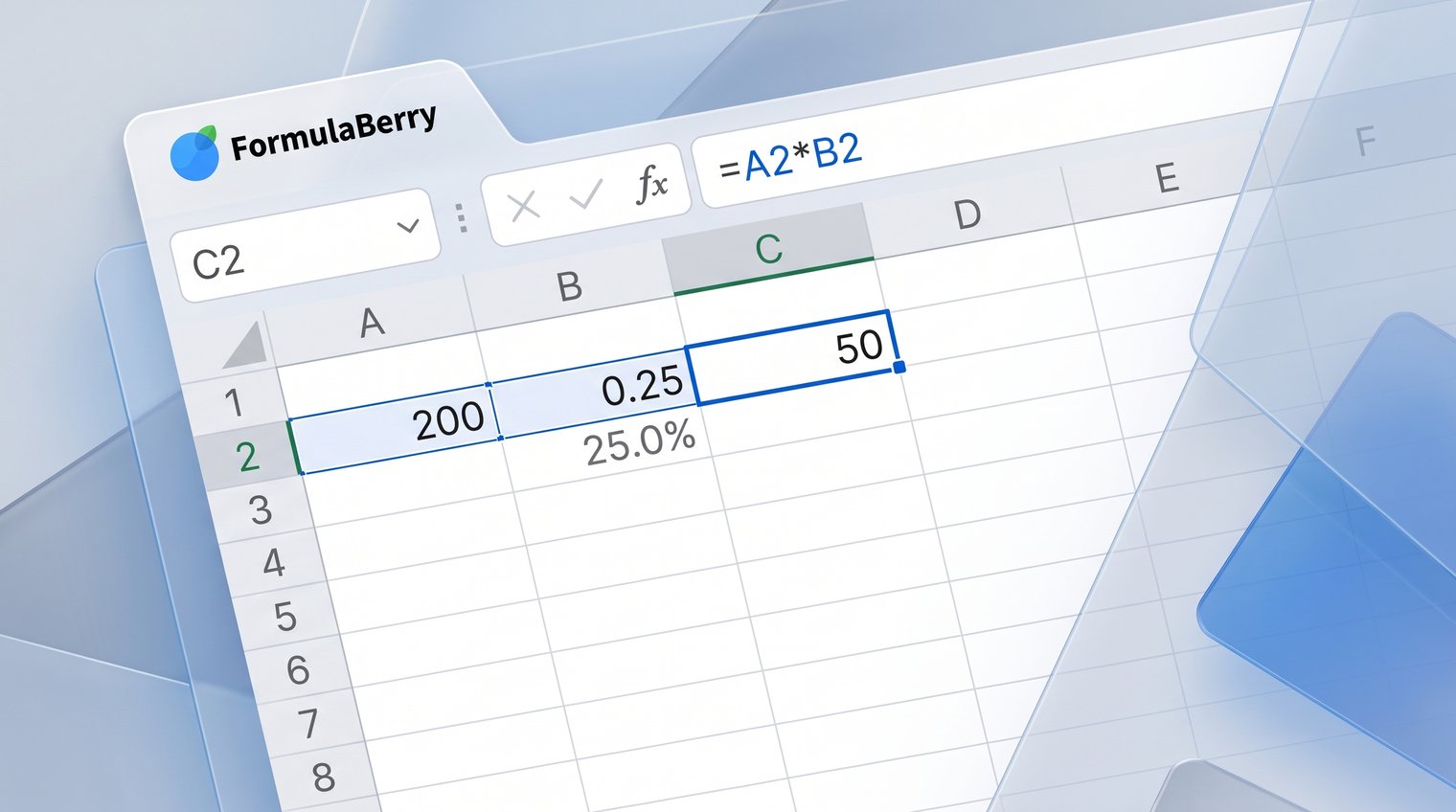
To calculate a percentage of a number, multiply the number by the percentage. If A2 holds the base number and B2 holds the rate, enter:
=A2*B2
For example, to calculate 5% of 200, use =200*5%. The answer is 10. In a worksheet, you would normally put 200 in A2, 5% in B2, and use =A2*B2 so the calculation can update automatically.
Excel multiplication is all you need for this task. Do not divide by 100 if the percentage cell already contains 5% or 0.05. Dividing again would make the result too small.
Use a fixed percentage across a column
Suppose column A contains sales amounts and cell B1 contains a commission rate of 8%. In C2, enter:
=A2*$B$1
Copy the formula down the column. A2 changes to A3, A4, and so on, while $B$1 remains fixed at the 8% rate. This is useful for tax calculations, commission schedules, recurring markups, and service fees.
Tip: Click the formula cell and press F4 after selecting B1 in the formula to cycle through reference types. For a rate that should never move, use $B$1.
Find what percentage one number is of another
To find what percentage one value is of a total, divide the part by the total:
=part/total
If 25 orders were completed out of 100 total orders, use =25/100. Excel returns 0.25, which becomes 25% when you apply Percentage formatting.
With cells, if A2 is completed orders and B2 is total orders, use:
=A2/B2
The most common mistake is reversing the values. Confirm the question before you divide: the smaller or selected amount is usually the part; the complete group is the total.
Calculate each category's share of a total
For a category table, place category amounts in B2 through B6. To calculate the share for the first category, enter this in C2:
=B2/SUM($B$2:$B$6)
Fill the formula down. The numerator changes from B2 to B3 and beyond, while the total range stays fixed. Format column C as Percentage. For more ways to total ranges and build conditional totals, see the Excel SUM formula guide.
As a quick check, the category percentages should add up to 100%, apart from small display differences caused by rounding.
Add a percentage to a number
To increase a value by a percentage, multiply the original value by one plus the rate:
=original*(1+percentage)
If A2 contains a price of 100 and B2 contains 10%, use =A2*(1+B2). The result is 110.
This formula returns the new total after the increase. If you only need the amount of the increase, use =A2*B2 instead. For a 100 price and 10% rate, that separate increase amount is 10.
Use the full formula for price increases, adding tax to a pre-tax price, or applying a markup. Keep the rate in a percentage-formatted cell so it is clear whether the increase is 10% or 10 points of currency.
Calculate a markup versus a margin
Markup and margin are not interchangeable. Markup measures profit against cost; margin measures profit against selling price.
For a cost in A2 and selling price in B2, calculate markup with:
=(B2-A2)/A2
Calculate margin with:
=(B2-A2)/B2
For example, an item that costs 80 and sells for 100 has a 25% markup but a 20% margin. Format either result as Percentage.
Subtract a percentage for discounts and reductions
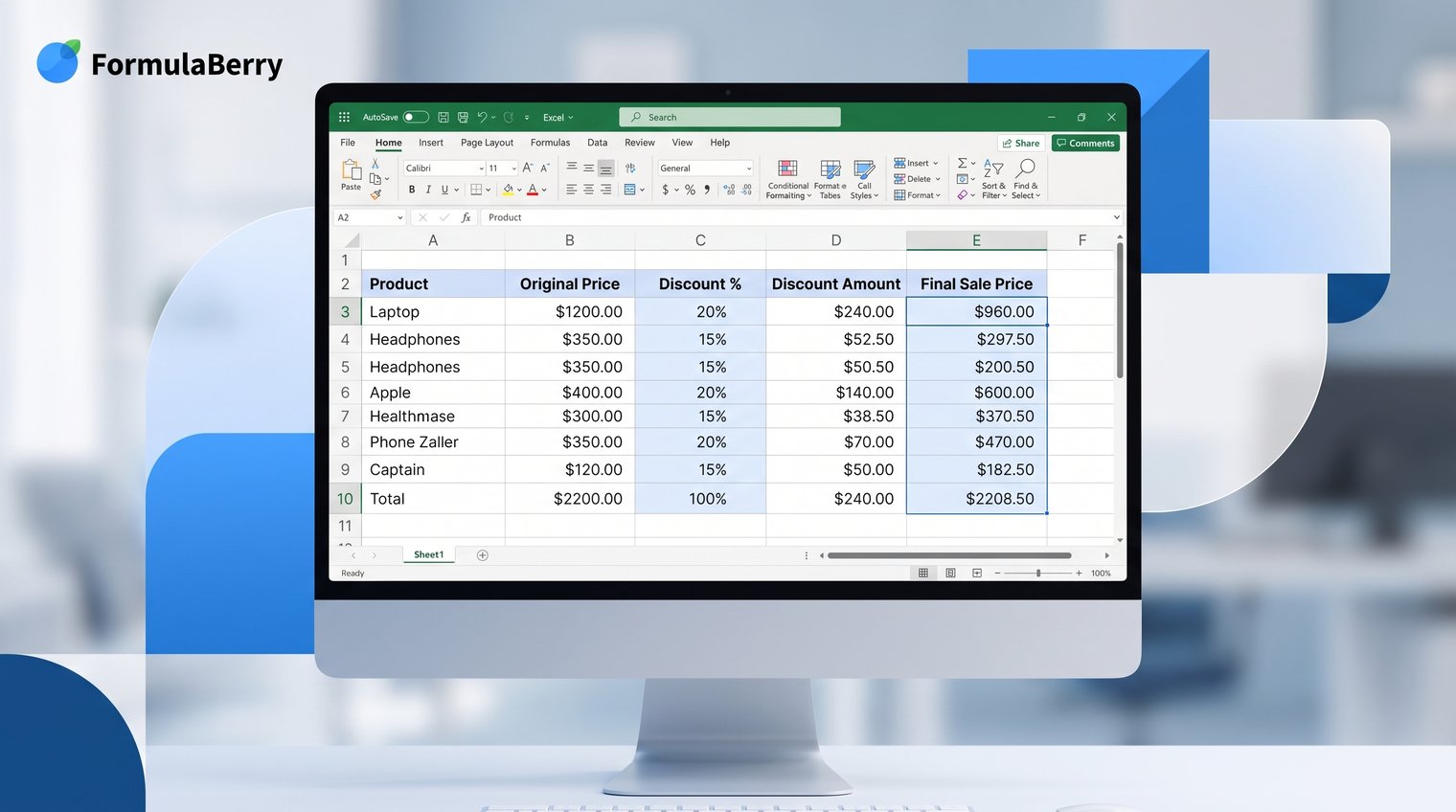
To take a percentage off a number, multiply the original value by one minus the discount rate:
=original*(1-discount rate)
For a 20% discount on a $100 item, use =100*(1-20%). The sale price is $80. If A2 holds the original price and B2 holds 20%, use =A2*(1-B2).
When you need to show the customer savings separately, calculate the discount amount with:
=A2*B2
Then calculate the final price with =A2-C2 if C2 contains the discount amount, or continue using =A2*(1-B2).
For a fixed rate applied across several products, put the discount in B1 and use =A2*(1-$B$1). Fill down to calculate every sale price using the same discount.
Avoid subtracting the percentage itself from the price
A common error is using =A2-B2 when A2 is a currency amount and B2 is a percentage. If A2 is $100 and B2 is 20%, Excel treats B2 as 0.20 and returns $99.80. That is not a 20% discount.
Instead, calculate 20% of the price before subtracting it: =A2*(1-B2). With $100 and 20%, the correct result is $80.
Calculate percentage change between two values
Percentage change compares a new value with an old value. Use this formula:
=(new-old)/old
If January sales were 80 and February sales were 100, use =(100-80)/80. The result is 0.25, or a 25% increase after Percentage formatting. For related examples involving year-over-year and total growth, see this guide to growth formulas in Excel.
If the new value is lower, the formula returns a negative percentage. For example, a change from 100 to 80 produces -20%, meaning a 20% decrease.
The old value is the denominator because it is the baseline. Reversing the denominator is the main reason percentage-change calculations look wrong.
Calculate percent increase and percent decrease
You do not need separate formulas for increases and decreases. The same formula, =(new-old)/old, handles both directions. A positive result is an increase; a negative result is a decrease.
If you only need the size of the change and do not care about direction, use:
=ABS((new-old)/old)
Be careful how you describe the result. Moving from 80 to 100 is a 25% increase because the increase of 20 is measured against the original 80. It is not a 20% increase just because 20 is one-fifth of the new value.
Handle a zero starting value
Percentage change from zero is undefined. The standard formula divides by the old value, so an old value of zero produces a #DIV/0! error.
Do not hide this with a random replacement percentage. Report the raw change, label the result as new activity, or follow a clearly defined business rule. For example, revenue rising from $0 to $500 is $500 in new revenue, not a meaningful percentage increase.
Calculate a percentage of a total without rounding errors
For category shares, use a consistent total formula. If values are in B2:B6, enter =B2/SUM($B$2:$B$6) in the first percentage cell, fill down, and apply Percentage formatting.
Excel stores more precision than it displays. Three category shares might display as 33%, 33%, and 33% even when their underlying values total exactly 100%. In other cases, displayed values may add to 99% or 101% after rounding.
For most working spreadsheets, leave the underlying formulas alone and accept the display rounding. If a report must show an exact 100% total, calculate all but the last category normally and assign the final displayed share as the remainder after the earlier displayed shares. Use that presentation fix deliberately, not as a replacement for correct source calculations.
Calculate a percentage difference when neither value is the baseline
Percentage difference is different from percentage change. Use it when comparing two peer values and neither one should be treated as the starting point, such as two estimates, measurements, or vendor quotes.
The formula is:
=ABS(A2-B2)/AVERAGE(A2,B2)
If one estimate is 90 and another is 110, the difference is 20. Their average is 100, so the percentage difference is 20%. Format the result as Percentage.
Do not use this formula for month-over-month sales, budget-versus-actual tracking, or any comparison with a clear baseline. Those situations call for percentage change instead.
Use Excel percentage formulas safely in larger worksheets
A few habits prevent most percentage formula errors. First, format rate inputs as percentages, and label them clearly. A cell labeled "Discount rate" with a value of 15% is far easier to audit than a formula containing an unexplained 0.15.
Second, use parentheses whenever you are adding or subtracting a rate from one. Write =A2*(1-B2), not a loosely constructed formula that changes Excel's order of operations. Third, use absolute references for fixed rates and total ranges.
Keep inputs such as tax rates, commission rates, and discount rates in dedicated cells rather than embedding numbers throughout formulas. Updating one labeled input is safer than finding every occurrence of 0.0825 in a large workbook.
Use IFERROR only when you understand and expect the error condition. It can be appropriate for an optional denominator, but it should not conceal missing data, a zero baseline, or a formula that references the wrong cells.
Check whether your result is plausible
Before trusting a percentage result, do a quick reality check. A discount should make the final price lower than the original price. A part-of-total result will usually sit between 0% and 100%. A growth calculation should divide by the starting value, not the ending value.
Click a result cell and inspect the colored references in the formula bar. This simple audit often reveals that a formula is pointing to the wrong row, using the wrong total range, or failing to lock a fixed percentage cell.
Apply the same percentage formulas in Google Sheets
The core Excel percentage formulas work the same way in Google Sheets. Use =A2*B2 to find an amount, =A2/B2 to find a share, =A2*(1-B2) for a discount, and =(new-old)/old for percentage change.
The main practical difference is where you apply formatting. In Google Sheets, select the result cells and use the Percentage option in the toolbar or the Format menu. The underlying spreadsheet math remains the same.
Turn percentage questions into the right Excel formula
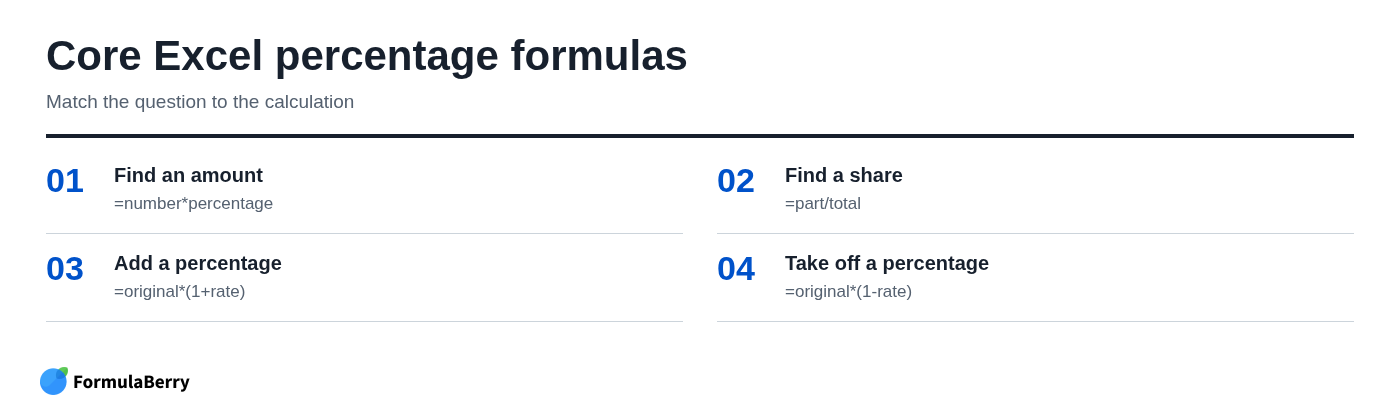
Start by identifying what you are trying to find. To find an amount, multiply the number by the rate. To find a share, divide the part by the total. To add or remove a rate, multiply by one plus or minus that rate. To compare a new value with an old one, divide the difference by the old value.
- Find 5% of 200: =200*5%
- Find a category's share of total: =part/total
- Add 10% to a price: =original*(1+10%)
- Take 20% off a price: =original*(1-20%)
- Find growth from old to new: =(new-old)/old
When the worksheet is more complicated, describe the cells, values, and result you need in plain language. FormulaBerry can generate, explain, or correct Excel and Google Sheets formulas from natural-language requests. For example, you could ask it to calculate a discount from a price in A2 and a rate in B2 while handling blank inputs. For a more focused tool, see the Excel formula generator guide.