

Text extraction in Excel looks simple until your data stops being uniform. A formula that works perfectly for one order code can fail on the next because a hyphen appears twice, a suffix has a different length, or someone added a trailing space.
The Excel RIGHT function handles the straightforward cases well: it returns characters from the end of a cell. Combined with LEN, FIND, LEFT, and MID, it can also split many common codes, filenames, labels, and identifiers without manual cleanup.
How the Excel RIGHT function works
The Excel RIGHT function returns a chosen number of characters from the end of a text string. If a cell contains Invoice-4821, RIGHT can return the final four characters: 4821.
The syntax is:
=RIGHT(text, [num_chars])
text is the cell or text value to examine. num_chars is the number of characters to return from the right side. The second argument is optional; if you leave it out, Excel returns just one character.
One detail catches people out: RIGHT always returns text. Even if the result looks like a number, such as 4821, Excel treats it as text until you convert it. For related formatting tasks, see this guide to the Excel TEXT formula.
The RIGHT formula syntax
| Formula | What it does | Result |
|---|---|---|
| =RIGHT("Invoice-4821",4) | Returns the last four characters | 4821 |
| =RIGHT("Report.xlsx",5) | Returns the file extension, including the period | .xlsx |
| =RIGHT("ABC-9") | Omits num_chars, so Excel returns one character | 9 |
| =RIGHT(A2,2) | Returns the final two characters in cell A2 | Depends on A2 |
The num_chars argument must be zero or greater. A negative number produces an error, and requesting more characters than the cell contains simply returns the available text.
Extract a fixed number of characters from the right
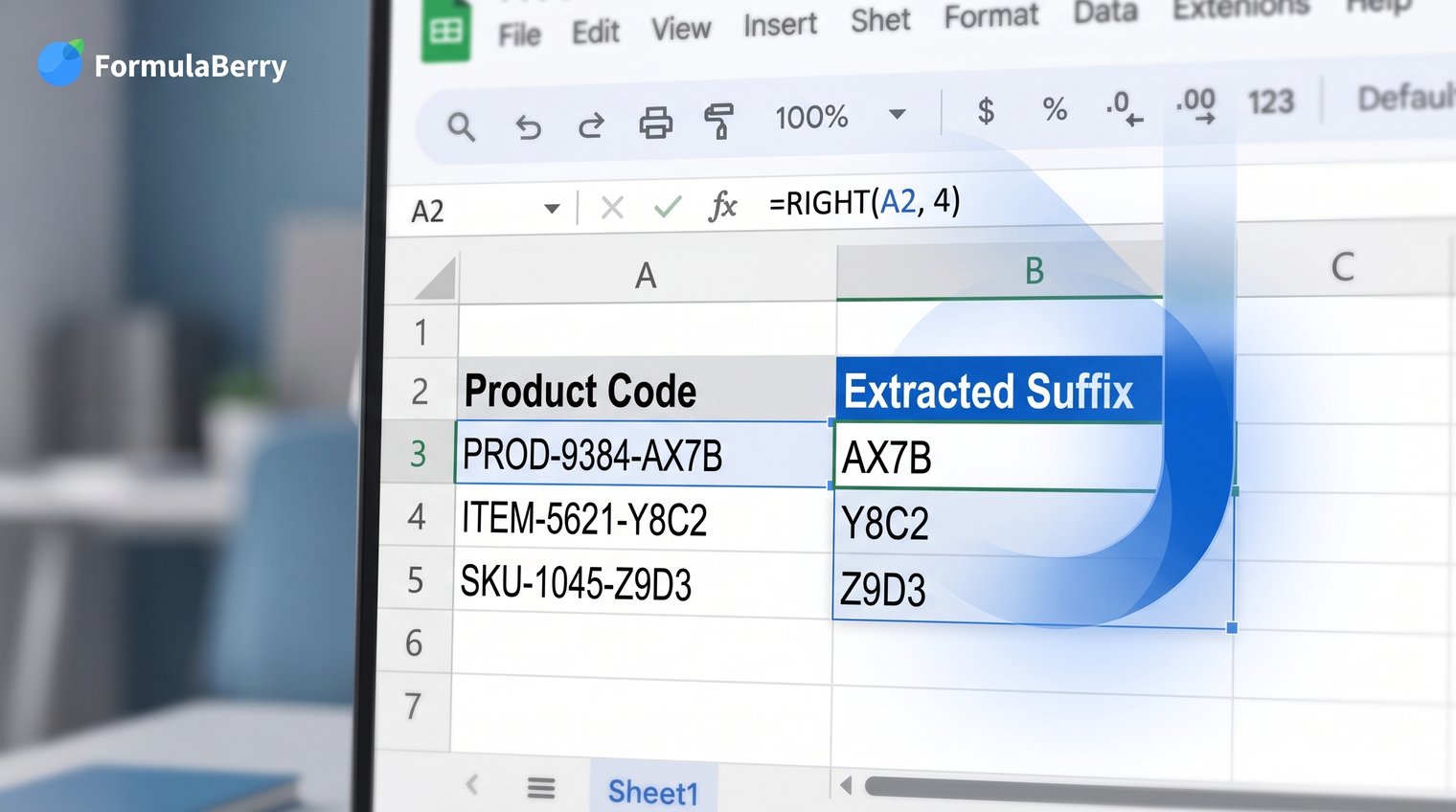
The most common Excel RIGHT formula is a fixed-length extraction. This is useful when every value ends with a four-digit ID, a two-letter country code, a year, or a consistent file extension.
For example, suppose column A contains product labels such as CHAIR-BLK-1042, DESK-WHT-1043, and LAMP-GRY-1044. Enter this formula in B2:
=RIGHT(A2,4)
Then drag or double-click the fill handle to copy it down the column. Because A2 is a relative reference, Excel changes it to A3, A4, and so on for each row.
This approach is reliable only when the ending is genuinely consistent. If some IDs are three digits and others are five, taking the last four characters can cut off part of the value or include unwanted text. In that case, extract based on a delimiter instead.
Example: get the last four digits from an order code
Assume A2 contains:
ORD-2025-1842
Use:
=RIGHT(A2,4)
The result is 1842 because those are the final four characters in the order code.
If you only need to display or compare the order number, leave the result as text. If you need to add, subtract, sort numerically, or use the result in a calculation, convert it with VALUE:
=VALUE(RIGHT(A2,4))
Do not convert automatically just because the output looks numeric. IDs often contain leading zeros, and converting 0042 to a number changes it to 42.
Extract text after a specific character with RIGHT, LEN, and FIND
Fixed-length formulas are not enough when the text after a delimiter can vary. For example, the region in Region-East has four characters, but Region-Northeast has nine.
To return everything after a hyphen, use:
=RIGHT(A2,LEN(A2)-FIND("-",A2))
This formula works in three parts. FIND("-",A2) locates the hyphen. LEN(A2) counts every character in the cell. Excel subtracts the hyphen's position from the total length, then RIGHT returns that many characters from the end.
This specific version finds the first occurrence of the delimiter. That matters when a value contains multiple hyphens.
Example: extract everything after a hyphen
If A2 contains Region-East, enter:
=RIGHT(A2,LEN(A2)-FIND("-",A2))
FIND locates the hyphen after Region. RIGHT then returns all remaining characters: East.
You can use the same pattern for other separators. Replace the hyphen inside FIND with the character your data uses:
- Slash: =RIGHT(A2,LEN(A2)-FIND("/",A2))
- Underscore: =RIGHT(A2,LEN(A2)-FIND("_",A2))
- Colon: =RIGHT(A2,LEN(A2)-FIND(":",A2))
A common mistake is using FIND when the data may contain a differently cased text delimiter. FIND is case-sensitive for text strings. When you need a case-insensitive text search, use SEARCH instead. For punctuation such as hyphens and slashes, either function normally gives the same result.
Extract text after the last delimiter
Consider a multi-part code such as EU-WEST-RETAIL. The earlier formula returns WEST-RETAIL because it works from the first hyphen. If you need only RETAIL, Excel must first identify the final hyphen.
A classic RIGHT-based formula is:
=RIGHT(A2,LEN(A2)-FIND("|",SUBSTITUTE(A2,"-","|",LEN(A2)-LEN(SUBSTITUTE(A2,"-","")))))
It looks intimidating, but the logic is sound. First, Excel counts the hyphens by comparing the original length to the length after hyphens are removed. Then SUBSTITUTE replaces only the last hyphen with a temporary marker, here a vertical bar. FIND locates that marker, and RIGHT returns everything after it. For more examples involving SUBSTITUTE and related text replacement functions, see this guide to the Excel REPLACE formula.
Use this with a filename such as client-draft-final.xlsx to extract final.xlsx, or with a code such as EU-WEST-RETAIL to extract RETAIL.
Warning: choose a temporary marker that cannot appear in your source text. The vertical bar works only if your cells do not already contain vertical bars. If they do, choose another character that is absent from the data.
Newer Excel functions can make this job much easier, but the RIGHT, LEN, FIND, and SUBSTITUTE approach remains useful when a workbook must work in older Excel versions.
Return everything before the last characters
Sometimes you do not want the suffix itself. You want to remove it and keep everything before it. That is where LEFT pairs naturally with RIGHT.
To return all text in A2 except the final four characters, use:
=LEFT(A2,LEN(A2)-4)
If A2 contains ORD-2025-1842, the formula returns ORD-2025-. You can use RIGHT to pull out the final four-digit order number and LEFT to keep the prefix:
- Suffix: =RIGHT(A2,4)
- Prefix: =LEFT(A2,LEN(A2)-4)
This LEFT and RIGHT formula workflow is especially useful for structured identifiers where the final segment always has a known length.
Use RIGHT with MID to extract text from the right
RIGHT is the best choice when the value you need runs to the very end of the cell. Use MID when the target starts a known number of characters from the right but stops before the final character.
For example, suppose A2 contains:
SKU-AB-123-XY
If you need 123, it is not the ending segment because XY follows it. This formula starts seven characters from the end and returns three characters:
=MID(A2,LEN(A2)-5,3)
LEN calculates the total length. Subtracting 6 positions MID at the first character of the three-character segment, and the final argument tells MID to return three characters.
Be precise when counting positions. In this example, the formula assumes the last two characters are always the trailing code and the target is always exactly three characters long. If either rule changes, the formula needs a delimiter-based method instead.
Choose RIGHT, LEFT, or MID for the job
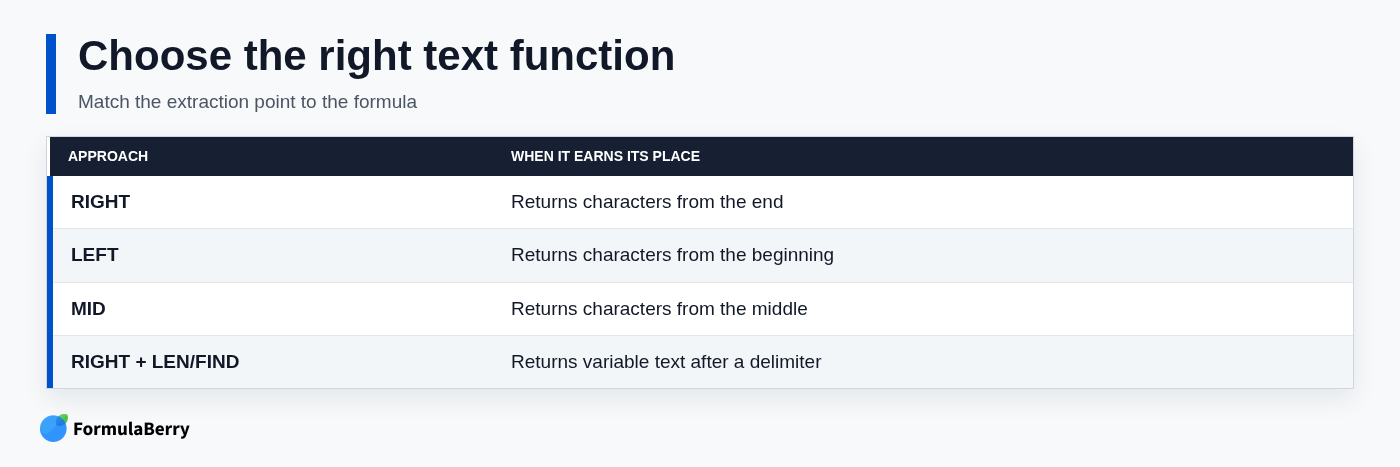
Use the function that matches where the text sits in the cell:
- RIGHT returns a segment at the end, such as the last four digits of an order number.
- LEFT returns a segment at the beginning, such as the first three letters of a department code.
- MID returns a segment in the middle when you know its start position and length.
- RIGHT with LEN and FIND returns variable-length text after a delimiter.
Handle spaces, missing delimiters, and other RIGHT formula errors
Most RIGHT formula problems are data problems rather than function problems. A formula may be correct, yet return a surprising result because cells contain leading spaces, trailing spaces, blank values, or inconsistent formats.
If imported values have extra spaces, clean them before extracting text:
=RIGHT(TRIM(A2),4)
TRIM removes leading and trailing spaces and reduces repeated internal spaces to one. That is useful for labels and codes, but be careful with data where repeated spaces are meaningful.
The formula =RIGHT(A2,LEN(A2)-FIND("-",A2)) returns #VALUE! if a cell has no hyphen. That is not an Excel bug; FIND cannot locate a character that is not there.
Before filling a formula down hundreds of rows, inspect a representative sample. Check short and long values, blanks, values with multiple delimiters, and rows that may have been typed manually. One formula rarely fixes a column with several undocumented formats.
Make the formula safer with IFERROR
When a missing delimiter is expected, wrap the formula in IFERROR:
=IFERROR(RIGHT(A2,LEN(A2)-FIND("-",A2)),"")
If the hyphen exists, Excel returns the text after it. If not, the formula returns a blank instead of #VALUE!.
A blank is appropriate when missing values are normal and harmless. For cleanup work, a visible message is usually better because it helps you find malformed rows:
=IFERROR(RIGHT(A2,LEN(A2)-FIND("-",A2)),"Missing hyphen")
Do not hide errors blindly. If every row is supposed to contain a hyphen, an error label can reveal a source-data issue that needs correction.
Use modern Excel alternatives when they fit better
Microsoft 365 users may have access to TEXTAFTER, which is often easier to read than a RIGHT, LEN, and FIND combination. To return text after the first hyphen, use:
=TEXTAFTER(A2,"-")
For Region-East, the result is East. TEXTAFTER is clearer when the only task is splitting text at a delimiter, but availability depends on the Excel version used by everyone sharing the workbook.
RIGHT remains the better default for fixed-length suffixes, such as final four digits or a known extension. It is also a dependable option for workbooks that must remain compatible with older Excel installations.
Create a RIGHT formula from a plain-English request with AI
For unusual extraction rules, a formula generator can save time, but the quality of the request matters. Include a sample value, the exact output you want, the delimiter rule, and any exceptions.
For example, ask: "In Excel, cell A2 contains codes like EU-WEST-RETAIL. Return the text after the last hyphen. Some cells may be blank, and codes without a hyphen should display Missing hyphen." That prompt gives enough detail to produce a formula you can evaluate rather than guess at.
Test any generated formula against real examples before using it across a report. Include rows with repeated delimiters, missing delimiters, inconsistent spaces, and shorter-than-usual values.
FormulaBerry

FormulaBerry is built for generating, explaining, and correcting Excel and Google Sheets formulas from plain-English requests. It is particularly useful when a RIGHT formula needs several nested functions and you want the logic explained in everyday language.
Give it a few representative source values and state the desired result, such as extracting everything after the last hyphen while flagging rows with no hyphen. It can help turn that requirement into a formula and clarify how the pieces work. It is a formula assistant, not a replacement for checking whether the underlying spreadsheet data follows the rules you described.
Put the RIGHT function to work in your spreadsheet
Use RIGHT when the information you need is at the end of a cell and has a fixed length. Combine RIGHT with LEN and FIND when the desired text appears after a delimiter and its length varies. When the target sits near the end but does not reach it, MID gives you the needed control.
Start with a few real rows, not one idealized example. If your extraction rule has repeated delimiters, exceptions, or unclear formatting, describe the rule in FormulaBerry, then validate the resulting formula against your sample data before filling it down the sheet.