
Most Google Sheets RSI formulas go wrong for one simple reason: RSI is not a single function you can paste into one cell. It is a sequence of calculations built from closing prices, daily gains, daily losses, and a smoothing method that must be carried forward correctly.
This guide builds a standard 14-period Relative Strength Index using Wilder's smoothing. You will create a transparent calculation table you can audit, modify, and chart instead of relying on a black-box spreadsheet template.
What the Google Sheets RSI formula calculates
The Relative Strength Index, or RSI, is a momentum indicator that compares the size of recent gains with the size of recent losses. It produces a value from 0 to 100. Traders often treat readings above 70 as potentially overbought and readings below 30 as potentially oversold, although neither threshold is a guaranteed buy or sell signal.
A 14-period RSI is the common default. On a daily chart, it uses 14 daily price changes. On a weekly chart, it uses 14 weekly changes. The period refers to changes, not just the number of closing-price rows.
Google Sheets does not include RSI as a built-in function, and GOOGLEFINANCE does not return an RSI value. Instead, you pull historical closing prices and calculate the indicator in columns.
There are two common approaches. A simple-average RSI repeatedly averages the last 14 gains and losses. This tutorial uses Wilder's smoothed RSI: it starts with a simple 14-period average, then uses the prior average in each later row. That is the method most people mean when they refer to a standard RSI calculation.
Set up a price-history table with GOOGLEFINANCE
Create a sheet with these columns:
- A: Date
- B: Close
- C: Change
- D: Gain
- E: Loss
- F: Average Gain
- G: Average Loss
- H: RS
- I: RSI
GOOGLEFINANCE can retrieve historical market data for supported tickers, but check the results before trusting them. Ticker conventions vary by exchange, and a symbol that looks correct may need an exchange prefix such as NASDAQ:GOOG or NYSE:IBM.
Pull daily closing prices
In cell A1, enter this example:
=GOOGLEFINANCE("NASDAQ:GOOG","close",TODAY()-90,TODAY(),"DAILY")
The formula returns a two-column table with headers, typically Date and Close. If you enter it in A1, the returned headers occupy row 1 and the first actual closing price usually begins in row 2.
For the layout used in this guide, add your calculation headers in C1 through I1. The change formula will begin on row 3 because a price change requires both a current close and a prior close.
Do not assume the latest returned value represents a completed trading session. Market data can be delayed, and an intraday or partial-session price can change your most recent RSI reading.
Use pasted price data when GOOGLEFINANCE is not suitable
GOOGLEFINANCE is convenient, but it is not the right source for every asset or workflow. You may need to paste or import data from a broker, ETF provider, crypto exchange, or paid market-data source when the ticker is unsupported or when you need a specific price series.
Use one closing price per period, keep the data source consistent, and sort dates from oldest to newest. RSI formulas should move down through time. Calculating from newest to oldest reverses the logic and produces misleading results.
If your source includes adjusted and unadjusted close prices, choose one and keep using it throughout the series. Mixing the two in the same calculation can create artificial gains or losses.
Calculate daily price changes, gains, and losses
Assume Date is in column A and Close is in column B, with the first closing price in row 2. Enter these formulas in row 3:
- In C3, enter =B3-B2
- In D3, enter =MAX(C3,0)
- In E3, enter =MAX(-C3,0)
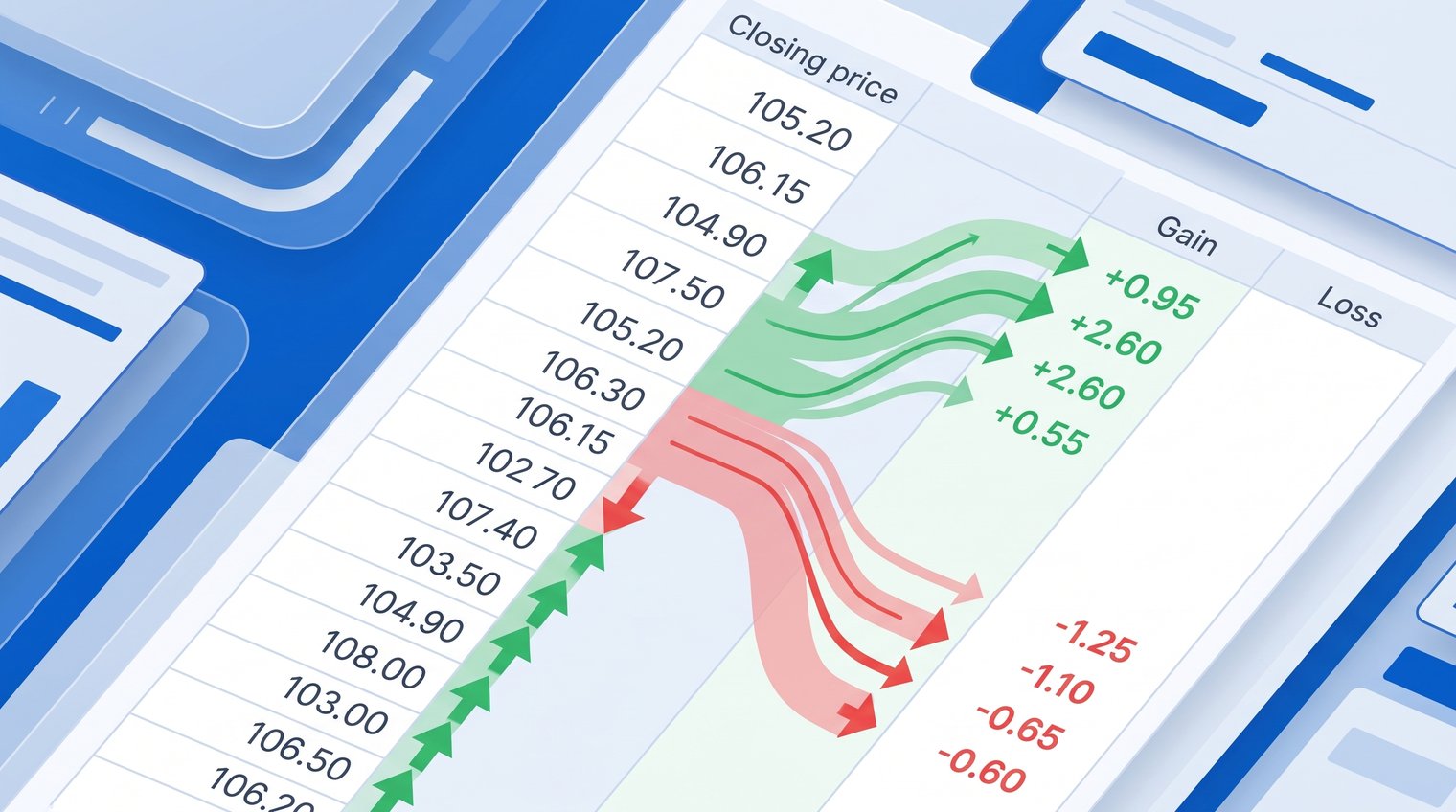
Copy the three formulas down alongside your price history. A positive change goes into the Gain column and produces zero in Loss. A negative change becomes a positive number in the Loss column and produces zero in Gain.
For example, if yesterday's close was 150 and today's close is 153, Change is 3, Gain is 3, and Loss is 0. If the next close is 151, Change is -2, Gain is 0, and Loss is 2.
Gains and losses are separated because RSI compares their average magnitudes. Averaging signed changes together would let upward and downward moves cancel each other out, which is not how RSI works.
Create the first 14-period average gain and average loss
A 14-period RSI needs 14 completed price changes. Because the first price has no prior price for comparison, you need at least 15 closing-price rows before the first RSI can appear.
With prices beginning in row 2, your changes begin in row 3. The first 14 changes therefore run from rows 3 through 16. In row 16, enter:
- In F16: =AVERAGE(D3:D16)
- In G16: =AVERAGE(E3:E16)
These are the seed values for Wilder's smoothing. If your first price starts elsewhere, adjust both ends of the range. The important rule is that each range contains exactly 14 gain or loss values. For more examples of averaging functions, see this guide to the Google Sheets Average Formula.
A common mistake is using 14 price rows rather than 14 changes. Count the values in the Change column, not the rows in your Close column.
Apply Wilder's smoothing for every later RSI row
Starting with the next row, do not continue using the seed AVERAGE formulas. Wilder's method updates each average by giving most of the weight to the previous average and adding the current gain or loss.
In row 17, enter:
- In F17: =((F16*13)+D17)/14
- In G17: =((G16*13)+E17)/14
Copy both formulas down for every later price row. Here, F16 and G16 are the previous row's average gain and loss, while D17 and E17 are the current row's gain and loss.
The multiplier 13 is the period minus one. More generally, for an RSI period of n, the update is:
((previous average * (n-1)) + current value) / n
Warning: Do not fill the original =AVERAGE(...) seed formula down the column. That creates a rolling simple-average RSI, which is a different indicator and will often disagree with charting platforms using Wilder's standard method.
Calculate relative strength and the RSI value
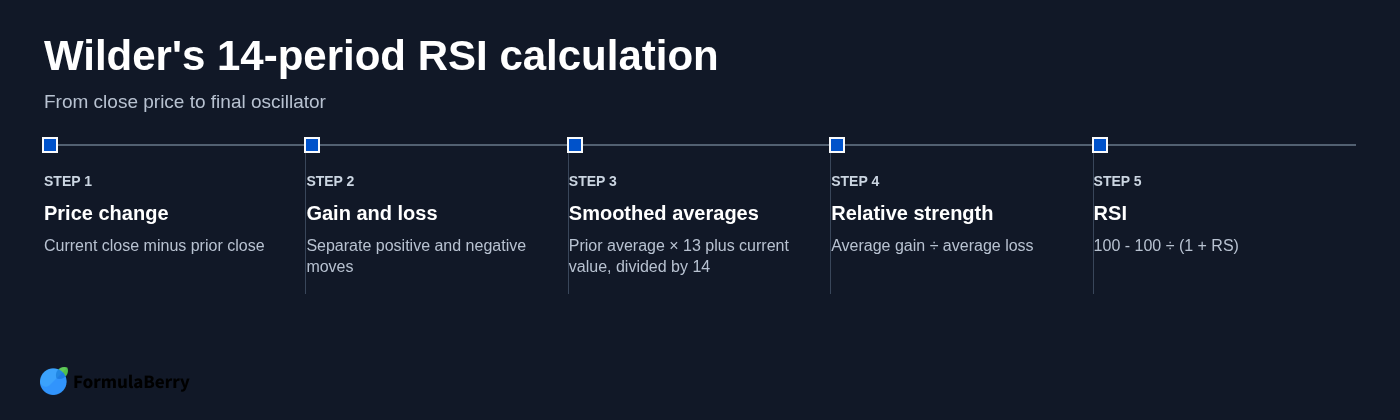
Relative strength, abbreviated RS, is the average gain divided by the average loss. RSI converts that ratio into the familiar 0-to-100 scale.
For the first seed row, row 16 in this example, enter:
- In H16: =F16/G16
- In I16: =IF(G16=0,100,100-(100/(1+F16/G16)))
The RSI formula is:
RSI = 100 - (100 / (1 + RS))
The IF statement handles the zero-loss edge case. If the average loss is zero, dividing by it would cause an error; in this situation, RSI is treated as 100. Copy the RS and RSI formulas down after you have calculated the smoothed averages.
Format the RSI column as a number with one or two decimal places. Values should remain between 0 and 100. A value outside that range almost always points to a reference or sign error in the Gain, Loss, or RS columns.
Google Sheets RSI formula example with a reusable layout
A reliable Google Sheets RSI formula calculator is not one oversized expression. It is a visible chain of columns that lets you inspect every part of the calculation. That matters when an RSI value looks wrong and you need to find out whether the issue started with price data, changes, averages, or the final formula.
Using the layout in this tutorial, rows 2 through 16 establish the first 14 price changes. Row 16 is where the first average gain, average loss, RS, and RSI appear. Row 17 and every row below it use Wilder's smoothing formulas.
Here is the complete formula map for a sheet where the first close is in B2.
Formula map for a 14-period RSI sheet
| Cell | Formula | Purpose |
|---|---|---|
| C3 | =B3-B2 | Daily price change |
| D3 | =MAX(C3,0) | Positive portion of the change |
| E3 | =MAX(-C3,0) | Negative portion as a positive loss value |
| F16 | =AVERAGE(D3:D16) | Initial 14-period average gain |
| G16 | =AVERAGE(E3:E16) | Initial 14-period average loss |
| H16 | =F16/G16 | Relative strength |
| I16 | =IF(G16=0,100,100-(100/(1+F16/G16))) | First RSI value |
| F17 | =((F16*13)+D17)/14 | Smoothed average gain |
| G17 | =((G16*13)+E17)/14 | Smoothed average loss |
| H17 | =F17/G17 | Updated relative strength |
| I17 | =IF(G17=0,100,100-(100/(1+F17/G17))) | Updated RSI value |
Copy C3:E3 downward through your full data range. Leave F and G blank until the seed row, then enter the smoothing formulas one row below the seed and copy those downward. The same applies to H and I: they begin on the seed row, not at the top of the sheet.
You do not need absolute references in these formulas because every row should shift as you copy downward. Use absolute references only if you place your RSI period, such as 14, in a separate settings cell and want formulas to keep pointing to it. If you need help turning a plain-language spreadsheet request into working syntax, see the Google Sheets Formula Generator.
Turn the calculation into an RSI chart
Once the RSI column is populated, select the Date column and RSI column. In Google Sheets, choose Insert > Chart, then use a line chart. Make sure Date is used as the horizontal axis and RSI is the series.
Set the vertical-axis minimum to 0 and maximum to 100. Without fixed bounds, Sheets may zoom into a narrow range and make ordinary RSI movement look more dramatic than it is.
For visible reference levels, add three helper columns containing 30, 50, and 70 for every row with an RSI value. Add them to the chart as additional series, then format them as muted lines. The 50 line is useful as a midpoint, while 30 and 70 provide the commonly watched threshold areas.
Keep the chart readable. RSI can highlight changes in momentum, but it does not predict price direction on its own.
Check your RSI against common calculation mistakes
If your result does not match another platform, inspect the structure before changing random formulas. Most mismatches come from a small group of avoidable errors.
- Using 14 closes instead of 14 changes: A 14-period RSI needs 14 differences between closing prices, requiring 15 close values for the first result.
- Sorting newest to oldest: The current close must be compared with the preceding close in chronological order.
- Mixing price types: Do not combine adjusted close data for some rows with unadjusted closes for others.
- Using rolling AVERAGE after the seed row: Standard Wilder RSI uses the prior average in its smoothing calculation.
- Ignoring zero average losses: Protect the RSI formula from division-by-zero errors with an IF condition.
- Rounding too early: Keep full precision in intermediate columns and format displayed decimals instead of rounding each calculation.
Small differences can still be normal. Another platform may use a different data vendor, session close, price adjustment method, rounding convention, or RSI implementation. Compare several rows, not only the newest number.
Before relying on a copied-down sheet, manually check one or two price changes, then verify the first seed averages. If those values are correct, the later formulas are much easier to troubleshoot.
Adapt the RSI period and data frequency
To use a different RSI period, replace 14 everywhere with your chosen period. For example, a 10-period RSI needs 10 price changes, so the seed average ranges contain 10 Gain and Loss cells. Its smoothing formula uses 9 as the multiplier:
=((previous_average*9)+current_gain)/10
Shorter periods, such as 7 or 9, react faster to price movement but produce more volatile readings. Longer periods, such as 21, move more slowly and can filter some short-term noise. There is no universally best period; match it to the time horizon you are reviewing.
You can also calculate RSI from weekly or intraday data, but every input row must represent the same interval. Do not combine daily closes with weekly closes, and do not fill gaps with arbitrary values. A consistent series is more important than a large series.
Build a reliable RSI tracker in Google Sheets
A dependable RSI tracker follows a clear sequence: collect consistently ordered closing prices, calculate each price change, split gains from losses, create the initial 14-period averages, apply Wilder's smoothing, and finally calculate RS and RSI.
The column-based approach takes a few more cells than a one-line formula, but it gives you something far more useful: a calculation you can inspect and adjust when your data source, timeframe, or RSI period changes.
If you need help adapting the row references, explaining a formula error, or turning a plain-language spreadsheet request into Google Sheets syntax, FormulaBerry can help generate, explain, and correct the formulas you need.