
An invoice number appears twice, or the same customer turns up in two contact lists. Before deleting anything, you need to see which entries match and whether they really represent the same record.
Google Sheets can highlight those matches without moving or removing your data. Start with a simple one-column rule, then adapt it for two lists, entire rows, or a combination of fields. The examples below include a sample sheet you can copy and try.
The basic rule for highlighting duplicates
To highlight duplicates in Google Sheets, select your data, open Format → Conditional formatting, choose Custom formula is, and enter a COUNTIF rule. For a list in A2:A12, use:
=AND(A2<>"",COUNTIF($A$2:$A$12,A2)>1)Choose a fill color and click Done. Sheets will highlight every copy of a repeated value, including the first one. Blank cells stay uncolored, and your data stays where it is.
The COUNTIF and COUNTIFS examples below use ordinary text or numbers and ignore capitalization. If your codes contain literal *, ?, or ~ characters, use the literal-text rule later in the guide.
Highlight duplicates in one column
For an invoice-number or contact list, a one-column rule is a good place to start. Use a header in A1 and a small set of values in A2:A12 so you can check the result easily. Leave the header out of the selected range.
- Select A2:A12. You can type the range into the name box to the left of the formula bar.
- Select Format → Conditional formatting.
- In the sidebar, confirm that Apply to range is
A2:A12. - Under Format cells if, choose Custom formula is.
- Paste
=AND(A2<>"",COUNTIF($A$2:$A$12,A2)>1)into the formula field. - Choose a readable fill color and click Done.
For example, if INV-104 appears in rows 2 and 6, both cells should change color. A value that appears once should remain unchanged. Add a temporary repeat inside the range and check that the color updates, then undo your test.
Why the dollar signs matter
COUNTIF counts how often a value appears in a range. Here, $A$2:$A$12 keeps the search range fixed, while A2 tells Sheets which value to check. On the next row, A2 becomes A3, then A4, so each cell is checked against the same list.
>1 asks whether the value appears more than once. A2<>"" excludes blank cells, including cells whose formula result is an empty string. A cell containing a space is not blank.
Write the formula for the top-left cell of Apply to range. If your list starts in C5, use a range such as C5:C100 and this matching rule:
=AND(C5<>"",COUNTIF($C$5:$C$100,C5)>1)Match this starting reference to your own data. If the first cell and the formula's starting row differ, the color can appear one row too high or too low.
Highlight every duplicate or only later occurrences
Sometimes you want to see every copy of a repeated value. Other times, you want to keep the first entry and flag only the repeats below it. For that second case, change the fixed search range to an expanding range.
Apply to A2:A12:
=AND(A2<>"",COUNTIF($A$2:A2,A2)>1)The search begins at A2 and ends at the current row. The first INV-104 has a count of one, so it stays uncolored. Its second and later appearances have a count greater than one and are highlighted.
To highlight only the first occurrence of each repeated value, combine a full-range check with a running count:
=AND(A2<>"",COUNTIF($A$2:$A$12,A2)>1,COUNTIF($A$2:A2,A2)=1)Here, “first” means the topmost occurrence in the current sheet order. Sorting the data can change which row qualifies. If you mean the oldest record, sort by a reliable date field first.
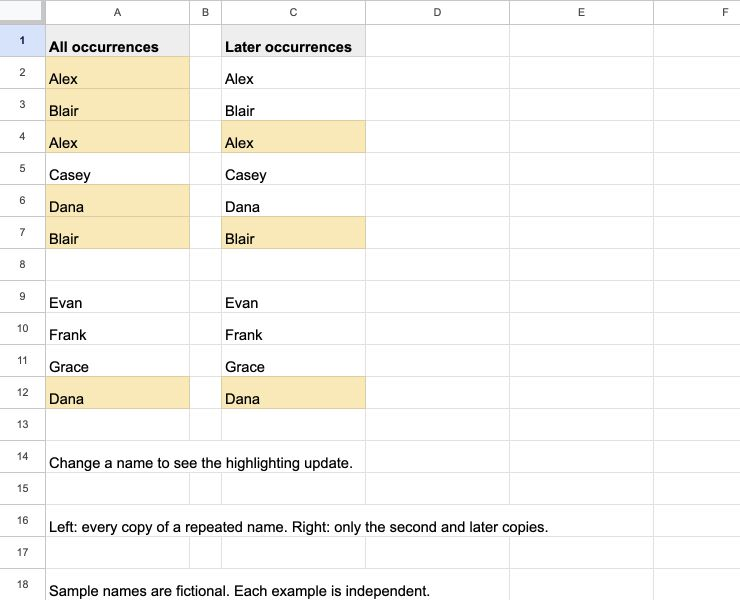
Sample sheet: column A colors every repeated name; column C colors only later occurrences. The blank row remains uncolored.
Highlight duplicates across two columns
When you're comparing two lists, it helps to decide what you want the color to tell you. You might want every repeated value across both columns, or just the entries from the first list that also appear in the second.
Find any value repeated anywhere in two columns
Use this when A and B hold comparable values, such as two sets of product codes, and you want to color every repeated code in the combined area.
Apply to A2:B12:
=AND(A2<>"",COUNTIF($A$2:$B$12,A2)>1)The search covers both columns. A code repeated twice in A is highlighted even if it never appears in B. A code appearing once in each column is also highlighted.
Keep A2 relative. When Sheets checks B2, it must test B2's value. Changing it to $A2 would make cells in column B follow the value in column A instead.
Highlight values in A that also appear in B
Suppose column A holds this month's contact list and column B holds last month's. Use this rule to highlight contacts in A that already appear in B.
Apply to A2:A12:
=AND(A2<>"",COUNTIF($B$2:$B$12,A2)>0)The threshold is >0 because one match in the other list is enough. A value repeated only within A will not be highlighted by this rule.
To color matching values in B too, create a second rule applied to B2:B12:
=AND(B2<>"",COUNTIF($A$2:$A$12,B2)>0)Neither rule checks whether A2 equals B2 on the same row. They search the full comparison list, which is what you need when the lists have different orders.
Highlight an entire row when an ID repeats
Suppose column A contains invoice IDs and columns B through D hold the related details. You want every cell in a row colored whenever its ID repeats.
Apply to A2:D12:
=AND($A2<>"",COUNTIF($A$2:$A$12,$A2)>1)The $ before A keeps the test on the ID column as formatting moves across the row. The row number remains relative so each row uses its own ID.
Now you can compare the records side by side. Two rows might share an invoice ID but show different amounts, so a highlighted row still needs a closer look before you delete it.
Highlight rows only when two fields match
A customer can appear several times in an order sheet without creating a duplicate. If you only want to flag a repeated customer and product combination, the rule needs to check both fields.
With customer in A and product in B, apply this rule to A2:B12, or to A2:D12 if you want the other details colored too:
=AND($A2<>"",$B2<>"",COUNTIFS($A$2:$A$12,$A2,$B$2:$B$12,$B2)>1)Both fields must be filled in. A row is highlighted only when another row has the same customer and the same product. Sharing the same customer alone is not enough.
COUNTIFS checks the conditions together, row by row. Its criteria ranges must have the same dimensions, so both ranges run from row 2 to row 12 in this example.
If a duplicate record must match a third field, add that column's range and current-row value as another pair. For example, comparing A, B, and C requires three conditions. Coloring A through D while checking only A and B still compares just those two fields.
Avoid building a key by simply joining columns with &. The pairs AB plus C and A plus BC both become ABC, although the original fields differ. Separate COUNTIFS conditions preserve the field boundaries.
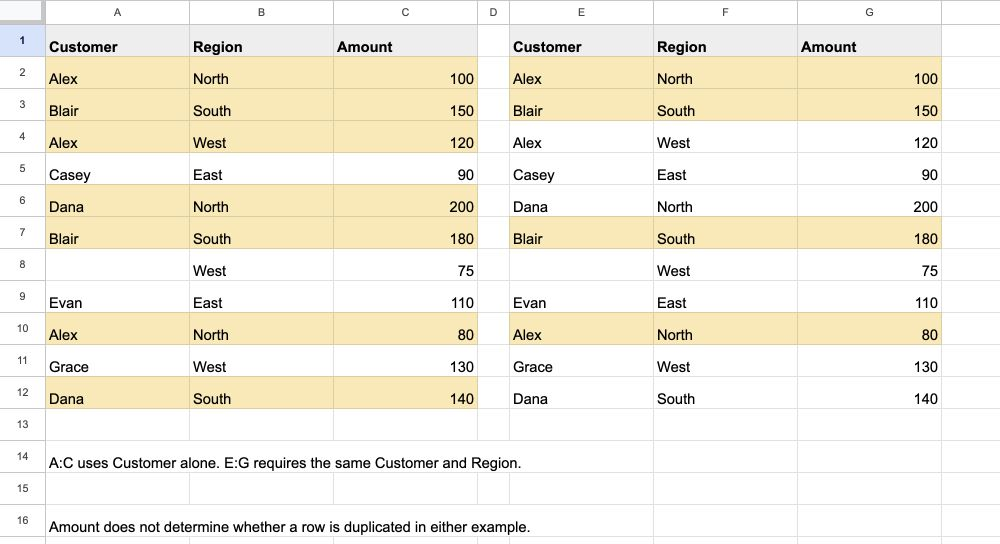
Sample sheet: A:C follows the customer name. E:G requires the same customer and region. Amount does not determine duplication in either example.
Handle blanks, capitalization, and special characters
The blank check stops empty rows from distracting you. In a one-column rule, A2<>"" excludes empty values. The two-field rule checks both fields, so it skips incomplete records. If a blank field is valid in your data, remove only that field's blank check.
COUNTIF is not case-sensitive, so Atlas and ATLAS count as matches in the standard rules. That's often helpful for names, but it may be wrong for an identifier whose capitalization matters.
There is one more catch with product codes: COUNTIF treats * and ? as wildcards and ~ as an escape character. Passing the value through a cell reference doesn't necessarily make it a literal-text match. If those symbols are part of your actual codes, use the rule below.
For a case-sensitive comparison of literal text, including these characters, apply this rule to A2:A12:
=AND(A2<>"",SUMPRODUCT(--EXACT($A$2:$A$12,A2))>1)EXACT compares the text of each value, including capitalization, spaces, and hidden characters. That means A* matches another A*, while A* and AB remain different. Atlas and ATLAS also stay separate. Use this rule for text identifiers where those differences matter.
If pasted text contains unwanted spaces, clean it in a helper column before highlighting duplicates. For example, enter =TRIM(A2) beside your data and fill down. Check that the cleaned values still mean what you expect before replacing anything. Normalizing names or codes can merge values that were intentionally distinct.
Why isn't my duplicate rule working?
If the colors don't match what you expected, work through these checks:
- The formula is in the sidebar. Entering the same formula into a normal cell returns TRUE or FALSE; it does not create a color rule.
- The starting cell matches. A rule applied to A2:A12 should normally test A2, not A1.
- The search range stays fixed. Use
$A$2:$A$12for a full-list comparison. Leave only the ending row relative when you deliberately want a running count. - The format range is large enough. A rule ending at row 12 does not cover a new entry in row 13. Extend both the formatting range and the formula's search range.
- You have the right comparison. A duplicate anywhere in A:B is different from an A value found in B or a repeated A-and-B row key.
- Another rule is taking priority. Review overlapping rules in the sidebar. Google Sheets evaluates them in their listed order.
- The values are actually comparable. Check spaces, capitalization requirements, leading zeros, and numbers stored as text. Do not convert identifier columns to numbers merely to make the colors agree.
If Sheets reports a formula parse error, check whether your locale uses semicolons between function arguments. The first rule would then be:
=AND(A2<>"";COUNTIF($A$2:$A$12;A2)>1)Use straight quotation marks, keep the leading equals sign, and paste only the formula, without backticks or extra square brackets.
Try the examples in your own sheet
The sample sheet includes the examples above, so you can see how each rule behaves before using it on your own data. Open it and choose File → Make a copy to get a version you can edit.
Sample sheet: QW-001 • Highlight duplicates in Google Sheets — examples
Start with a few rows whose results you already know. Include one unique value, a repeated value, a blank, and any unusual codes your real data contains. Change one entry and confirm that the highlighting updates before expanding the range.
Once the right rows are highlighted, you can compare their details and decide what to keep. A repeated email address or customer name may be valid when it belongs to several different transactions.
If your sheet needs a rule these examples don't cover, FormulaBerry can help turn the requirement into a formula. Describe the columns, the starting row, and what should count as a match. Our guide to creating and checking Google Sheets formulas shows how to make that request clear.
For example: “In Google Sheets, highlight A2:D500 when the ID in column A repeats. Ignore blank IDs and keep the first occurrence uncolored.” Test the result on a few known rows before applying it to the full list.