
A spreadsheet can look correct while hiding a broken formula underneath. The most common mistake is changing the number displayed in a result cell instead of changing the formula that produced it. That may solve today's problem, but it disconnects the cell from future updates.
Whether you need to switch a reference, correct a calculation, or calculate percentage changes, the safest approach is to edit the formula deliberately, verify the result, and copy it only after the logic is right.
Understand what changes when you edit an Excel formula
Changing an Excel formula means changing its calculation logic, not simply replacing the value shown in a cell. A formula begins with an equals sign, such as =B2*C2. In this example, Excel multiplies the values in cells B2 and C2 and displays the result in the formula cell.
You can change several parts of that formula: the cell references, the mathematical operator, the function, or a fixed number. For example, changing =B2*C2 to =B2*D2 uses a different input cell. Changing it to =B2+C2 changes multiplication into addition.
When Excel calculation is set to Automatic, any cells that depend on the edited formula recalculate immediately. That is why it is important to edit the formula itself rather than type over its result.
Edit a formula directly in the cell or Formula Bar
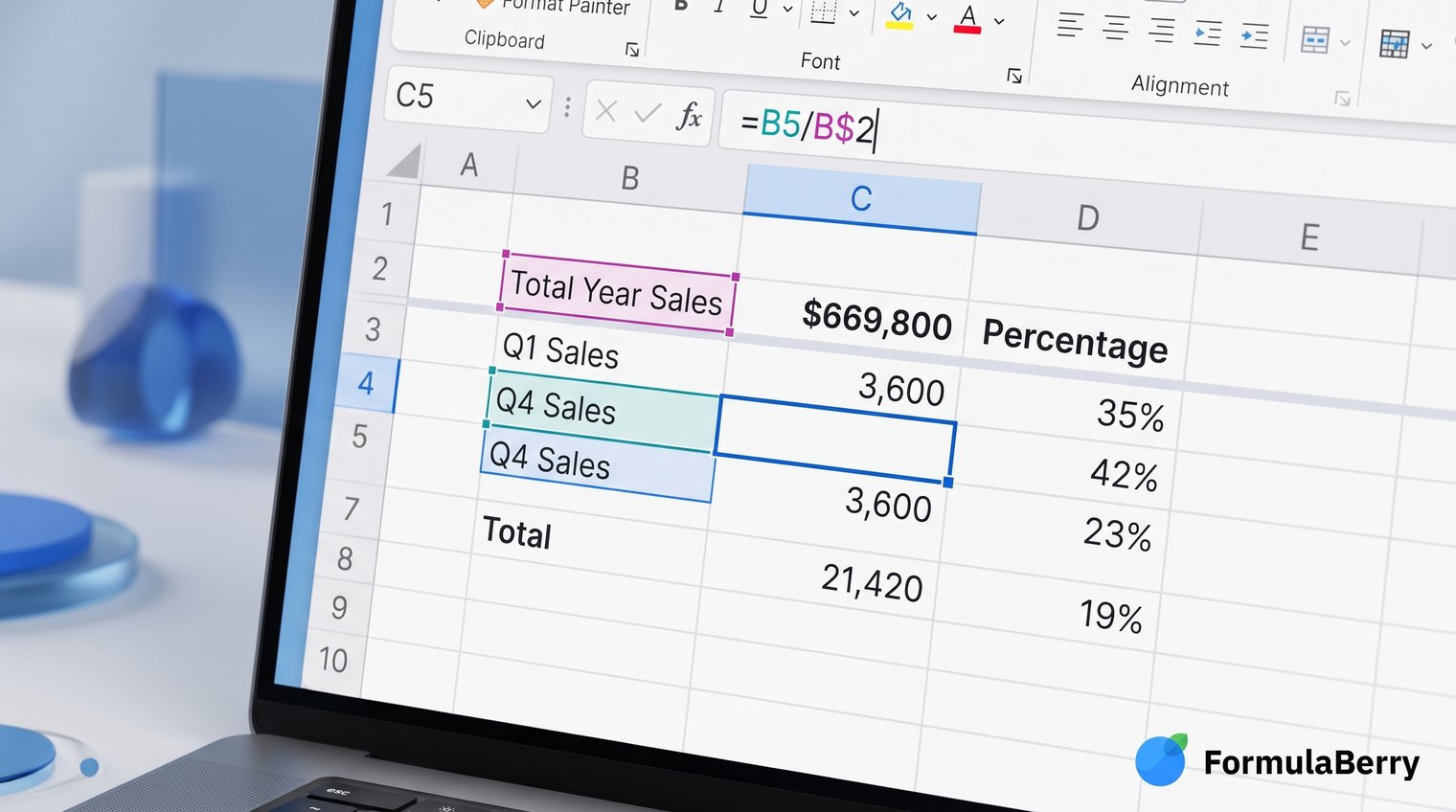
To change a formula, select the cell containing it. Press F2 to edit the active cell, or click inside the Formula Bar above the worksheet. Make your change and press Enter to apply it.
The most useful change formula Excel shortcut is F2. Press Esc if you want to abandon the edit, and use Ctrl+Z immediately if you entered an unwanted change.
Do not simply start typing while the formula cell is selected unless you mean to replace the whole formula. Typing 500 into a cell that previously contained =B2*C2 removes the formula and leaves a fixed value. The cell will no longer update when B2 or C2 changes.
Change a cell reference, operator, or fixed number
Small changes are often all you need. Here are common before-and-after edits:
- Change the referenced input: =B2*C2 to =B2*D2
- Change the operation: =B2+C2 to =B2-C2
- Change a fixed rate: =B2*0.10 to =B2*0.15
While editing, click a referenced cell instead of manually typing its address when possible. Excel inserts the reference and highlights it with a color that matches the outlined source cell. This is especially helpful in longer formulas where one incorrect row or column reference can produce plausible but wrong results.
Replace an entire formula without losing the intended logic
Edit part of a formula when the calculation method is still correct. Replace the entire formula when the logic has changed. For example, a report using =SUM(B2:B10) calculates a total, while =AVERAGE(B2:B10) calculates an average. Both formulas may use the same cells, but they answer different questions.
Before replacing an important formula, save the existing version somewhere safe. Copy it into an adjacent temporary cell, a workbook note, or a versioned copy of the file. This is particularly useful for financial models, recurring reports, and shared workbooks where someone may need to understand why a result changed.
Then enter the new formula, press Enter, and test it with known inputs. If B2:B10 contains 10, 20, and 30, a total should be 60 and an average should be 20. A quick manual check catches many logic errors.
Use Find and Replace carefully for repeated formula changes
If the same formula fragment appears throughout a report, use Ctrl+H to open Find and Replace. This can save time when updating a monthly workbook, such as changing Jan! to Feb! in formulas that refer to another worksheet.
First select the intended range, then use Find Next to inspect matches before choosing Replace All. For consequential edits, work on a copy of the workbook first.
Broad replacements are risky. Replacing B2, for example, could affect references you did not intend to change or text that happens to contain the same characters. Keep the search phrase as specific as possible.
Copy or paste a changed formula to other cells
Once the corrected formula works in one row, you can extend it through the rest of a table. A normal copy and paste with Ctrl+C and Ctrl+V copies the formula itself, adjusting references when appropriate. Paste Values, by contrast, pastes only the current result and removes the live calculation.
For a column of similar calculations, select the corrected cell and drag its fill handle, the small square at the lower-right corner of the selection, down through the target rows. You can also double-click the fill handle when there is a contiguous set of data in the neighboring column.
Before filling a formula down, check whether any references should remain fixed. Excel normally treats references as relative, meaning they move as the formula is copied.
Keep references fixed with dollar signs
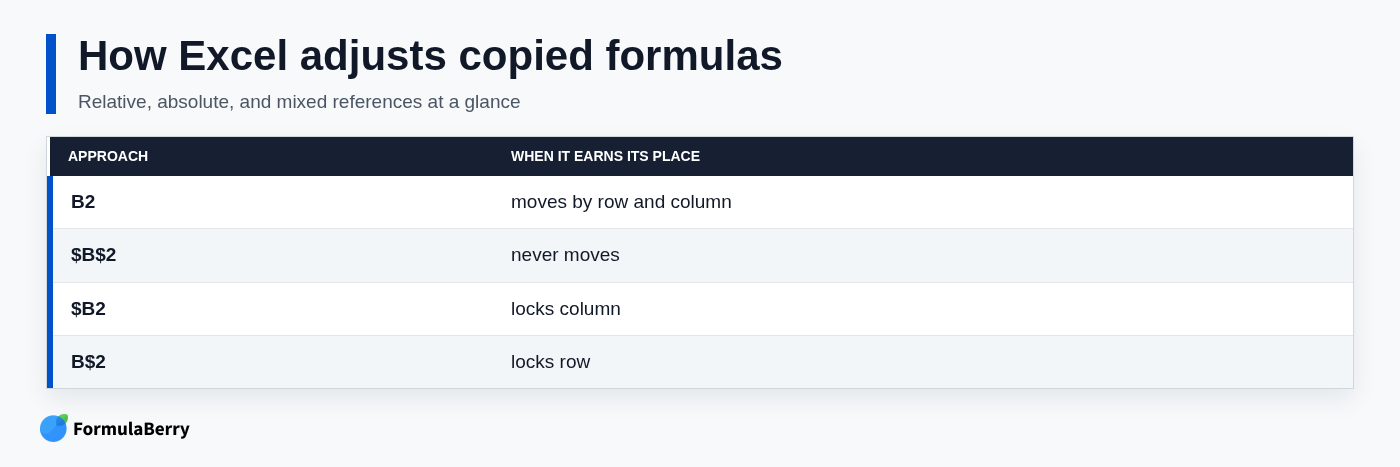
Relative references change by row and column when copied. If cell D2 contains =B2*C2 and you copy it to D3, Excel changes it to =B3*C3. That is usually what you want for row-by-row calculations.
Use dollar signs to lock a reference when every row must use the same rate or lookup cell. Suppose B2 contains a sales amount and F1 contains a fixed tax rate. Enter =B2*$F$1. When you copy the formula down, B2 becomes B3, B4, and so on, while $F$1 remains unchanged.
- B2: relative; row and column can move
- $B$2: absolute; row and column stay fixed
- $B2: mixed; column B stays fixed, row can move
- B$2: mixed; row 2 stays fixed, column can move
In desktop Excel, place the cursor on a reference while editing and press F4 to cycle through the reference types. A common mistake is filling a formula down without locking a fixed rate, causing the rate reference to drift from F1 to F2, F3, and beyond.
Change calculation settings when formulas are not updating
If you edit a formula and the result does not update, the formula may be correct but calculation mode may be set to Manual. Go to the Formulas tab, choose Calculation Options, and select Automatic.
Automatic calculation is the best default for most workbooks. Manual calculation can be intentional for very large files, where recalculating thousands of formulas after every edit would slow work down.
When you need to refresh calculations without changing the setting, use these desktop Excel shortcuts:
- F9: calculate all open workbooks
- Shift+F9: calculate the active worksheet
- Ctrl+Alt+F9: force a full recalculation
Check for formula errors before assuming calculation is broken
Not every unchanged result is a calculation-mode problem. Look for Excel error messages after editing:
- #REF! means a formula refers to a cell that was deleted or moved improperly.
- #DIV/0! means the formula is dividing by zero or a blank cell.
- #VALUE! often means Excel found text or an incompatible data type where it expected a number.
Use Formula Auditing tools such as Trace Precedents and Trace Dependents to see which cells feed into a formula and which cells use its output. For a long formula, also test smaller pieces in empty cells so you can identify the exact calculation causing the error.
Calculate a percentage of a number in Excel
To calculate what percentage one number is of another, divide the part by the total. If B2 contains completed orders and C2 contains total orders, use:
=B2/C2
For example, 45 completed orders out of 60 total orders returns 0.75. Format the result cell as Percentage to display 75%. You do not need to multiply by 100 when you apply percentage formatting. For more examples, see this guide to the Excel Percentage Formula: Calculate Percentages, Change, and Discounts.
Use the Increase Decimal or Decrease Decimal buttons to control how many decimal places are shown. Showing 75.0% instead of 75% changes only the display, not the underlying value.
Calculate a percentage increase
The percentage increase formula Excel users need most often is:
=(new_value-old_value)/old_value
If a value rises from 100 to 120, enter:
=(120-100)/100
The result is 0.20, or 20% after percentage formatting. The old value goes in the denominator because it is the baseline you are measuring growth against. For related year-over-year and growth calculations, see this guide to the Growth Excel Formula: Percentage Change, YoY, Total Growth, and CAGR.
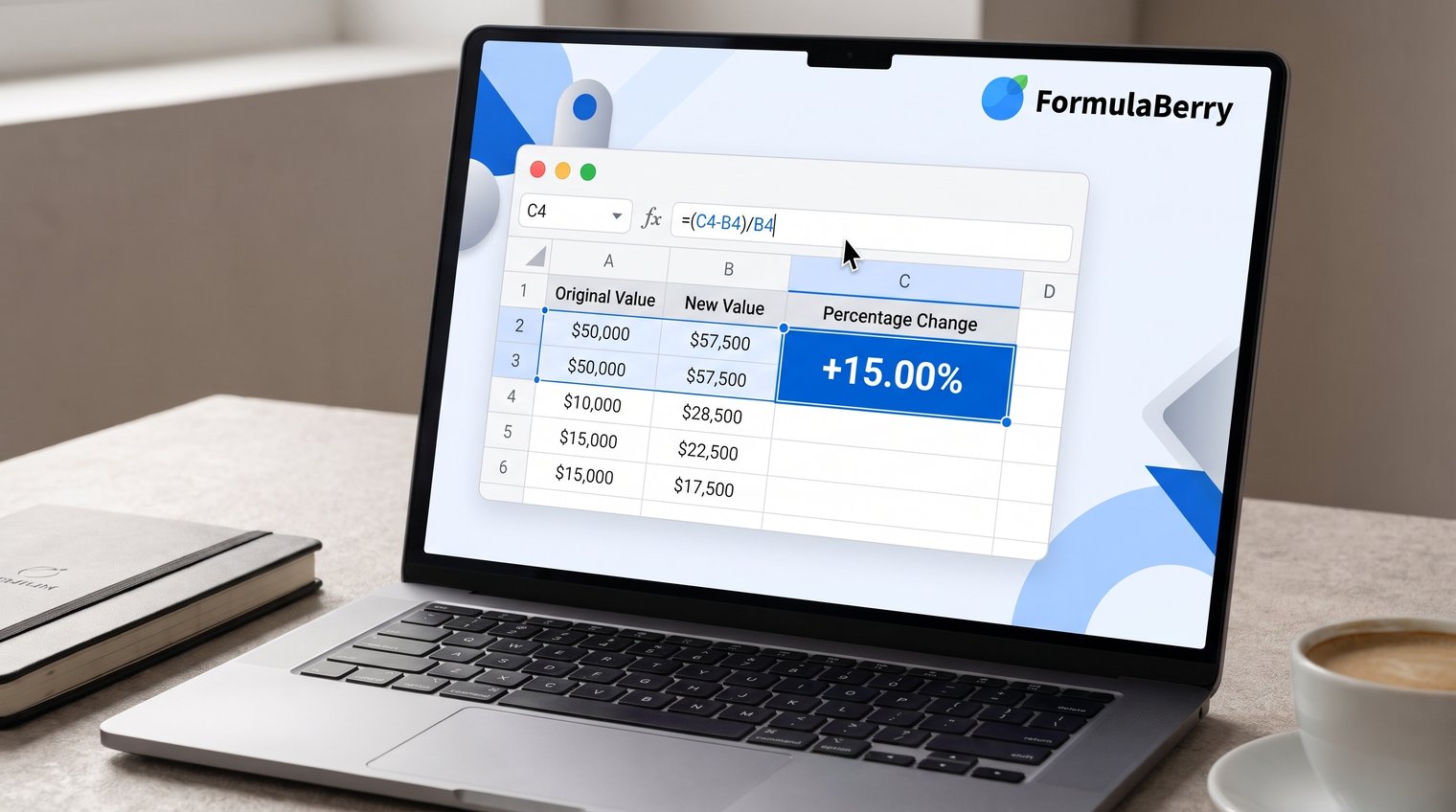
In a worksheet with old values in B2 and new values in C2, the practical formula is =(C2-B2)/B2.
Calculate a percentage decrease
To calculate a percentage decrease, use:
=(old_value-new_value)/old_value
For a reduction from 100 to 80, enter =(100-80)/100. The result is 20%.
You can also use the general percent-change formula =(new_value-old_value)/old_value. With a move from 100 to 80, it returns -20%, which is often more useful in reports because the negative sign clearly shows a decline.
A zero starting value needs special treatment. Percentage change from zero is undefined, and a standard formula produces #DIV/0!. Decide on a business rule instead: leave the result blank, show "N/A," or flag it for review.
Update percentage formulas across a table without breaking references
For a percentage change table, place old values in column B, new values in column C, and percentage change in column D. In D2, enter:
=(C2-B2)/B2
Format D2 as a percentage, then verify it against one row manually before copying it down. If B2 is 200 and C2 is 250, D2 should show 25%. Once confirmed, drag the fill handle down the column.
If your table contains blanks or zero baselines, protect the formula before filling it. A readable option is:
=IF(B2=0,"",(C2-B2)/B2)
This leaves the percentage change cell blank when the old value is zero instead of returning an error. Use this only if a blank result fits your reporting rules; do not hide a meaningful data issue without making that convention clear to anyone reviewing the workbook.
Verify the changed formula before sharing the workbook
Before sending a workbook, take a minute to check the formulas rather than trusting the displayed results. This small review is especially important after using fill handles, Find and Replace, or manual calculation mode.
- Select key result cells and inspect the Formula Bar to confirm they still contain formulas.
- Spot-check the referenced inputs and compare the output with a simple manual calculation.
- Confirm percentage cells use Percentage formatting and show an appropriate number of decimal places.
- Check several copied rows to make sure references moved or stayed fixed as intended.
- Look for #REF!, #DIV/0!, and #VALUE! errors before sharing.
If the logic is unclear, FormulaBerry can help generate, explain, or correct an Excel or Google Sheets formula from a plain-language description. For example, you can describe the columns you have and ask for a formula that calculates percentage change while leaving zero starting values blank.
Make formula changes confidently in Excel
The reliable way to change a formula in Excel is to edit the calculation, not overwrite its result. Use F2 or the Formula Bar, verify whether references should be relative or fixed, and make sure Excel is recalculating automatically when appropriate.
For percentages, divide the part by the total, and use the old value as the baseline for increase or decrease calculations. Format the final result as a percentage rather than multiplying unnecessarily. When you need help turning a calculation goal into the right formula, FormulaBerry can generate or explain the formula in plain language.