
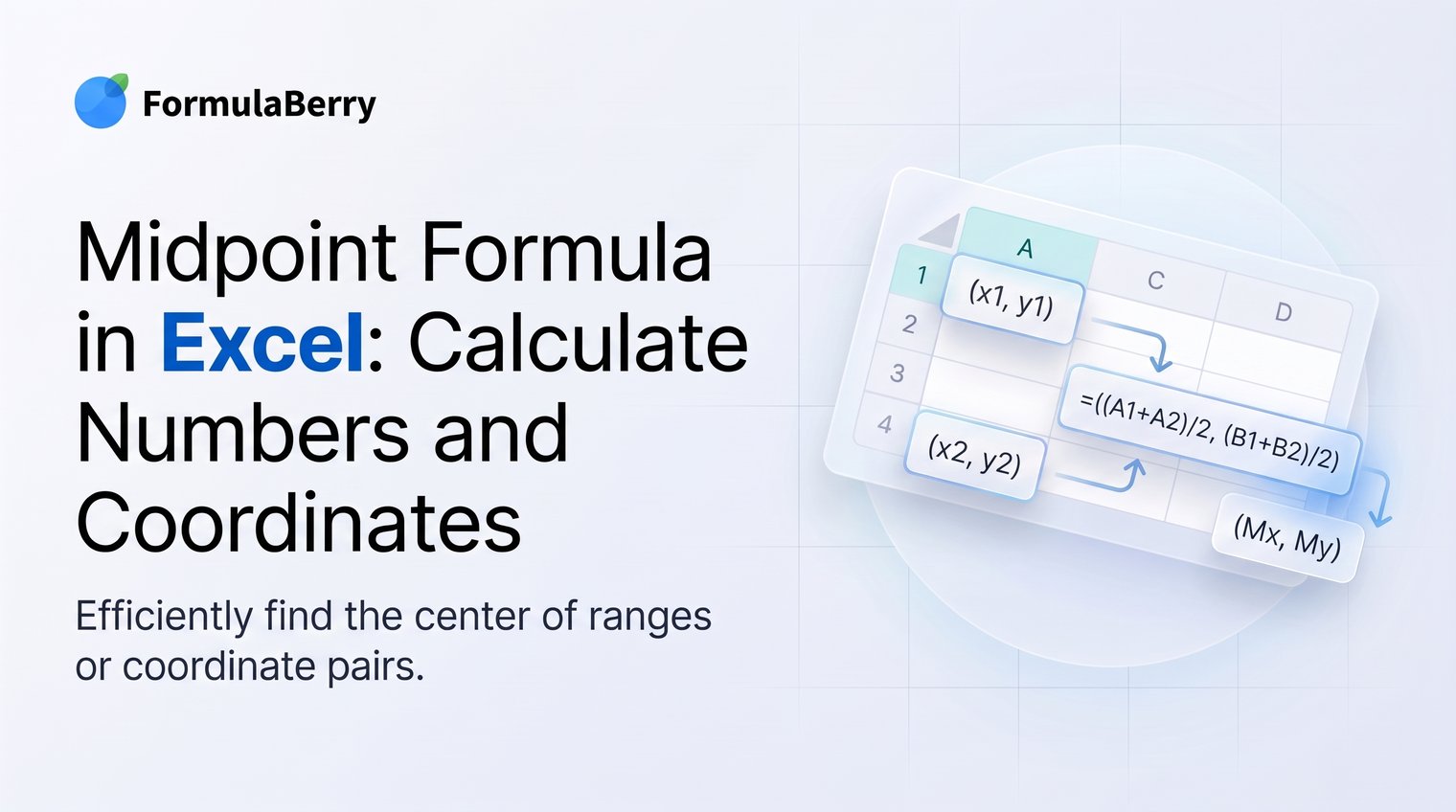
The midpoint formula in Excel is simple, but it is easy to apply the wrong function or mix up coordinate columns. If you need the value exactly halfway between two endpoints, Excel can calculate it with one short formula.
Whether you are finding the center of a price range, the halfway date between deadlines, or the midpoint of two plotted coordinates, the key is to average the correct pair of values.
What the midpoint formula means in Excel
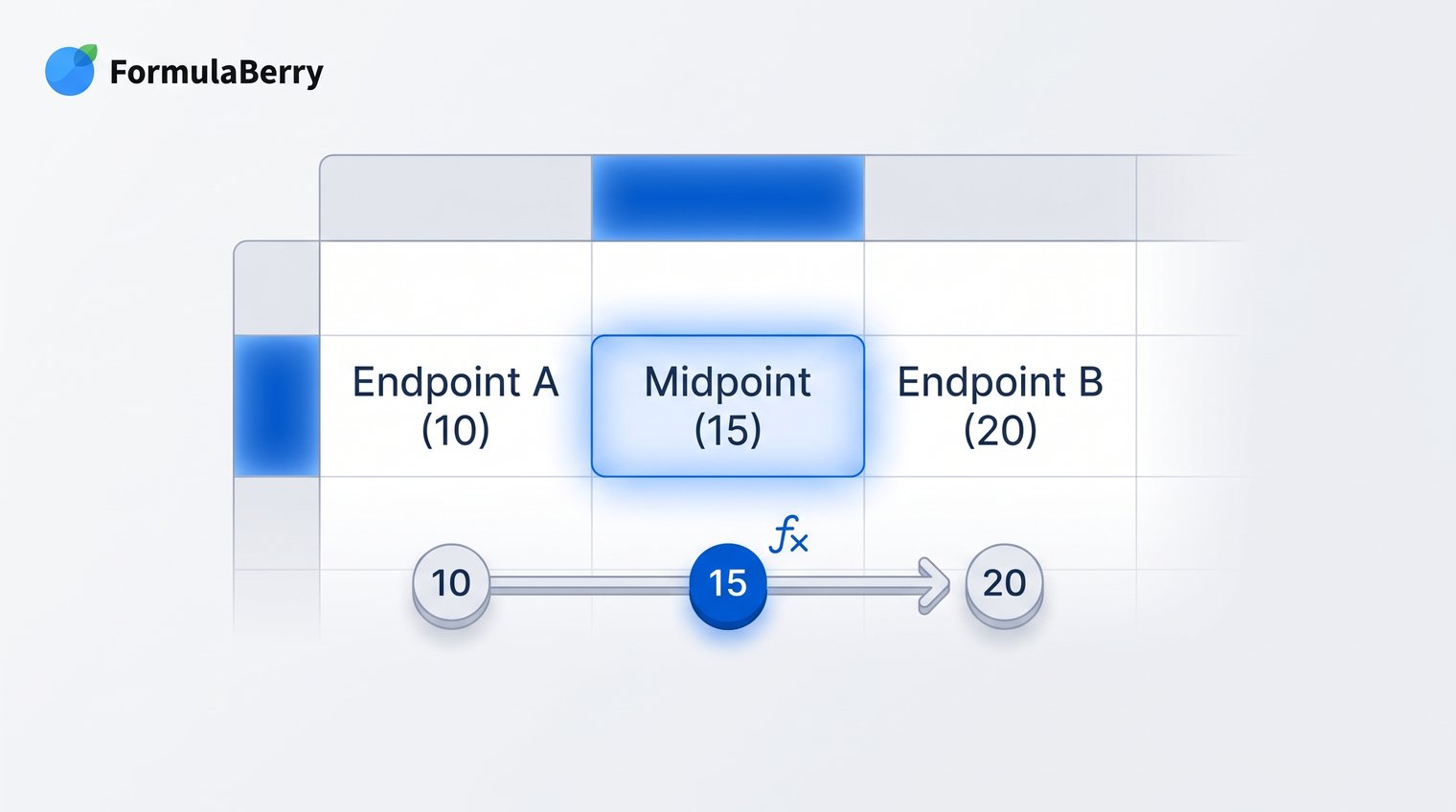
A midpoint is the value exactly halfway between two endpoints. If one value is 12 and the other is 28, the midpoint is 20 because 20 is equally distant from both numbers.
The basic arithmetic is:
(first value + second value) / 2
In Excel, use this calculation when you have two known boundaries and need the center between them. For ordinary numbers, that means averaging two values. For coordinates, you calculate one midpoint for the x-axis and another for the y-axis.
Midpoint vs. median in Excel
Midpoint and median are not interchangeable. A midpoint uses two endpoints, while the MEDIAN function finds the middle value in a group of values after they are ordered.
For example, the midpoint between 10 and 30 is 20:
=(10+30)/2
But the median of 10, 20, and 30 is also 20 for a different reason: it is the middle observation in that set. If your worksheet contains only a lower limit and an upper limit, use an average or midpoint formula, not MEDIAN.
Calculate the midpoint between two numbers
The most direct midpoint formula in Excel is:
=(A2+B2)/2
Suppose cell A2 contains 12 and B2 contains 28. Enter the formula in C2:
=(A2+B2)/2
Excel adds 12 and 28 to get 40, then divides by 2. The result is 20.
This is usually the best formula when you want to make the calculation obvious to anyone reviewing the sheet. It also works with negative values and decimals.
Use the AVERAGE function as an equivalent shortcut
You can get the same result with:
=AVERAGE(A2,B2)
When A2 and B2 are your only two numeric endpoints, AVERAGE returns the exact midpoint. Many people prefer it because it clearly communicates that the result is the average of two bounds.
Be careful when selecting a range. The formula =AVERAGE(A2:B4) averages every numeric cell in that range, not just the two endpoints you intended to use. For a midpoint, explicitly reference the two endpoint cells unless you are certain the range contains only those values.
FormulaBerry
If you know what result you need but are unsure how to phrase the Excel formula, FormulaBerry can turn a plain-English request into a formula for Excel or Google Sheets. For example, you could ask for "the value halfway between cells A2 and B2" and use the generated formula in your worksheet.
It is especially useful when the midpoint calculation becomes more specific, such as finding the midpoint only when both cells contain valid numbers or calculating a midpoint against a fixed target. FormulaBerry generates, explains, and helps correct formulas, but it does not replace the need to organize your source cells correctly before entering a formula.
Calculate the midpoint of coordinate pairs
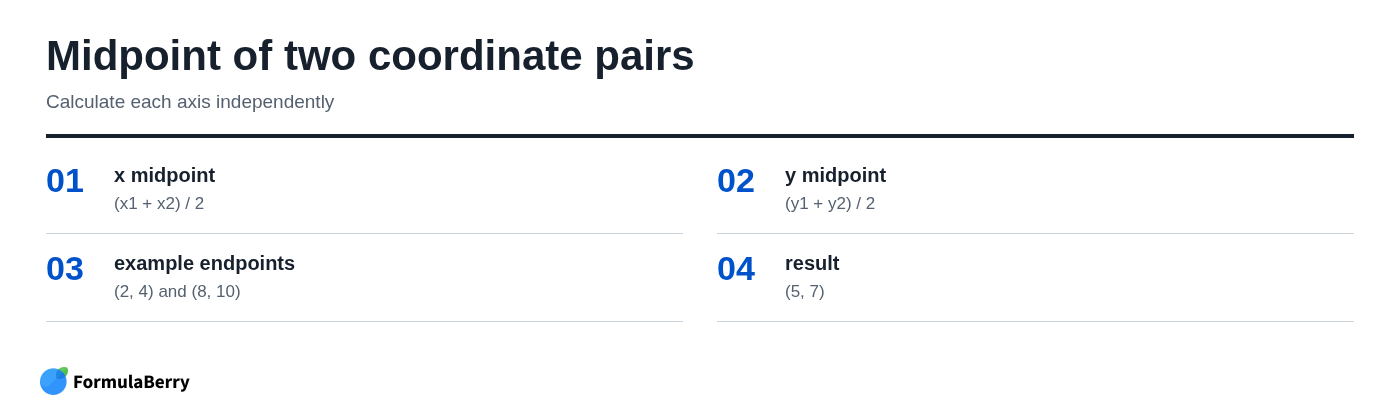
A coordinate midpoint has two parts because each point has an x-value and a y-value. To find the midpoint between two coordinates, average the x-values together and average the y-values together.
The coordinate midpoint rules are:
x midpoint = (x1 + x2) / 2
y midpoint = (y1 + y2) / 2
Set up your spreadsheet with one coordinate element per column. A practical layout is x1 in column A, y1 in column B, x2 in column C, and y2 in column D. Put the resulting midpoint x-value in column E and midpoint y-value in column F.
Write separate x- and y-coordinate midpoint formulas
With x1, y1, x2, and y2 stored in columns A through D, use these formulas:
Midpoint x-value: =(A2+C2)/2
Midpoint y-value: =(B2+D2)/2
For example, assume the first point is (2, 4) and the second point is (8, 10). Enter 2 in A2, 4 in B2, 8 in C2, and 10 in D2.
The x formula returns 5 because (2 + 8) / 2 = 5. The y formula returns 7 because (4 + 10) / 2 = 7. The midpoint is (5, 7).
A common mistake is averaging all four values in one formula. That produces one number, but it does not produce a valid coordinate midpoint. Keep the axes separate.
Return the coordinate pair in one cell
If you only need a readable label for a chart note, report, or worksheet display, combine both midpoint values in one cell:
="("&((A2+C2)/2)&", "&((B2+D2)/2)&")"
Using the earlier example, this returns (5, 7).
This formula creates text, not two independent numeric values. It is useful for display, but keep separate x and y midpoint columns if you need to perform later calculations, sort values, or create a chart from the results.
Copy the midpoint formula down a column
When every row contains a different pair of endpoints, enter the formula once and fill it down. For example, type =(A2+B2)/2 in C2, then select C2 and drag the small square at the lower-right corner of the cell down the column.
Excel uses relative references by default. When you copy the formula from C2 to C3, it becomes:
=(A3+B3)/2
On the next row, it becomes =(A4+B4)/2. This is exactly what you want when each row represents a separate calculation.
You can also copy the formula cell, select the target range, and paste. This is often faster when you have a long table of data.
Calculate a midpoint against one fixed benchmark
Sometimes one endpoint changes on every row while the other is a fixed benchmark. For example, you may want to find the value halfway between each number in column A and a target stored in F1.
Use:
=(A2+$F$1)/2
When you fill this formula down, A2 changes to A3, A4, and so on. The reference $F$1 stays fixed on the target value in F1.
The dollar signs matter. Without them, Excel would move the target reference to F2, F3, and later rows as you copied the formula down.
Handle dates, times, and blanks correctly
Excel stores dates and times as numbers behind the scenes, so the same midpoint formula works for them. If A2 and B2 contain valid dates, =(A2+B2)/2 returns the date halfway between them.
For example, if A2 is March 1 and B2 is March 11 in the same year, the midpoint date is March 6. After entering the formula, format the result cell as a date using the Number Format menu.
The same principle works for times and date-time values. Averaging 8:00 AM and 4:00 PM returns 12:00 PM. If your cells include both dates and times, format the result as a date-time to see the precise halfway moment.
Avoid misleading results from blank or text cells
A blank, a text label, or an error value can make a midpoint calculation unreliable. A blank may be treated differently depending on the formula used, and an error such as #VALUE! will prevent a normal arithmetic formula from returning a result.
If you want the midpoint cell to remain empty until both endpoints are present, use:
=IF(COUNT(A2,B2)=2,(A2+B2)/2,"")
The COUNT portion checks whether both referenced cells contain numbers. If they do, Excel calculates the midpoint. If either endpoint is blank or text, the formula returns an empty cell instead.
This guard is better than silently treating incomplete information as a finished calculation. Do not use it to hide genuine data problems; correct source values when both endpoints should already exist.
Use midpoint formulas in common spreadsheet tasks
Midpoint calculations are useful whenever a spreadsheet stores a lower and upper bound, two comparison values, or paired locations. The formula stays the same; only the meaning of the endpoints changes.
Find the middle number in a lower and upper range
For a price band, score band, or target range, use:
=AVERAGE(low_cell,high_cell)
If a budget range runs from $800 to $1,200, the center is $1,000. If the lower value is in B2 and the upper value is in C2, use =AVERAGE(B2,C2).
This finds the center of the stated bounds. It does not identify the middle observation from a dataset of actual prices, sales, or scores. For related price calculations, see the Excel discount formula.
Find the halfway date between two deadlines
To calculate a midway check-in date between a project start date and final deadline, use either:
=AVERAGE(A2,B2)
or:
=(A2+B2)/2
Format the answer as a date. If your dates include times, the result can help you identify the exact halfway point in a project window, not just the halfway calendar day.
Calculate the midpoint between locations or measurement limits
For two plotted locations, use separate x and y formulas. This is useful when a sheet contains survey points, map coordinates, layout positions, or chart data.
For measurements, average the two limits directly. If a manufactured part must fall between 9.8 mm and 10.2 mm, its midpoint target is 10.0 mm:
=AVERAGE(9.8,10.2)
The midpoint describes the center of the allowed range. It does not tell you whether an individual measurement is acceptable; compare that measurement to the lower and upper limits separately.
Troubleshoot midpoint formula errors and unexpected results
Most midpoint problems come from cell formatting, missing data, or referencing the wrong columns. Check the source cells before changing the formula itself. If you need to revise a formula's references or operators, see how to change a formula in Excel.
Why the result is formatted as a date or time
If you average ordinary numbers and Excel displays a date or time, the result cell probably has date or time formatting. This can happen when you copy a formula from a formatted column or place it beside date values.
Select the result cell, open the Number Format options, and change the format to General or Number. Your formula can remain unchanged.
Why a coordinate midpoint looks wrong
Check that you are averaging matching axes from the same row. The x midpoint must use x1 and x2, while the y midpoint must use y1 and y2.
With x1 in A2, y1 in B2, x2 in C2, and y2 in D2, the correct formulas are:
=(A2+C2)/2
=(B2+D2)/2
Do not average A2, B2, C2, and D2 together. Also verify that you did not accidentally pair row 2 data with row 3 data after copying or sorting part of a table.
Why the formula returns an error
A midpoint formula can return an error when an endpoint contains text, an existing spreadsheet error, or an invalid date value. Look at each source cell first rather than wrapping every formula in error handling.
If your Excel or Google Sheets locale uses semicolons as function separators, replace commas in function formulas. For example, use =AVERAGE(A2;B2) instead of =AVERAGE(A2,B2) where required.
Use an error-handling formula only when blank or error behavior is intentional. Otherwise, fixing the original input is the more reliable approach.
Midpoint formula examples with answers
Use these examples to check your own worksheet formulas.
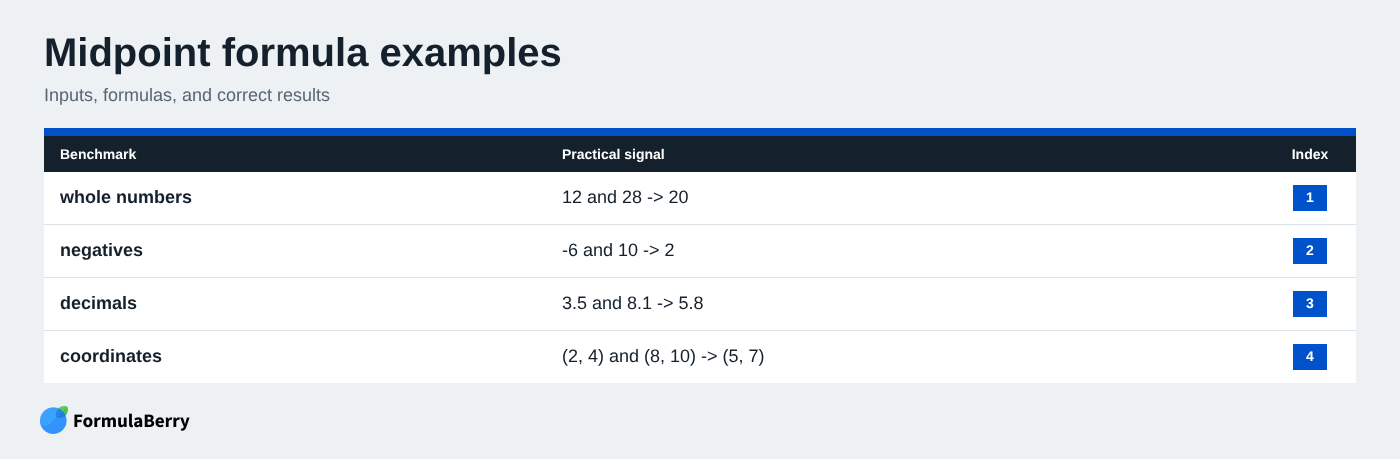
| Inputs | Formula | Expected result | Meaning |
|---|---|---|---|
| A2 = 12, B2 = 28 | =(A2+B2)/2 | 20 | 20 is halfway between 12 and 28. |
| A2 = -6, B2 = 10 | =AVERAGE(A2,B2) | 2 | Negative values work normally because Excel averages both endpoints. |
| A2 = 3.5, B2 = 8.1 | =(A2+B2)/2 | 5.8 | The midpoint can be a decimal even when you expect a rounded answer. |
| A2 = March 1, B2 = March 11 | =AVERAGE(A2,B2) | March 6 | Format the result as a date to display it correctly. |
| (2, 4) and (8, 10) | =(A2+C2)/2 and =(B2+D2)/2 | (5, 7) | Average the x-values separately from the y-values. |
Use the right midpoint formula for your spreadsheet
For a standard midpoint between two numbers, use =(A2+B2)/2 or =AVERAGE(A2,B2). For coordinates, average the two x-values together and the two y-values together. Use MEDIAN only when you need the middle value from a dataset, not the center between two endpoints.
Once your cell references and formatting are correct, midpoint formulas are easy to copy across a full worksheet. If you need help converting a spreadsheet request into the right Excel or Google Sheets formula, try FormulaBerry.