
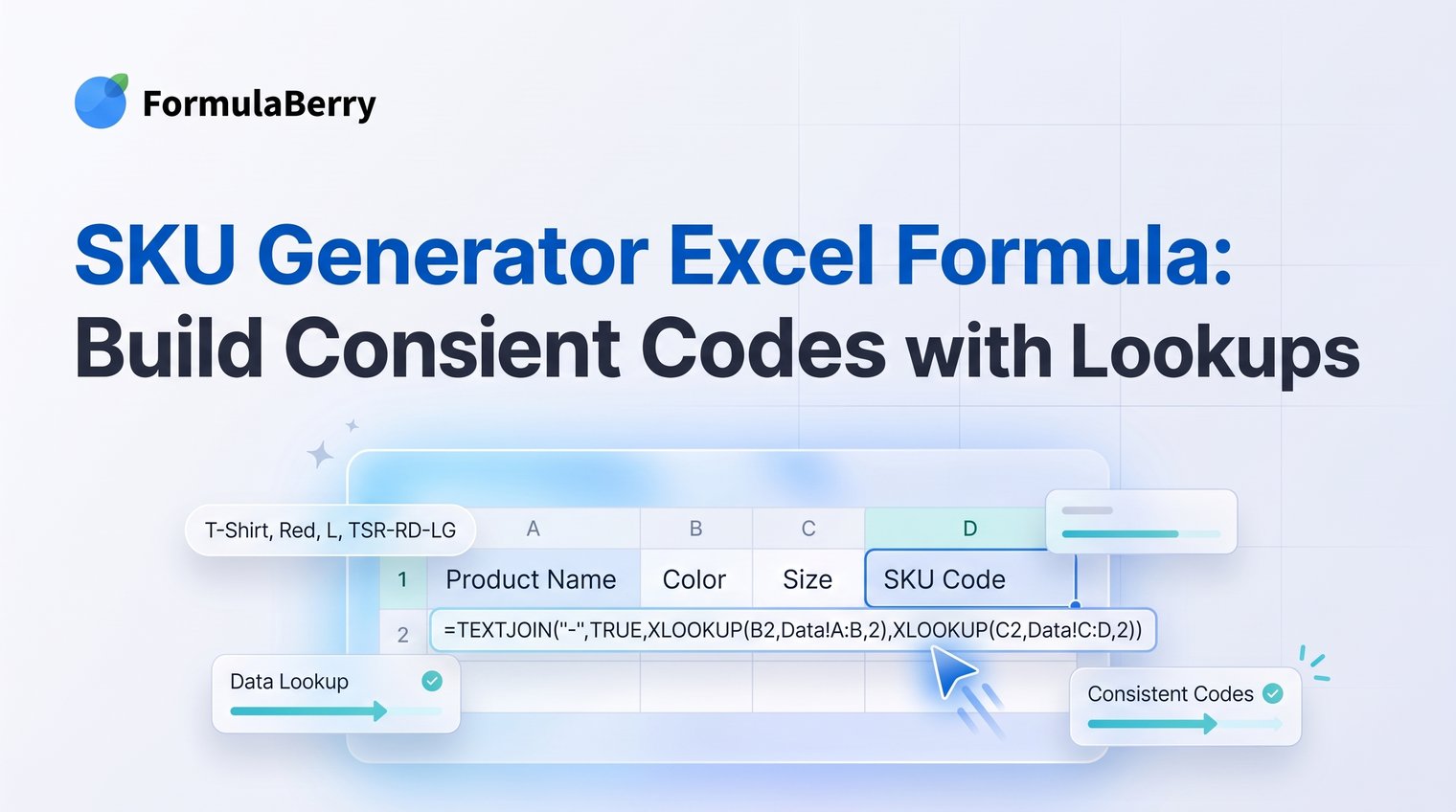
A SKU formula can save hours of cleanup, but only if the SKU pattern is designed before you start concatenating cells. A code like TSH-ACME-BLU-M-001 is useful because every segment has a clear job: product type, brand, color, size, and a stable sequence.
This walkthrough uses an illustrative apparel catalog, but the same SKU generator Excel formula approach works for electronics, handmade goods, office supplies, and most other product lists. The formulas work in both Microsoft Excel and Google Sheets. If you need help adapting a formula to a different layout, see the Excel Formula Generator: Create, Explain, and Fix Formulas.
One important distinction: a formula can assemble an identifier from product attributes, but it cannot guarantee uniqueness if two products share the same attributes. That is why a dependable SKU workflow includes controlled codes and duplicate checks.
A practical SKU formula that turns product attributes into consistent codes
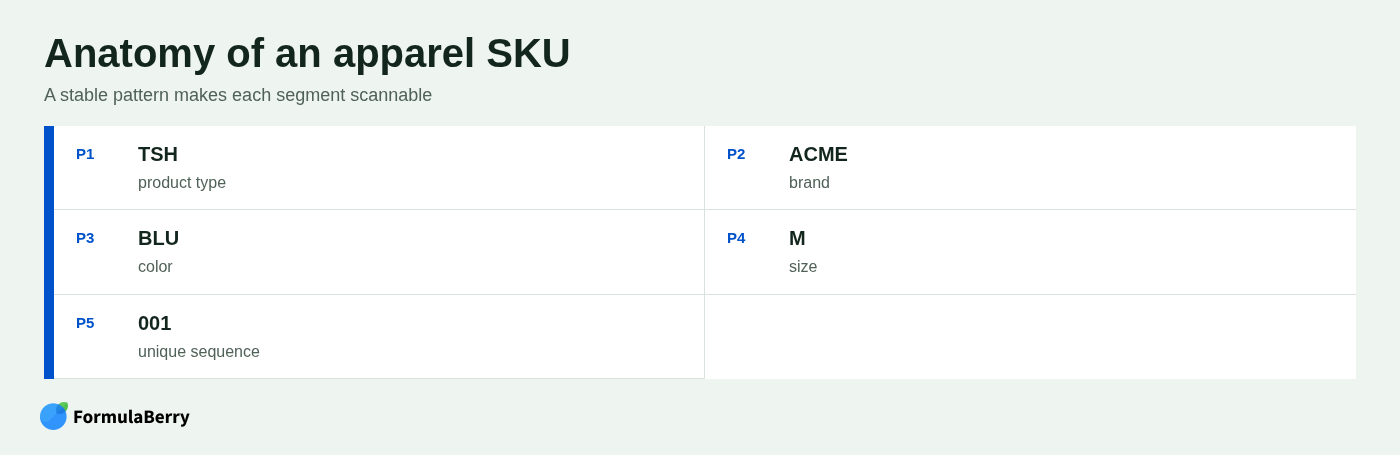
The completed SKU format in this example is:
TSH-ACME-BLU-M-001
- TSH = product category, such as T-Shirt
- ACME = brand code
- BLU = color code
- M = size
- 001 = assigned sequence number
That structure is readable at a glance and easy to split, filter, or match later. It also avoids a common spreadsheet problem: one person enters tee-blue-medium, another enters TS_ACME_B, and a third uses a slightly different format that breaks inventory imports or lookups.
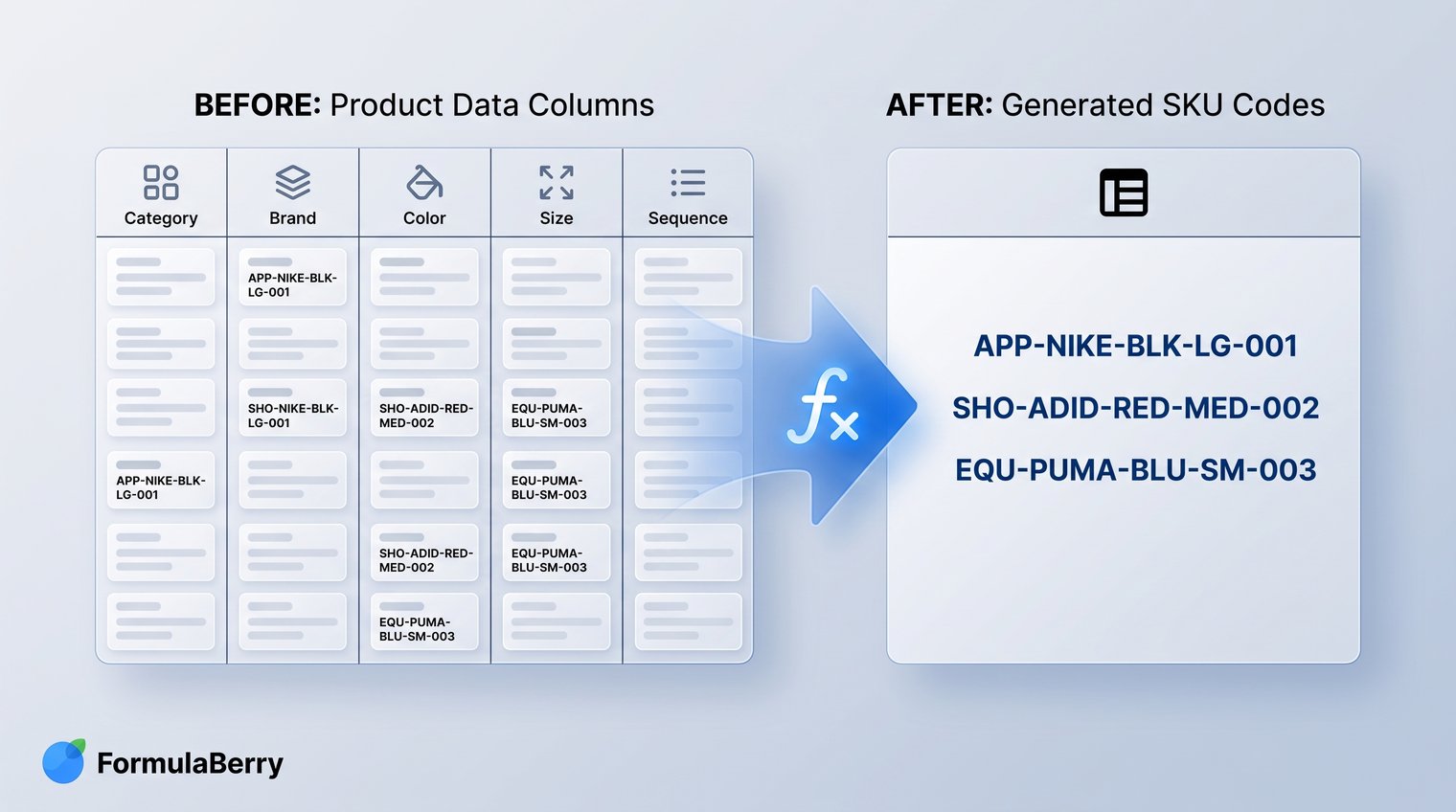
The case: building SKUs for a growing apparel catalog
Imagine a small retailer expanding from a few dozen products to a catalog with shirts, hoodies, hats, and accessories. The product sheet has columns for product type, brand, color, size, and item number. At first, employees typed SKUs manually because it seemed faster than setting up a formula.
That approach worked until the catalog had to support filtering, inventory reviews, fulfillment, and uploads to an ecommerce platform. The challenge was not simply generating text. It was making every item follow the same rule.
Before: inconsistent manually entered product codes
Here are representative examples of how one product family can end up with inconsistent codes:
| Product | Manually entered SKU |
|---|---|
| Acme T-Shirt, Blue, Medium | tee-blue-medium |
| Acme T-Shirt, Blue, Medium | TS_ACME_B |
| Acme T-Shirt, Blue, Medium | TSH-Blue-M |
These codes may look understandable to the person who created them, but they are unreliable data. Searching for all blue products becomes harder because color may appear as Blue, B, or be omitted entirely. Formula-based lookups are also less trustworthy when the source identifier has no predictable shape.
After: one predictable SKU pattern for every row
The catalog owner agrees on a single convention: three-letter category code, brand code, color code, size, then a zero-padded sequence. Every segment appears in the same order, hyphens separate segments, and the finished SKU is uppercase.
Short controlled codes are deliberate. They keep labels compact without forcing staff to guess what a segment means. The sequence is included because two products can otherwise share the same category, brand, color, and size.
Design the SKU pattern before writing the Excel formula
A SKU structure is a business rule first and a spreadsheet formula second. If the rule is unclear, a more complicated formula will only create bad codes more consistently.
Start by deciding which attributes identify a sellable item. Category, brand, color, size, model, and a stable internal number are common choices. Put the fields in a fixed order and choose one delimiter, usually a hyphen, so people and systems can scan the code consistently.
Keep permanent SKUs focused on stable facts. Do not embed changing details such as a price, warehouse bin, promotional collection, or current supplier status. Those values can change frequently, while an established SKU should usually remain intact.
Build the base SKU generator formula step by step
For the examples below, use this layout:
| Column | Field |
|---|---|
| A | Category |
| B | Brand |
| C | Color |
| D | Size |
| E | Sequence number |
Place the generated SKU formula in a separate column, such as F2. Both Excel and Google Sheets support the formulas in this section.
Start with simple concatenation
The most basic SKU generator Excel formula joins each cell with a hyphen:
=A2&"-"&B2&"-"&C2&"-"&D2&"-"&E2
If A2 contains TSH, B2 contains ACME, C2 contains BLU, D2 contains M, and E2 contains 1, the result is TSH-ACME-BLU-M-1.
This is a useful baseline, but it assumes every source cell already contains approved, consistently formatted codes. If one person enters blue and another enters Blue, the formula faithfully preserves the inconsistency.
Standardize text and pad the item number
For a quick standardized version, use:
=UPPER(LEFT(A2,3)&"-"&LEFT(B2,4)&"-"&LEFT(C2,3)&"-"&D2&"-"&TEXT(E2,"000"))
With the values T-Shirt, Acme, Blue, M, and 1, it returns:
TSH-ACME-BLU-M-001
- LEFT(A2,3) takes the first three characters from the category.
- LEFT(B2,4) takes the first four characters from the brand.
- UPPER converts the finished text to uppercase.
- TEXT(E2,"000") displays 1 as 001, 12 as 012, and 123 as 123.
This formula is fine for a tightly controlled list, but it has a serious limitation: first letters are not guaranteed to be unique. For example, Navy and Natural can produce overlapping abbreviations under some patterns, while labels such as Black and Blue may be distinguishable today but not after new colors are added. A growing catalog should use approved lookup codes rather than guessed abbreviations.
For more examples of zero-padding and converting numbers or dates into consistent text, see the Excel TEXT Formula: Format Numbers, Dates, and Times as Text.
Use lookup tables instead of guessing product codes
Lookup tables turn SKU abbreviations into controlled reference data. Instead of allowing a formula to decide that T-Shirt should become T-S or TSH, you define the approved result once and reuse it everywhere.
This also separates display names from SKU rules. You can rename a product category in a customer-facing sheet without casually changing the identifier format used by your inventory system.
Create a category and color code map
Create a separate sheet named Codes. On that sheet, keep small tables for the attributes that need approved abbreviations.
| Category name | Category code |
|---|---|
| T-Shirt | TSH |
| Hoodie | HOD |
| Baseball Cap | CAP |
| Color name | Color code |
|---|---|
| Blue | BLU |
| Navy | NVY |
| Black | BLK |
Keep these maps as controlled reference data. When a new category or color is added, assign its code deliberately rather than relying on someone to choose an abbreviation while entering a new product.
Pull approved codes with XLOOKUP or VLOOKUP
In modern Excel, XLOOKUP is a clear option. If category names are in Codes!A2:A20 and their codes are in Codes!B2:B20, while colors are in Codes!D2:D30 with codes in Codes!E2:E30, use:
=XLOOKUP(A2,Codes!A$2:A$20,Codes!B$2:B$20)&"-"&UPPER(B2)&"-"&XLOOKUP(C2,Codes!D$2:D$30,Codes!E$2:E$30)&"-"&UPPER(D2)&"-"&TEXT(E2,"000")
For older Excel versions and Google Sheets, VLOOKUP is widely compatible:
=VLOOKUP(A2,Codes!A$2:B$20,2,FALSE)&"-"&UPPER(B2)&"-"&VLOOKUP(C2,Codes!D$2:E$30,2,FALSE)&"-"&UPPER(D2)&"-"&TEXT(E2,"000")
Do not hide missing mappings without review. If a new color is not in the color map, an error is useful because it tells you to add an approved code. If you want a clearer message during catalog setup, wrap the lookup:
=IFERROR(XLOOKUP(C2,Codes!D$2:D$30,Codes!E$2:E$30),"UNMAPPED")
A SKU containing UNMAPPED should not be exported. It is a prompt to update the reference table, not a value to work around.
Handle optional attributes without extra hyphens
Not every product has every attribute. A cap may have a color but no size. A digital product may have neither. If the formula blindly adds every delimiter, you can end up with awkward values such as CAP-ACME-BLK--014.
Formula pattern for an optional color or size
In current Excel and Google Sheets, TEXTJOIN is usually the easiest method because it can ignore blank cells. Assuming your approved category and color codes are already in helper cells F2 and G2, use:
=TEXTJOIN("-",TRUE,F2,UPPER(B2),G2,UPPER(D2),TEXT(E2,"000"))
The TRUE argument tells TEXTJOIN to ignore empty cells. If G2 is blank because the product has no color, that segment and its extra hyphen disappear automatically.
You can also use IF statements when you need to keep everything in one formula:
=F2&"-"&UPPER(B2)&IF(G2<>"","-"&G2,"")&IF(D2<>"","-"&UPPER(D2),"")&"-"&TEXT(E2,"000")
TEXTJOIN is generally easier to maintain when several fields might be optional. The IF approach is useful when the order or inclusion rule is more specific.
Make sure every generated SKU is actually unique
Formatting and uniqueness are different jobs. A perfectly formatted SKU can still be duplicated if two rows contain the same category, brand, color, size, and sequence number.
For some catalogs, a combination of attributes is naturally unique. For others, especially apparel with closely related variants, a dedicated sequence number, style ID, or product ID is necessary. Decide which field provides the final distinction before importing the catalog anywhere.
Add a sequence number that stays readable
A padded suffix makes sequential values easier to scan: 001, 002, 003, and so on. But do not use the current spreadsheet row number as a production identifier unless you are certain the sheet will never be sorted, inserted into, or reorganized.
For example, a formula based on ROW() can change the apparent sequence after rows move. Instead, assign a stable item number in its own column and preserve it once the product exists. The SKU formula can then format that stored number with TEXT(E2,"000").
Flag duplicate SKUs before import
Add a helper column beside the generated SKU. If the SKU is in F2, use:
=IF(COUNTIF($F:$F,F2)>1,"DUPLICATE","")
Any row marked DUPLICATE needs review. The issue may be a repeated sequence number, two rows describing the same sellable item, or a collision in the code map. You can also apply conditional formatting using the same COUNTIF logic to highlight duplicates directly in the SKU column.
Resolve those issues before uploading products to an inventory or ecommerce platform. It is much easier to correct a code map in the source sheet than to untangle conflicting product records after import.
Apply the formula across the catalog and preserve the results
Once one row produces the intended SKU, fill the formula down the catalog. In Excel, converting the source range into a Table can make this easier because formulas generally carry into new rows automatically. In Google Sheets, drag the fill handle or use an array-based approach when the column rules are settled.
Before relying on the result, test edge cases rather than checking only the first few ordinary products. Review long names, blank colors or sizes, punctuation in brand names, new categories, and products with repeated attribute combinations.
When an external platform requires static SKU values, copy the completed SKU column and paste values into the export file. Do the same before changing source fields that should no longer alter established identifiers. A formula is useful during creation; a fixed value is often safer once the SKU is live in another system.
What changed in the illustrative catalog
Before the cleanup, the catalog contained human-readable but inconsistent labels. They were difficult to filter reliably, and they gave no assurance that a new team member would follow the same convention.
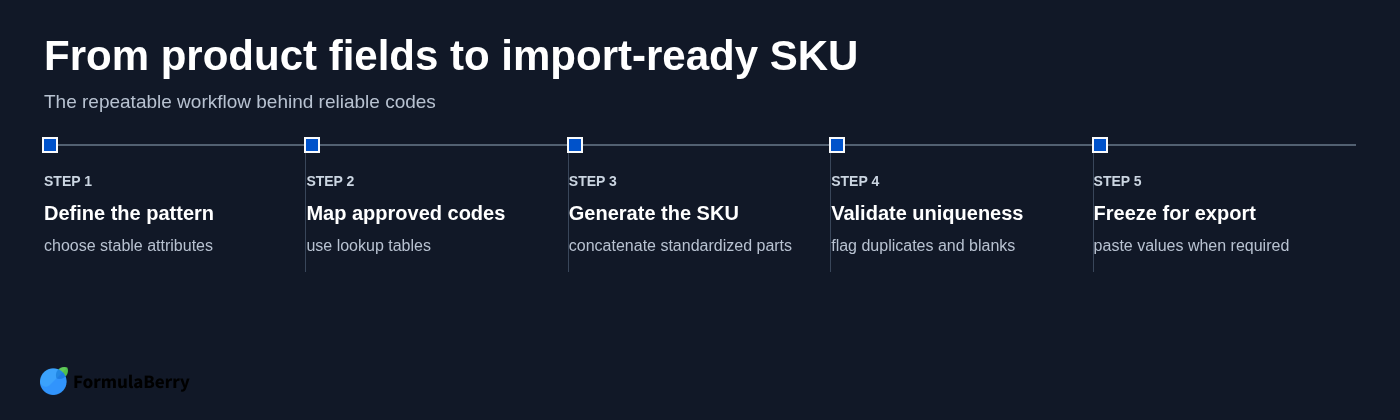
After the workflow was established, each row followed one visible pattern. Product fields fed lookup tables, approved codes were joined into a SKU, blank segments were omitted cleanly, and duplicate checks caught problems before export.
The practical result is not that concatenation became more clever. It is that the catalog now has a repeatable process for turning product data into identifiers that are easier to match, filter, inspect, and import.
Adapt the workflow to your own product catalog
The details of your SKU format may differ, but the workflow should remain consistent:
- Write the SKU rule before building the formula.
- Use stable product attributes, not changing operational details.
- Maintain lookup tables for categories, colors, brands, or other controlled codes.
- Omit blank segments instead of leaving double delimiters.
- Check for duplicate finished SKUs before export.
- Paste values when the SKU must remain static in another platform.
If your columns, mappings, or optional fields differ from these examples, FormulaBerry can help generate a formula from your sheet layout, explain a formula you inherited, or troubleshoot an error. Describe the columns and the SKU pattern you want, then validate the result on a handful of real product rows before applying it across the catalog.