
A sales report should make it easy to see which products bring in the most revenue. Yet a simple percentage column can turn confusing fast: a result appears as 0.25, a whole-number input turns into 2,500%, or every row starts dividing by a different total.
Most percentage calculations in Google Sheets use ordinary division or multiplication. The important choices are what you divide by, which references stay fixed, and how you display the result. Once those are right, the same patterns work for sales shares, conversion rates, price changes and discounts.
The basic Google Sheets percentage formula
To find what percentage one number is of another, divide the part by the total. If B2 contains 25 completed tasks and C2 contains 100 tasks, enter this in D2:
=B2/C2Select D2 and choose Format > Number > Percent, or click the % button in the toolbar. The result is 25%. You do not need to multiply the formula by 100.
Sheets stores that rate as 0.25. Percentage formatting displays the same value as 25%; it does not change the value used by later calculations. Google's number-formatting guide explains how to apply number formats and adjust their display.
If you type 25 into an ordinary cell and then apply Percent formatting, you get 2,500%. Enter 25% or 0.25 when you mean a rate of 25%. If an imported column genuinely stores rates as whole numbers, divide those values by 100 in a helper column before applying Percent formatting. Check the source convention first: a value of 1 might mean 1% or 100%.
You can follow the examples in the QW-002 FormulaBerry Percentage Formulas — Worked Examples. Choose File > Make a copy to experiment with the inputs. The figures below use fictional data.
Calculate each category's percentage of a total
Suppose your sales sheet contains four categories: services, subscriptions, training and other sales. You want each row's contribution to total sales, rather than a separate completion rate for each row.
In the sample's Totals and rates tab, the amounts are in B5:B8. Cell B9 calculates the total:
=SUM(B5:B8)Enter the following in C5, then fill it down through C8:
=B5/$B$9The dollar signs keep the denominator fixed at B9. The numerator changes to B6, B7 and B8 as the formula moves down. For these example amounts, total sales are 4,000 and the shares are 30%, 45%, 15% and 10%.
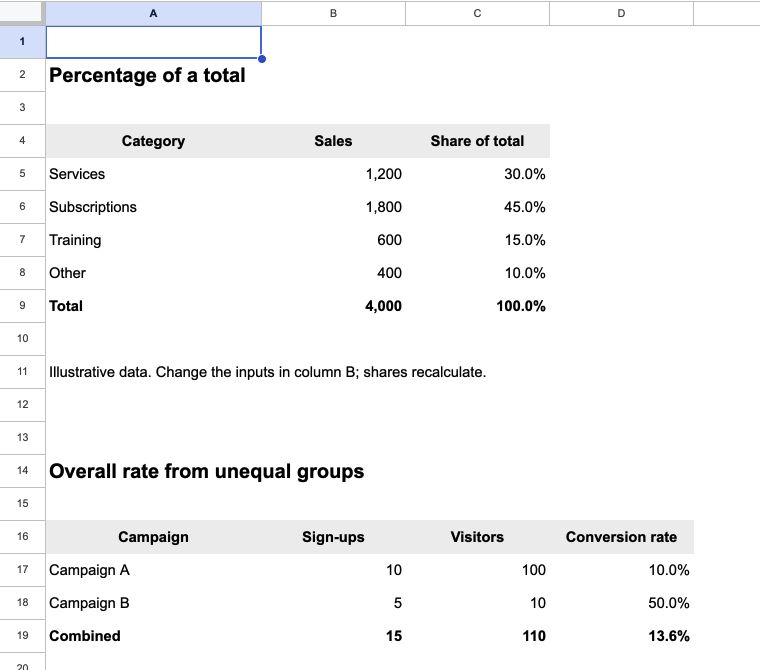
The sales shares add to 100%. The campaign example below them calculates an overall rate from the underlying totals.
Keep the total row outside its own SUM range. Including B9 in the formula entered in B9 creates a circular reference. If you add another category, extend the total's input range and the share formulas to include it.
The same reference pattern works for budget allocations or hours spent on different activities. If the references still move unexpectedly, FormulaBerry's guide to division and fixed references in Google Sheets explains how to copy the calculation safely.
Calculate percentage increase or decrease
A share of total describes one amount relative to a whole. Percentage change answers a different question: how much did a value rise or fall relative to where it started?
Put the old value in B5 and the new value in C5. The calculation is:
=(C5-B5)/B5Format the result as Percent. A change from 800 to 1,000 is 25% because the increase of 200 is divided by the original 800. A change from 1,000 to 800 is −20%. The different starting points explain why reversing the two values does not simply reverse the sign.
Use parentheses around the subtraction. Without them, Sheets divides before subtracting and answers a different question. Also check the denominator: dividing by the new value measures the difference against the ending amount, not the starting amount.
Handle zero and missing starting values
Moving from zero to 200 does not have a finite percentage increase under the usual formula. Showing 0% would imply no change, which is misleading. Show the absolute change or use a clear unavailable marker instead.
The sample's Changes and prices tab uses this version in D5 and fills it down:
=IF(OR(B5="",C5=""),"",IF(B5=0,"n.a.",(C5-B5)/B5))It leaves the result blank when either input is missing, shows “n.a.” for a zero baseline, and calculates the rate otherwise. A genuine new value of zero is preserved: going from 800 to zero returns −100%. These inputs should be numeric; the formula does not clean imported text or hide unrelated errors.
For a negative starting value, the arithmetic still runs, but the result may not describe improvement in a useful way. For example, a loss shrinking from −100 to −50 produces −50% with this formula. Label the absolute change and explain the metric before presenting a percentage as growth.
Work out a discount amount and the final price
A discount rate and a discounted price are different outputs. If the original price is 80 and the discount is 15%, the discount amount is 12 and the final price is 68.
In the sample, B17 contains the original price and C17 contains the discount rate, entered as 15%. To calculate the amount taken off, use:
=B17*C17To calculate the price after the discount, use:
=B17*(1-C17)Format these results as ordinary numbers or currency. They are amounts, so Percent formatting would make them harder to interpret.
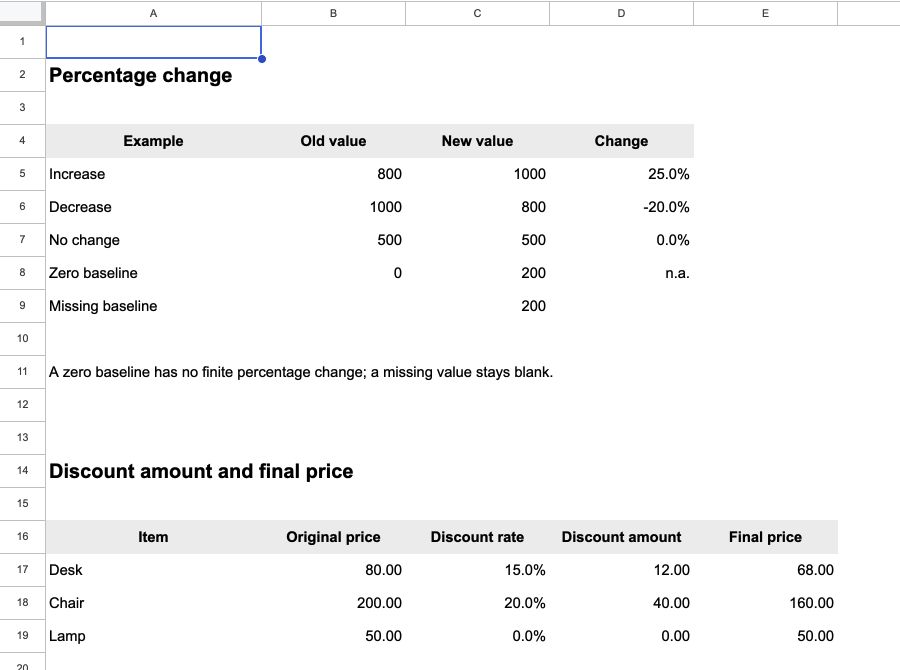
The sample separates a 15% discount on 80 into a discount amount of 12 and a final price of 68.
To increase a price by the rate in C17, change the subtraction to addition:
=B17*(1+C17)Here the result is 92. If you know the discounted price in E17 and want to recover the original price, divide by the fraction that remained:
=E17/(1-C17)For 68 after a 15% discount, that returns 80. This reverse calculation requires a discount below 100%; at 100%, the denominator is zero and the original price cannot be recovered from a zero final price alone.
Tell percentage change apart from percentage points
If a conversion rate rises from 20% to 25%, it has risen by 5 percentage points. Relative to its previous level, it has increased by 25%. Both statements are correct, but they describe different comparisons.
With the old rate in B2 and the new rate in C2, use the standard change formula for relative growth:
=(C2-B2)/B2To report the difference as a number of percentage points, use:
=(C2-B2)*100Keep this result in Number format and label the column Change in percentage points. This is one situation where multiplying by 100 is intentional: the output is the number 5, not a rate intended for Percent formatting.
Calculate an overall rate from unequal groups
An average of percentage cells can answer the wrong question when those percentages represent groups of different sizes.
The sample has 10 sign-ups from 100 visitors in Campaign A, a 10% rate. Campaign B has 5 sign-ups from 10 visitors, a 50% rate. Their simple average is 30%, but the combined conversion rate is 15 sign-ups divided by 110 visitors: approximately 13.6%.
The Totals and rates tab adds the sign-ups in B19 and visitors in C19, then calculates:
=B19/C19Use matching totals from the same population and period. Averaging the two row rates gives each campaign equal weight; dividing the totals gives each visitor equal weight. Choose the calculation that matches the question you need to answer.
For situations where each observation should have equal weight, FormulaBerry's guide to average formulas in Google Sheets covers AVERAGE, conditional averages and filtered results.
Check the inputs before changing a working formula
When a result looks wrong, a few checks usually reveal the cause:
- A result is 100 times too large: remove an unnecessary multiplication by 100, or correct whole-number inputs such as 25 where the intended rate is 25%.
- Every copied row looks different in the wrong way: check that a shared total uses a fixed reference such as $B$9.
- The sheet shows #DIV/0!: inspect the denominator for zero or missing data. Decide what an unavailable percentage should look like instead of replacing every error with zero.
- Rounded shares do not add to exactly 100%: show more decimal places before changing the formula. Display rounding can make correctly calculated shares appear to total 99.9% or 100.1%.
Start with a small example you can calculate by hand, then copy the formula through your data. If your layout combines several conditions, describe the columns and intended denominator in FormulaBerry's Google Sheets formula generator. A specific request such as “divide each category's sales by the fixed total in B9” is easier to check than “calculate percentages.”